

How to track field staff and attendance across multiple sites in India
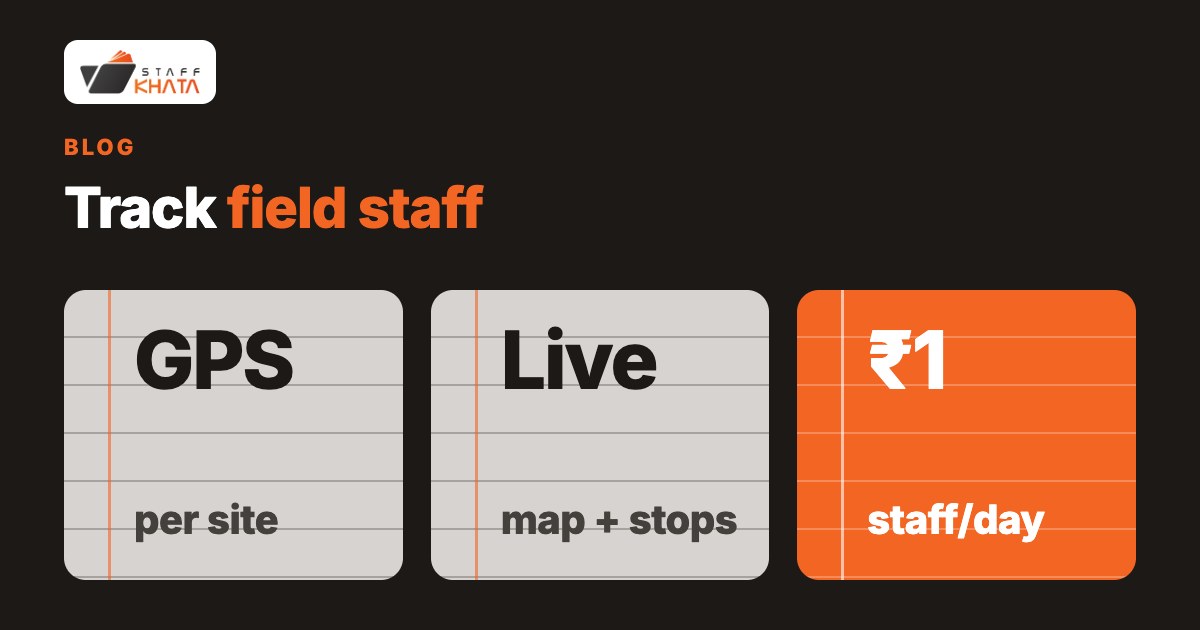
To track staff across multiple sites in India, use branch-wise geo-fenced attendance for people working at fixed locations, and live journey tracking for people who travel between customers. Staff Khata Growth provides selfie + GPS punches with a geo-fence per branch. Pro HRMS includes live field tracking, customer stops, distance and route replay. A Realtime biometric machine at each fixed site is another option. Choose the setup by where staff work and what you need to check.
By Staff Khata. Published 19 November 2026.
Which attendance setup fits fixed sites and moving field staff?
Start with the question you want answered. For a guard at a security post or a worker at a construction site, it may be: did this person punch at the assigned workplace? For a salesperson or service technician, it may be: where did the journey go, and which stops were recorded?
A GPS attendance punch records a moment. Journey Tracker records a trip. Growth has no live tracking, so a punch map should not be treated as a live view of staff travelling during the day.
| Work pattern | Suggested setup | What to review |
|---|---|---|
| Staff based at shops, construction sites or security posts | Growth: selfie + GPS punch, with each branch's own geo-fence | Punch-in and punch-out locations and photos |
| Staff who punch at a fixed entrance | Realtime biometric machines at the sites | Attendance punches sent over the internet |
| Field sales and service staff travelling between customers | Pro HRMS: live journey tracking included | Live map, recorded stops, distance and route replay |
For the full app comparison, use field staff tracking apps in India. Here, the focus is setting up your own mix of site staff and travelling staff.
How do I set up site-wise attendance with a geo-fence per branch?
Use branches to represent your fixed workplaces. Name them clearly so the owner and site supervisor can recognise the location when reviewing attendance.
- Add the locations. Open Organization → Branch. Edit the existing branch or choose Add branch. Enter the branch name, code and address.
- Set each geo-fence. Turn on Geo-fencing, place the map pin at the workplace, and set its radius. Save the branch.
- Enable the company rule. Under Organization → Company → Attendance Rules, enable geo-fencing. Choose Branch-wise Rule and select the branches in Apply to Branches.
- Check employee settings. Choose the employee's branch and check Enforce geo-fencing. Enable mobile punch for staff using their phones.
- Try the punch at the workplace. Staff sign in, allow camera and location access, take a selfie and punch in. With geo-fencing enforced, an outside punch is refused with “Outside Allowed Radius”.
Review records under Time & Leave → Attendance Process → GPS punches. Open a punch to see its check-in and check-out locations and photos. The branch switcher lets you view a branch or all branches together.
For staff moving to another site, check their branch and attendance settings before expecting the same punch arrangement to work there. The punch is checked against the geo-fence of the employee's own branch, so creating several branches does not let everyone punch at every site. See the GPS attendance feature page for full feature details.
When should I use Realtime biometric machines at multiple sites?
Choose this approach for staff punching at a fixed entrance, including those who will not use a phone for attendance. Realtime biometric machines send punches to Staff Khata over the internet without a local PC or static IP.
Connect the machine to the internet, add it under Device Setup → Manage Devices, and send the relevant employees to it through Users Synchronization. Check employee device assignments and enrolment before asking them to punch.
You can switch mobile punch on or off per employee. Keep site staff who use machines on that method, while enabling phone punches for staff who need them. Confirm your required machine connections before choosing a plan.
How do I track field sales staff live location and customer stops?
Use Pro HRMS when you need the journey between workplaces or customers. Under Organization → Company → Journey Tracker, enable the live location feed, choose the location update interval and save. You can enable Start Journey on Punch-In for all departments or selected departments, or let employees start journeys by hand.
In the app, the employee opens Journeys and taps Start Journey. At a customer, Add Checkpoint attaches the location automatically. Staff can add a note and attach bills, receipts or photos, then save the stop. When work is done, they tap End Trip.
On the web, open Journey Tracker → Live Locations to see everyone with a running journey on one map. Open an individual journey for its activity timeline. Afterward, View route shows the trip with numbered stops and lets you replay it. Journey history includes distance and the duration of drives and stops.
Explain the start and end routine to staff. Location is sent only while a journey is running; ending the trip stops tracking. If someone forgets, you can end it from the web app. Follow the Journey Tracker guide for the operating steps.
Does Staff Khata detect fake GPS?
Yes. Staff Khata detects fake-GPS (mock location) apps on selfie + GPS attendance punches. During journey tracking on Android, trips where the phone reports a mock location are flagged as well.
For site attendance, review the selfie and punch map. For travelling staff, review the recorded route and checkpoints. Use the evidence for the question it answers, and investigate a flag rather than treating it as a complete account of the day's work.
What does attendance and field tracking cost?
- Starter: ₹0. Up to 50 staff, with 1 Realtime biometric machine connection, attendance and daily report. No employee app or payroll.
- Growth: ₹0.50 per employee per day, or ₹15 per month. Selfie + GPS punch and branch geo-fencing. No live tracking.
- Pro HRMS: ₹1 per employee per day, or ₹30 per month. Live field tracking is included, alongside attendance, payroll and HR tools.
Prices exclude GST. There is a 15-day free trial with no credit card required. Check pricing before selecting your plan.
Who is this for, and who is it not for?
A fit: owners managing fixed workplaces alongside sales or service staff on the road. Use site attendance for the first group and journey records for the second. The construction, security agency and field sales pages explain the relevant workflows.
Not enough on its own: Growth if you require live routes; phone punching for staff who will not use smartphones. This setup is also not evidence that every recorded customer stop resulted in a sale or completed service. Review the checkpoint notes alongside your normal work records.
Frequently asked questions
Can each site have a different geo-fence?
Yes. Each branch can have its own location and radius. Enable the company Branch-wise Rule and check employee geo-fencing settings.
Does Growth show staff moving on a live map?
No. Growth provides selfie + GPS attendance punches. Live field tracking is included in Pro HRMS.
Can I replay a field employee's route?
Yes. Open the journey and choose View route to see the trip and replay its recorded route.
Can I use phones for some staff and machines for others?
Yes. Mobile punch can be enabled or disabled per employee. Use Realtime biometric machines for staff assigned to machine punching.
More from StaffKhata
 Nov 23, 2026 • 1 min read
Haziri aur tankhwah ka hisaab: 20 कर्मचारियों के लिए हाज़िरी और सैलरी ऐप
फ़ोन से सेल्फ़ी + GPS हाज़िरी, उसी से सैलरी, और पूरा ऐप हिंदी में। 20 कर्मचारियों के लिए Growth प्लान ₹300 महीना, GST अलग।
 Nov 23, 2026 • 6 min read
Leave management for a small business: leave types, balances and approvals
Define leave types with carry-forward and approval rules, see allowed, used and left for each employee, and approve requests from the app in one click.
 Nov 23, 2026 • 6 min read
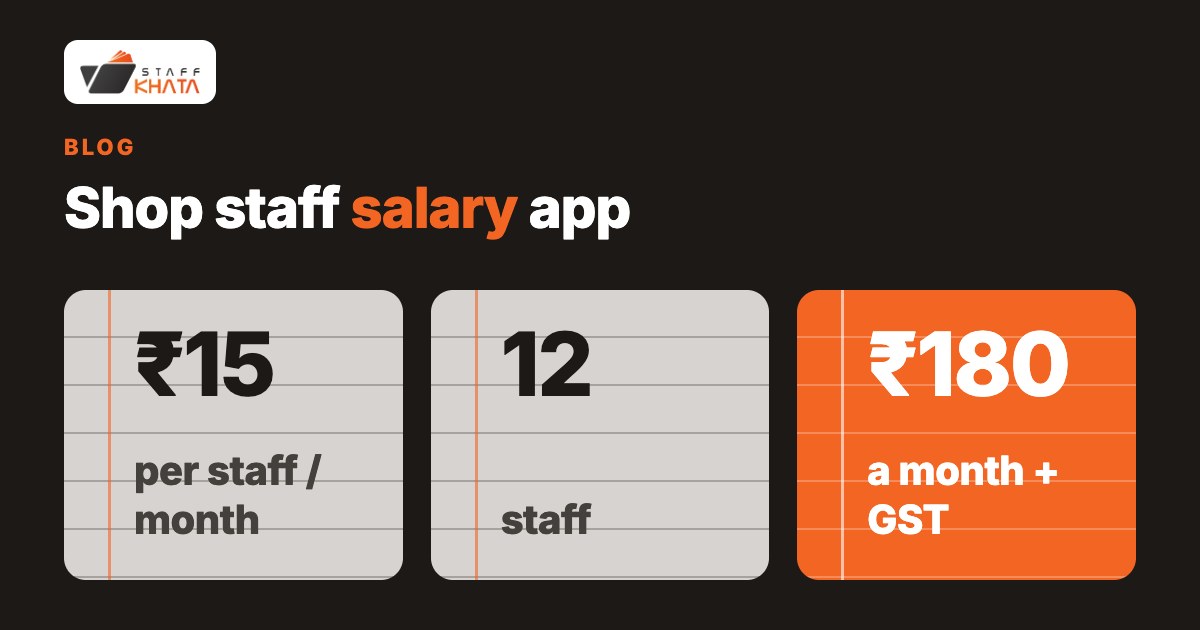
Attendance and salary app for a shop with 12 staff: setup and cost
Selfie + GPS punch at each shop, salary worked out from attendance, and payslips for 12 staff at ₹180 a month on the Growth plan before GST.