
Connect a Realtime biometric machine
Plan: All plans
Staff who punch at the door can use a Realtime biometric machine. Once it is connected, every fingerprint or card punch reaches Staff Khata within seconds.
Note: Staff Khata works with Realtime biometric machines only.
Point the machine at Staff Khata
The machine sends punches over the internet, so it needs your server address first.
- Click Device Setup → Manage Devices.
- Click How to connect. The box lists the steps and the server addresses.
- Connect the machine to the internet (LAN or Wi-Fi) and power it on.
- On the machine, open Menu → Comm. (or Cloud Service). You may need the admin PIN.
- Enter the server address for your machine type, save, and restart the machine:
| Machine type | Server address |
|---|---|
| WebSocket machines | wss://machine.staffkhata.com |
| FK Web (HTTP) machines | http://device.staffkhata.com |
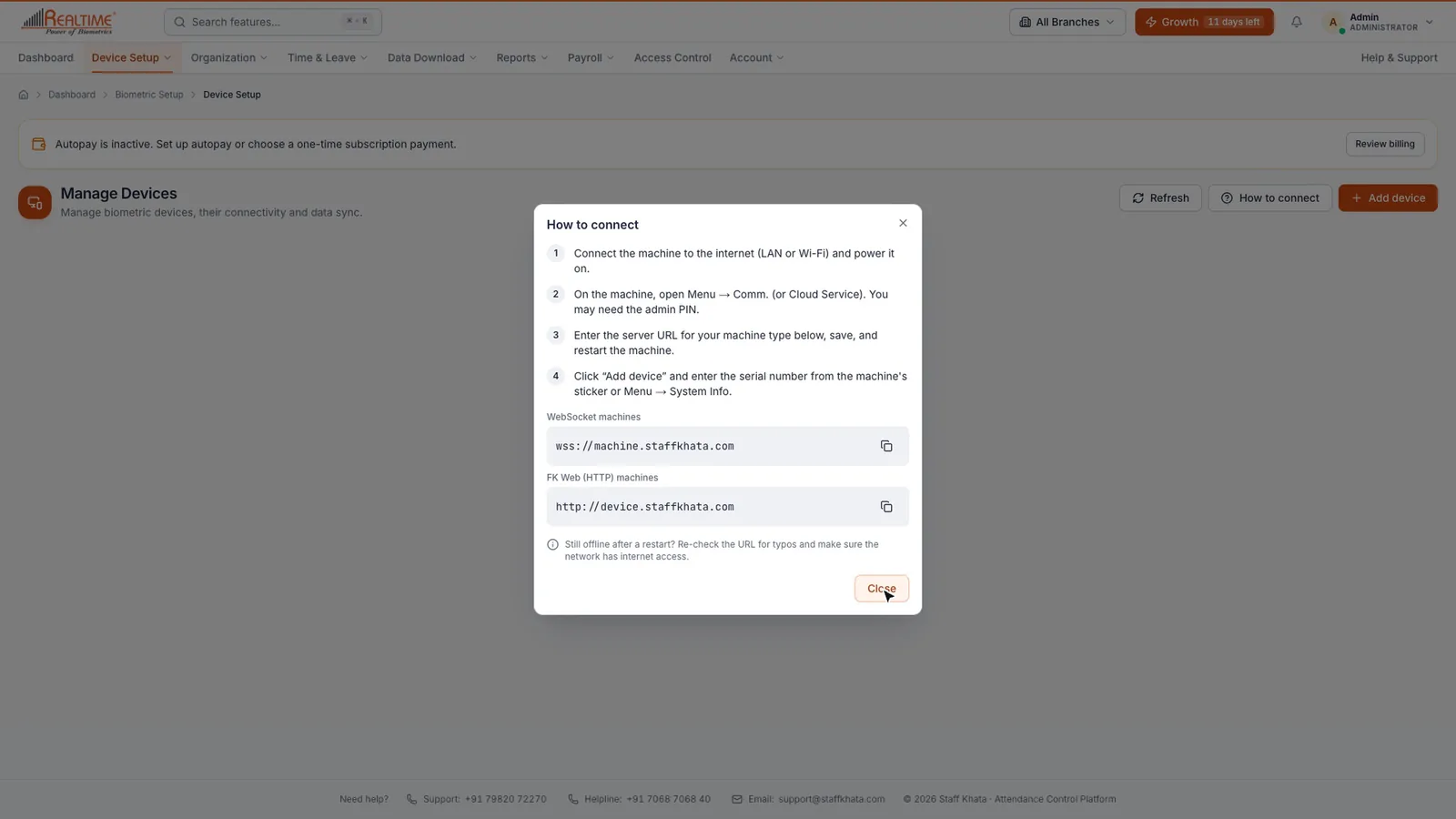
Tip: Click the copy icon next to an address to copy it. Still offline after a restart? Check the address for typos and make sure the network has internet access.
Add the machine by serial number
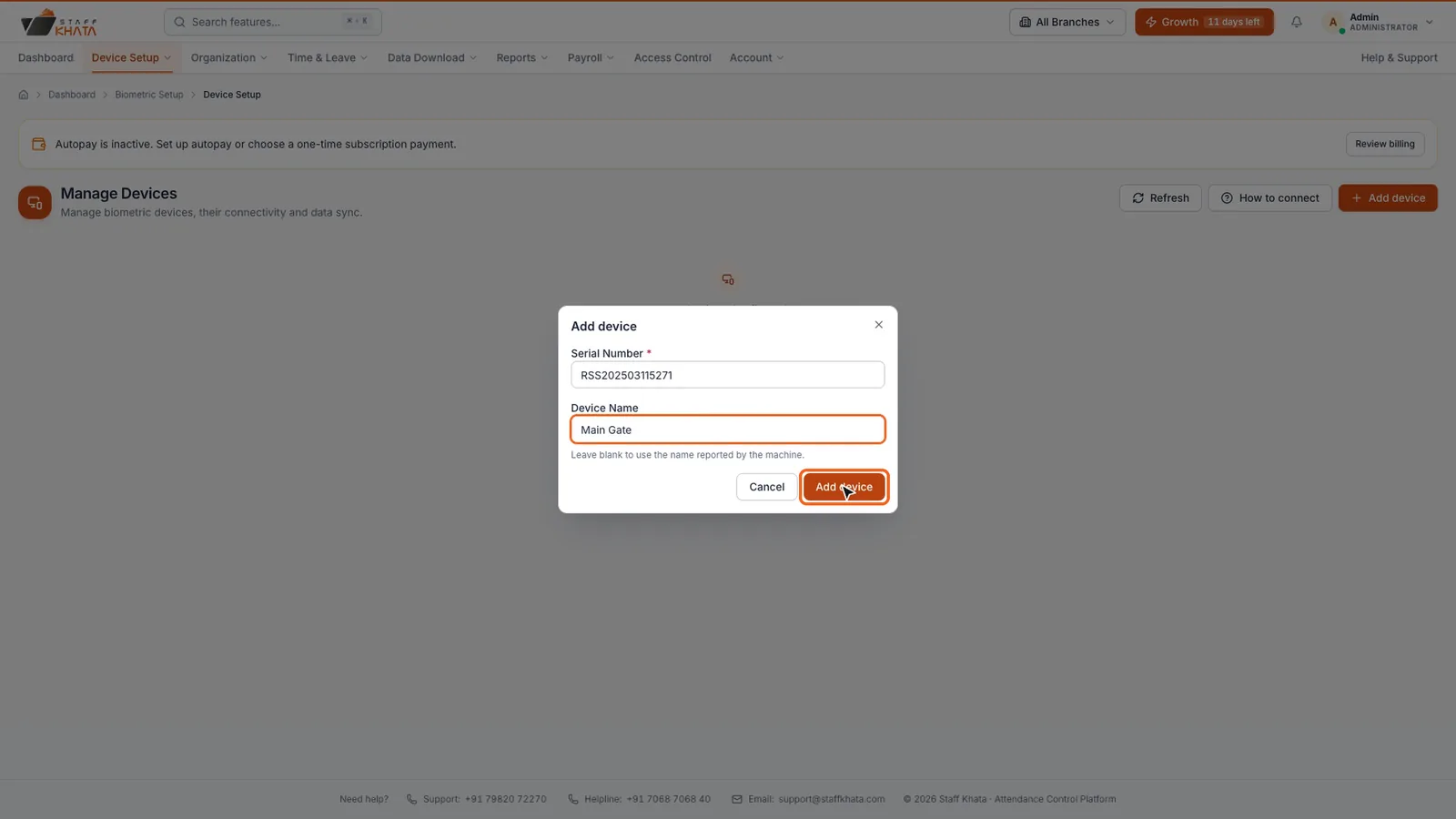
- On Manage Devices, click Add device.
- Enter the Serial Number from the sticker on the machine, or from Menu → System Info on the machine.
- Enter a Device Name, such as "Main Gate". Leave it blank to use the name the machine reports.
- Click Add device.
The machine appears in the list. Its status shows Online when Staff Khata has heard from it in the last 5 minutes, and Offline otherwise.
If the serial number is refused, the machine is either already added or has not reached the server yet. Finish the connection steps and try again.
From a machine's ⋯ menu you can Manage Device (its users, settings and remote actions), Edit its name, or Delete it.
Send employees to the machine
A machine only lets people punch who are stored on it.
- Click Device Setup → Users Synchronization. If you have more than one machine, pick it at the top.
- Open Send to device. Choose Missing on this device to list everyone who is not on the machine yet, or Never synced anywhere for employees who have never been sent to any machine.
- Click Send to device, then confirm.
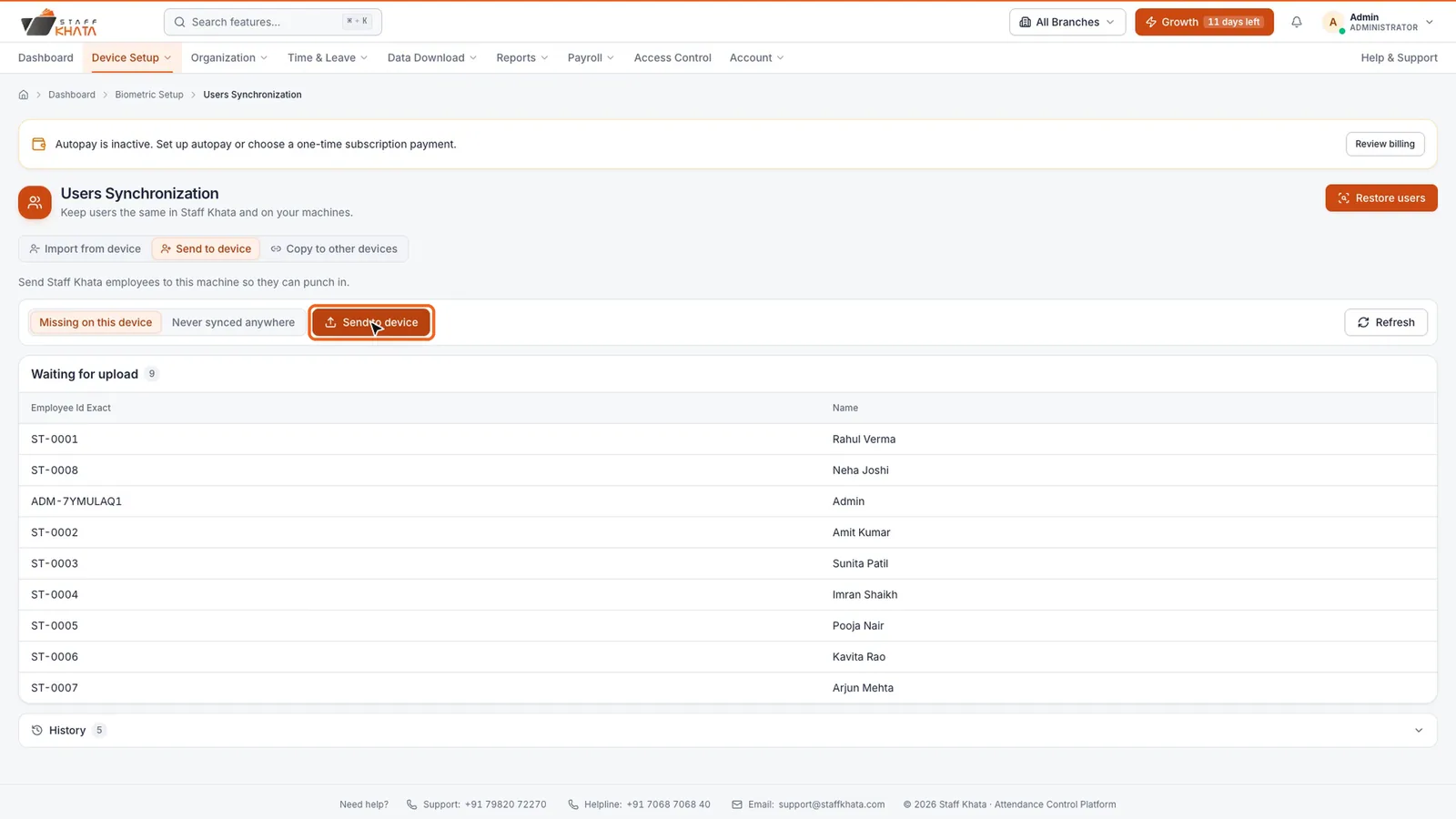
The other tabs help when you start with a machine that already has users. Import from device brings its users into Staff Khata, and Copy to other devices copies them to another online machine.
To check who can punch on a machine, open Manage Devices, click ⋯ → Manage Device, and open the Users tab. Every machine user is linked to their employee in Staff Khata.
Enrol a fingerprint or card
The machine must be online for this.
- Click Organization → Employee List.
- Click ⋯ on the employee's row and choose Biometric enrollment.
- Pick the Biometric Device. Under Step 1, the employee is registered on the machine with a Machine User ID. If they are not on it yet, click Sync Employee to Device.
- Under Step 2, choose Fingerprint or RFID Card.
- Click Start Live Fingerprint Scan, then ask the employee to place the same finger on the machine three times (or tap their card).
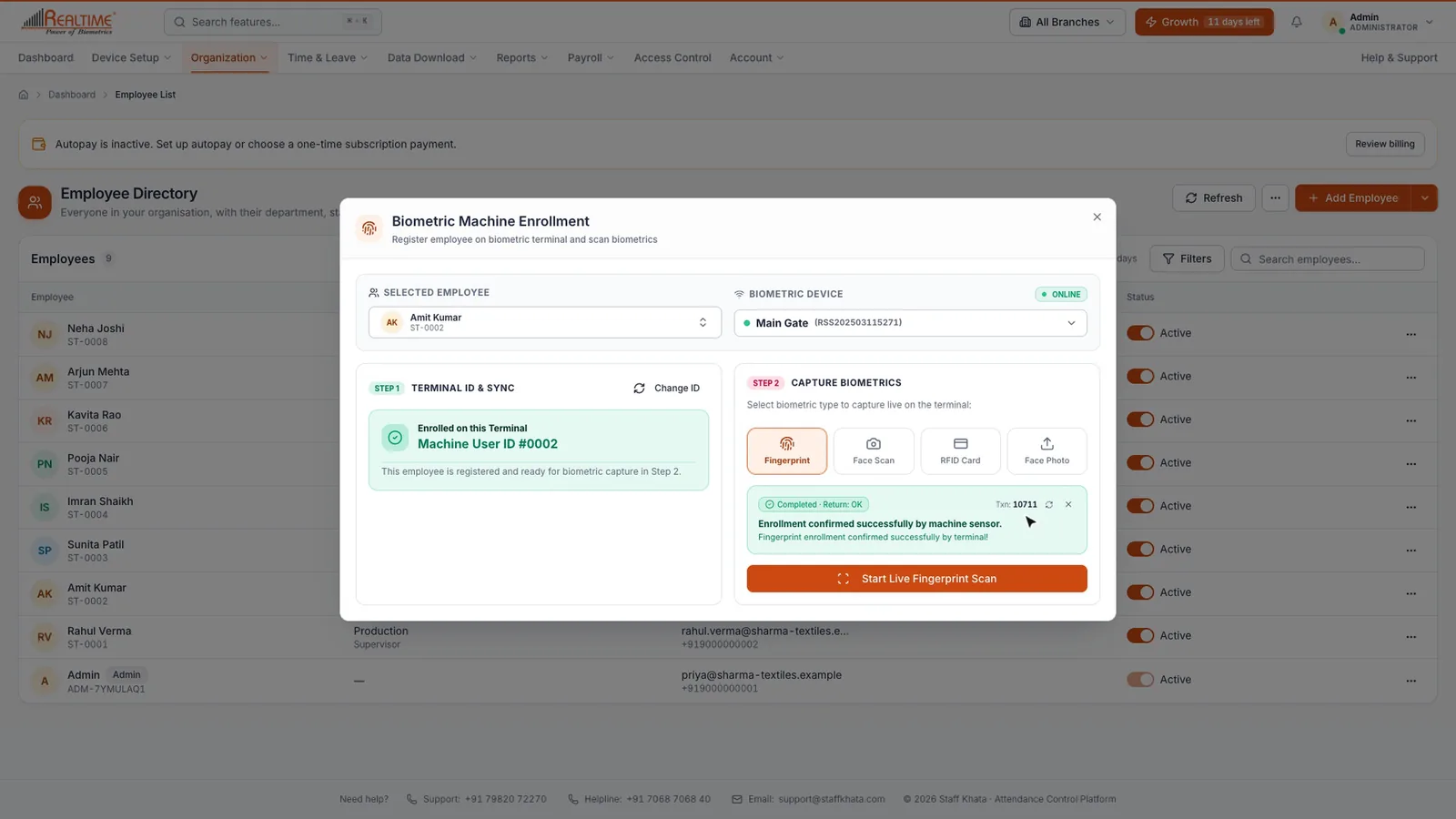
When the machine confirms, the employee can punch. Each punch shows up as a live notification on your dashboard.
Download punches the machine stored
If a machine was offline for a while, it keeps its punches. Pull them in once it is back online.
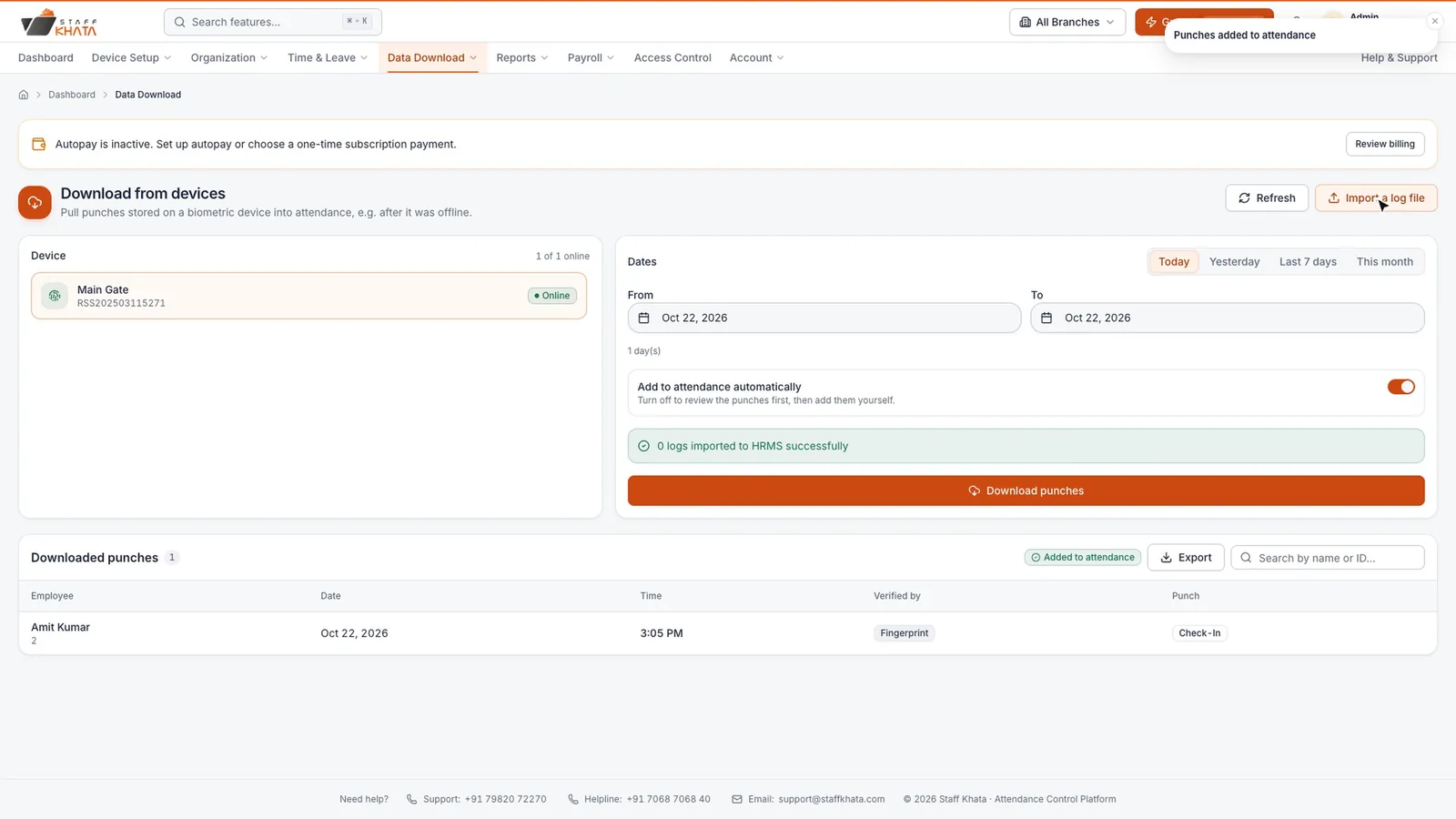
- Click Data Download → Download data from Devices.
- Pick the device under Device.
- Choose the dates: Today, Yesterday, Last 7 days, This month, or set From and To. You can download up to 90 days at a time.
- Leave Add to attendance automatically on, or turn it off to review the punches first.
- Click Download punches.
Import a machine log file
If the machine cannot go online, export its punch log over USB and import it.
- Click Data Download → Import Biometric Machine Logs.
- Under Select Machine Log File, pick the file (.txt, .csv or .tsv) and click Upload & Preview Logs.
- Check the preview. Mapped users are matched to employees; Unmapped user IDs are not linked to anyone yet.
- Set the From date and To date for which attendance should be calculated.
- Click Confirm & Import Attendance.
Plan needed: Data Download and importing machine logs are part of advanced reports, which can be locked on lower plans. Adding machines, syncing users and enrolment work on every plan.
Still stuck? Raise a ticket from Help & Support inside the app, or contact us at staffkhata.com/contact.