

Excel attendance sheet with salary calculation: formulas and when to switch
An Excel attendance sheet with salary calculation can work for a small business if attendance is entered correctly and the pay rules are clear. Count the paid days, divide monthly salary by your chosen divisor, then multiply the daily rate by paid days. Add overtime separately. When copying formulas, checking late marks and reconciling leave become the main work, an attendance app is worth considering.
By Staff Khata. Published 19 November 2026.
How do I lay out a monthly attendance register in Excel?
Keep attendance inputs and salary calculations separate. Use one employee per row, with a dated column for each day of the month. Put the salary, divisor and attendance totals beside the daily marks so you can follow the calculation.
For this example, use a 30-day month. Define P as a full present day, A as an unpaid absence, H as a half-day paid at half the daily rate, and L as approved paid leave. These are the sheet's chosen meanings, not universal attendance codes. Record paid holidays and weekly offs separately if they apply; do not label them as attendance just to make the totals match.
- A: employee; B: days in month; C: monthly salary; D: chosen salary divisor.
- E:AH: daily P/A/H/L marks for this 30-day example.
- AI:AL: present days, absences, half-days and paid leave days.
- AM:AO: paid days, per-day rate and attendance-based salary.
- AP:AS: approved overtime hours, overtime hourly rate, overtime pay and salary plus overtime.
Keep a written key beside the sheet. If L includes unpaid leave in your business, split paid and unpaid leave before using the formula below. A blank should remain an unresolved entry until checked.
What is the attendance sheet in Excel with salary formula?
For the employee on row 2, enter these formulas in the indicated cells. COUNTIF counts each daily mark. The paid-days formula assumes every L is approved paid leave and every H is a paid half-day.
AI2 (present days) =COUNTIF(E2:AH2,"P")
AJ2 (absent days) =COUNTIF(E2:AH2,"A")
AK2 (half-days) =COUNTIF(E2:AH2,"H")
AL2 (paid leave) =COUNTIF(E2:AH2,"L")
AM2 (paid days) =AI2+AK2*0.5+AL2
AN2 (daily rate) =C2/D2
AO2 (attendance-based salary) =ROUND(AN2*AM2,2)
AR2 (overtime pay) =ROUND(AP2*AQ2,2)
AS2 (salary plus overtime) =AO2+AR2
Enter approved overtime hours in AP2 and the applicable hourly overtime rate in AQ2. Keep the daily rate unrounded in AN2 and round the calculated pay amounts to two decimal places. The final cell here is salary plus overtime; add separate columns for any other earnings or deductions your payroll needs.
Before copying the row, add a check cell with this formula. It counts filled entries that are outside the agreed P/A/H/L key:
=COUNTIFS(E2:AH2,"<>",E2:AH2,"<>P",E2:AH2,"<>A",E2:AH2,"<>H",E2:AH2,"<>L")
The result should be zero. Also check that =AI2+AJ2+AK2+AL2 equals B2 for this example. That second check catches missing marks. Adjust the daily range and checks when the month changes; do not keep counting a fixed range without checking its dates.
What is the per-day salary formula in Excel?
The formula is =C2/D2: monthly salary divided by the chosen divisor. Keep days in the month and the divisor in separate cells, even when they happen to match. For guidance on choosing the divisor, read salary deduction for absent days.
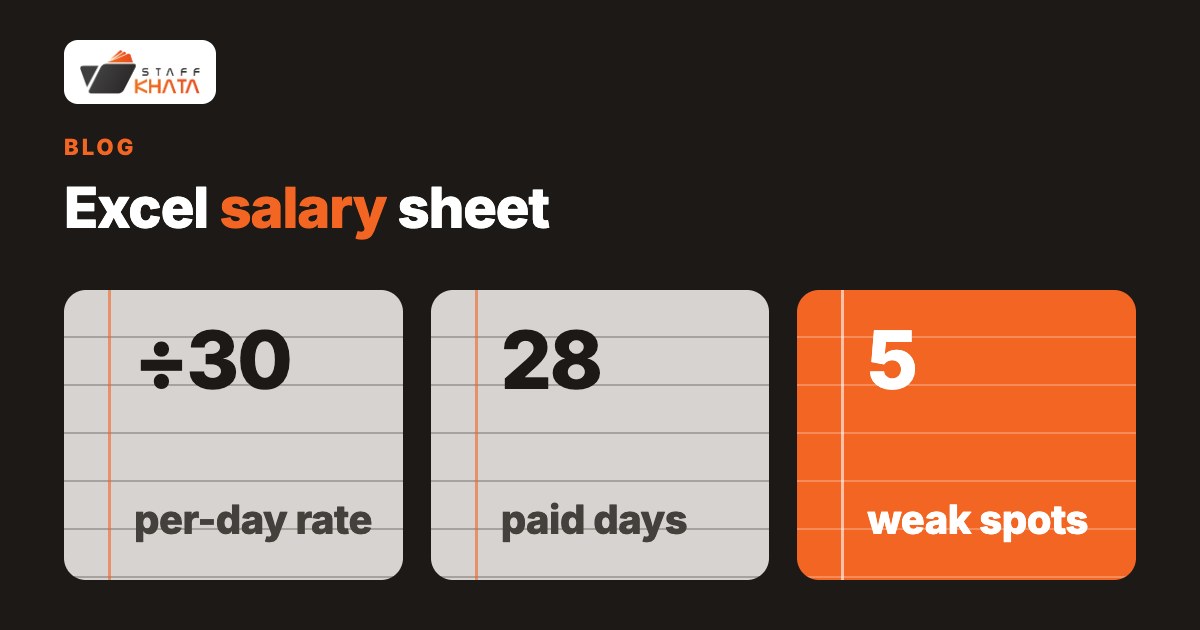
Take an illustrative row with ₹15,600 monthly salary, a 30-day month and a chosen divisor of 30. Enter 28 P marks and 2 A marks, with no half-days, leave or overtime:
Present days = 28
Absent days = 2
Paid days = 28
Daily rate = ₹15,600 / 30 = ₹520
Attendance-based salary = ₹520 × 28 = ₹14,560
Absence deduction = ₹15,600 - ₹14,560 = ₹1,040
This is a worked calculation under the stated assumptions, not a rule for every employee. You can also check the daily rate with the per-day salary calculator.
How do I calculate overtime in Excel?
Multiply approved overtime hours by the applicable hourly overtime rate: =ROUND(AP2*AQ2,2). Keep hours and rate in separate columns so a reviewer can check both. Use numeric hours in AP2 for this formula.
Write down how overtime becomes payable before filling the sheet. Staff Khata's overtime settings support a multiple of hourly pay, a percentage of hourly pay or a fixed hourly amount, with minimum and maximum overtime hours. Overtime and shift rosters are on the Growth plan and above. The time card calculator is another free tool to consult.
Where does an Excel attendance and salary sheet break?
- Typing attendance by hand. The formula works on the marks entered. Check them against the attendance record before calculating salary.
- Proxy entries. A typed P does not prove who attended. A sheet calculates the entry; it does not verify the person behind it.
- Formula drift. Copied rows can reference the wrong cells. Inspect the salary, divisor and daily range after copying, then check a worked row.
- Late and half-day rules. A present-day count alone does not apply grace periods or repeated-late deductions. Staff Khata supports office-time policies, late/early slabs and a configured rule such as 3 lates costing 1 day.
- Overtime and leave balances. A daily L mark does not explain the remaining leave balance. Keep leave approvals and overtime checks alongside the sheet. If you use a sandwich rule, account for it explicitly: Staff Khata's rule counts weekly offs and holidays between two leave days as leave.
Who is this for, and when is an app a better fit?
Excel is for an owner or office manager comfortable maintaining formulas and checking attendance. Keep it while the entries and pay rules remain easy to review.
This simple sheet is not for payroll that needs unattended late-rule calculations, leave-balance tracking or proof of attendance from the daily marks alone. Consider moving when correcting inputs and exceptions becomes the recurring month-end task.
Staff Khata takes punches from Realtime biometric machines or a phone with selfie + GPS, then works out payable days and salary. Reports can be exported to Excel or PDF, so you can still review a sheet. See the full attendance app vs register vs Excel comparison for the broader choice, and salary management app for payroll details.
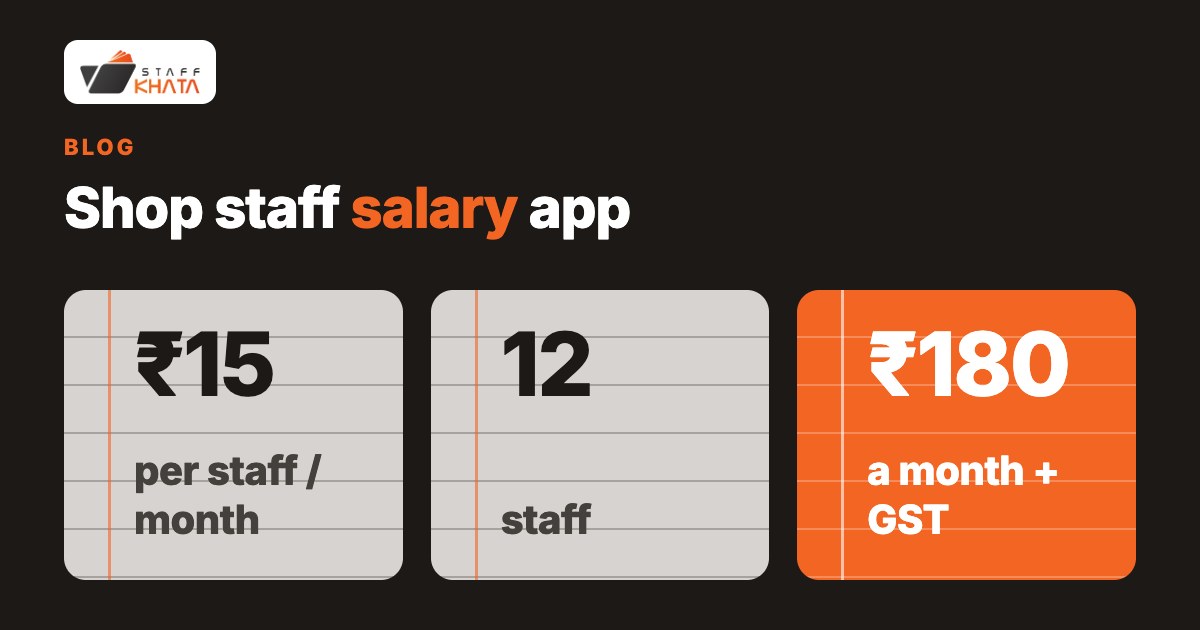
Growth includes payroll and payslips at ₹0.50 per employee per day (₹15 per employee per month). Starter is ₹0 for up to 50 staff with 1 Realtime biometric machine connection, attendance and a daily report; it has no mobile app or payroll. Prices exclude GST. There is a 15-day free trial with no card required. Check pricing before choosing a plan.
Frequently asked questions
Can COUNTIF calculate salary from attendance?
COUNTIF counts marks. Calculate paid days from those counts under your pay rules, then multiply by the daily rate.
Does H mean half-day or holiday?
In this example, H means half-day. Define your own key clearly and use a separate code for holidays.
Is there a downloadable attendance template here?
This guide provides inline formulas. Copy them into your own sheet and check the ranges and assumptions before use.
Can I keep using Excel after moving to Staff Khata?
Yes. Attendance reports support Excel and PDF exports. Payroll and payslips require Growth; Starter does not include payroll.
More from StaffKhata
 Nov 23, 2026 • 1 min read
Haziri aur tankhwah ka hisaab: 20 कर्मचारियों के लिए हाज़िरी और सैलरी ऐप
फ़ोन से सेल्फ़ी + GPS हाज़िरी, उसी से सैलरी, और पूरा ऐप हिंदी में। 20 कर्मचारियों के लिए Growth प्लान ₹300 महीना, GST अलग।
 Nov 23, 2026 • 6 min read
Leave management for a small business: leave types, balances and approvals
Define leave types with carry-forward and approval rules, see allowed, used and left for each employee, and approve requests from the app in one click.
 Nov 23, 2026 • 6 min read
Attendance and salary app for a shop with 12 staff: setup and cost
Selfie + GPS punch at each shop, salary worked out from attendance, and payslips for 12 staff at ₹180 a month on the Growth plan before GST.