

Daily attendance report on WhatsApp: setup and checks for owners
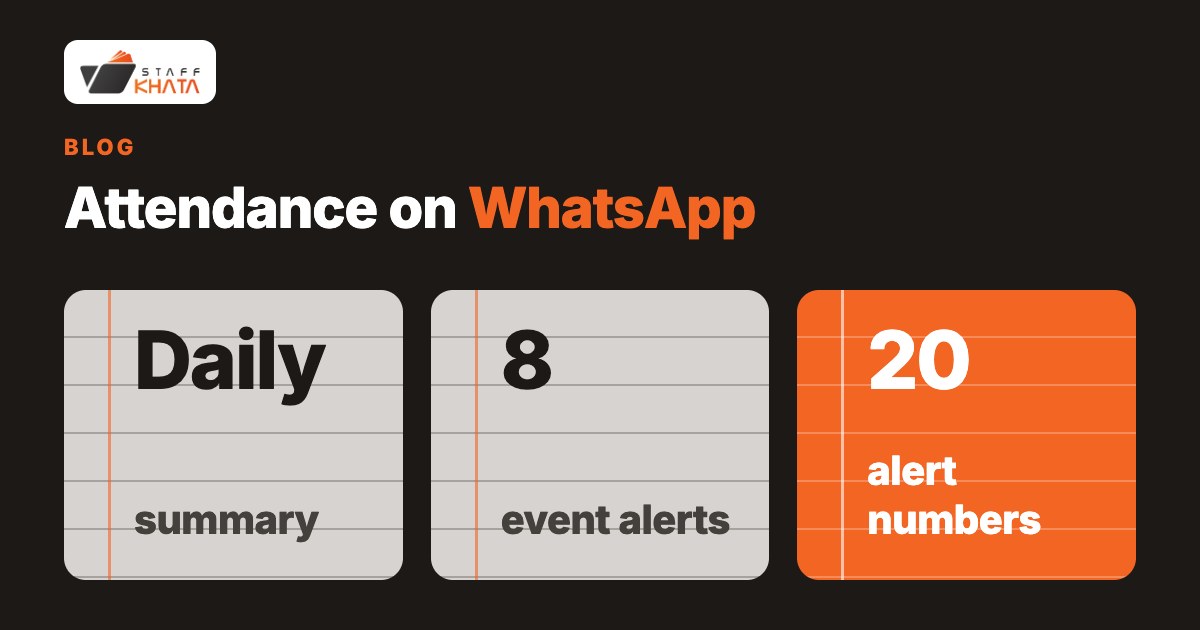
If you want an attendance app that sends the owner a daily report on WhatsApp, Staff Khata can send a nightly summary showing who came, who was late and who was absent. Switch it on in the company notification settings. You do not need your own WhatsApp Business API account for the built-in daily and monthly summaries. For late-arrival, missing-punch and other event alerts from your own number, connect your WhatsApp Business account separately.
By Staff Khata. Published 19 November 2026.
What arrives in the daily attendance summary on WhatsApp?
The built-in daily message gives the owner a summary of the day's attendance every night. Use it to decide which attendance records need a closer look, rather than asking someone to send a register photo. The monthly attendance report arrives as a CSV file, which you can forward to your accountant.
You can also switch on Device Health Alerts. These send a WhatsApp message when a Realtime biometric machine goes offline, and another when it is back online. Treat that as a prompt to check the machine, separate from checking employee attendance.
This guide covers setting up an owner's daily routine. For the full alert list and feature detail, see WhatsApp attendance alerts and daily summaries.
How do I set up a daily attendance report on WhatsApp?
Start with the built-in summaries. These messages come from Staff Khata to the owner's number. There is nothing to set up beyond switching them on.
- Click Organization → Company, then open the Notifications tab.
- Under WhatsApp Notifications, switch on Daily Attendance Summary.
- Switch on Monthly Attendance Summary if you want the monthly CSV, and Device Health Alerts if you want machine status messages.
- Click Save Changes.
After enabling the daily summary, check the next nightly message against the day's attendance. If a name or status needs attention, open the attendance record before making a correction. Keep the monthly CSV for your month-end review.
The WhatsApp setup manual shows the settings and configuration screens.
How do I send late-coming and missing-punch alerts on WhatsApp?
Use your own WhatsApp Business number for event alerts. You need an account on Meta's Cloud API and message templates already approved by Meta.
- Click Account → Integrations. On the WhatsApp card, click Configure.
- In Connection, enter your Meta access token and Meta phone number ID. The ID is not the phone number itself.
- Under Alert numbers, enter the mobile numbers for owner alerts. You can add up to 20.
- Open Event templates and pick an event, such as Late Arrival or Missing Punch.
- Enter the Approved template name, Approved language code and Exact approved template text. Copy the text exactly as Meta approved it.
- Set Variable mapping, choose Recipients, and tick the box confirming you checked the template against Meta.
- Click Preview message. Enter a Test number and click Send Test.
- Switch on Enable event and click Save configuration.
The 8 events are Check In, Check Out, Late Arrival, Missing Punch, Leave Application, Leave Approved, Leave Rejected and Daily Summary. Event alerts can go to the employee, the alert numbers, or both, with one important exception: the configured Daily Summary goes to alert numbers only.
Missing Punch is sent once, 30 minutes after the shift ends, when only an in or out punch exists. It is not an alert for every employee with no punches. The configured Daily Summary runs at 10 PM India time. That timing applies to the event template; the built-in summary is described separately as arriving every night.
Who should receive each attendance alert?
Choose recipients according to who will act on the message. The following is a suggested routine, not a required Staff Khata configuration.
- Owner: keep the nightly summary for an overview. Add late-arrival alerts if you personally follow up on punctuality.
- Person checking attendance: consider Check In, Check Out and Missing Punch alerts if that person checks incomplete records.
- Employee: select employee recipients for relevant punch and leave events when setting the templates.
- Person responsible for the machine: agree who will investigate when the owner receives a device health message.
Start with events you will actually review. If an event is no longer useful, you can pause it. Preview and test each template before relying on it.
What should the owner check each morning and night?
Each morning: review the previous night's summary. Follow up on absence or lateness that needs an explanation. If a machine health alert arrived, ask the person responsible to check the Realtime biometric machine.
For detail, click Reports → Daily. Choose the report type, date and people to include, then click View Report. Daily report types include Late Arrival, Absent and Missing Punch. Use the reports guide when you need the underlying records.
Each night: review the day's summary and any missing-punch message. Check the employee's actual times before editing attendance. To fix a missing punch-out, click Edit on the attendance row, set Punch Out Time and click Update Attendance.
If a configured event message seems missing, open the integration's Activity tab. It lists recent tests and events and whether the provider accepted them. “Accepted” means Meta accepted the message; it does not confirm delivery. Check your Meta dashboard before resending.
Who is this for, and who is it not for?
A good fit: a shop, factory, clinic or office owner who wants an attendance overview on WhatsApp and will check exceptions. The built-in summary is a useful starting point if you do not want to configure your own WhatsApp Business account.
Not enough on its own: an owner who expects employees to mark attendance by sending a WhatsApp message. Staff Khata uses WhatsApp for summaries and alerts. Attendance is marked through a selfie + GPS punch in the app or a Realtime biometric machine. If your concern is the proof behind a punch, see stop proxy attendance.
Starter is ₹0 for up to 50 staff with 1 Realtime biometric machine connection, attendance and daily reports; it has no mobile app or payroll. Growth is ₹0.50 per employee per day (₹15 per month). Pro HRMS is ₹1 per employee per day (₹30 per month), with live field tracking included. Prices exclude GST. There is a 15-day free trial with no card required. See pricing and confirm WhatsApp availability for your chosen plan before relying on it.
Frequently asked questions
Do I need my own WhatsApp Business number for the nightly report?
No, not for the built-in daily and monthly summaries. Your own connected WhatsApp Business number is needed to send configured event alerts from that number.
Can I send an attendance alert to the owner and employee?
Yes. Event templates let you choose employee recipients, up to 20 alert numbers, or both. The configured Daily Summary goes only to alert numbers.
Does a missing-punch alert mean the employee was absent?
No. It is sent when only an in or out punch exists, 30 minutes after the shift ends. Review the attendance record before deciding what happened.
Can I use SMS instead?
Staff Khata supports SMS alerts through the SMS Gateway integration, including a Custom URL for other providers. Indian SMS setup needs your provider's DLT-approved sender ID, entity ID and template text. Follow the WhatsApp and integrations manual for setup.
More from StaffKhata
 Nov 23, 2026 • 1 min read
Haziri aur tankhwah ka hisaab: 20 कर्मचारियों के लिए हाज़िरी और सैलरी ऐप
फ़ोन से सेल्फ़ी + GPS हाज़िरी, उसी से सैलरी, और पूरा ऐप हिंदी में। 20 कर्मचारियों के लिए Growth प्लान ₹300 महीना, GST अलग।
 Nov 23, 2026 • 6 min read
Leave management for a small business: leave types, balances and approvals
Define leave types with carry-forward and approval rules, see allowed, used and left for each employee, and approve requests from the app in one click.
 Nov 23, 2026 • 6 min read
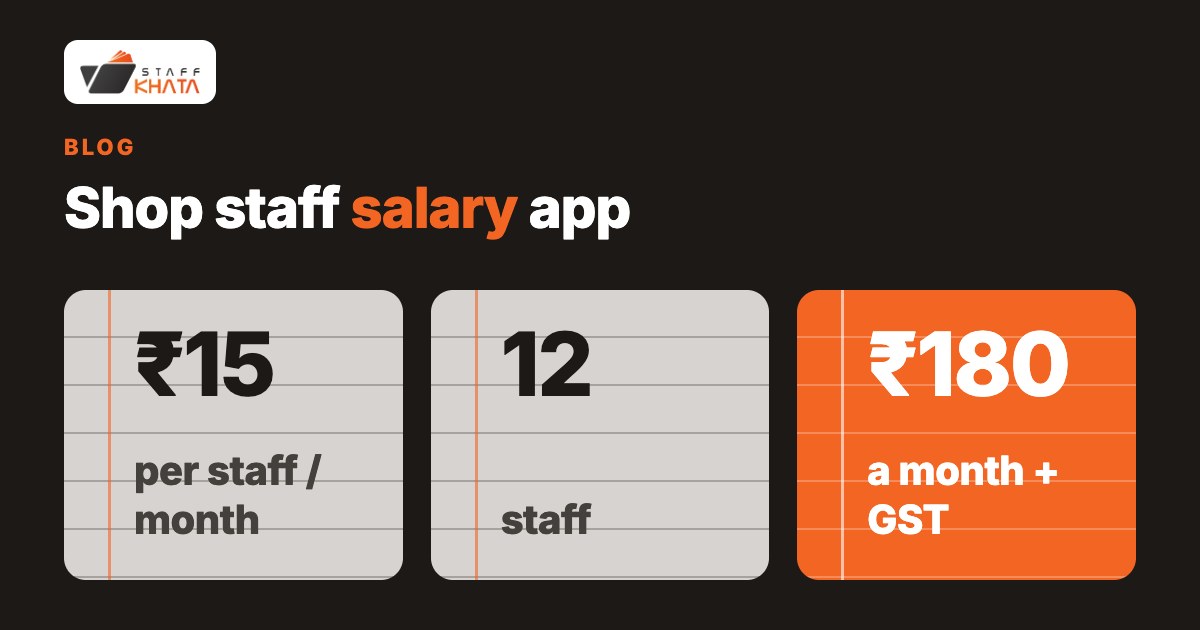
Attendance and salary app for a shop with 12 staff: setup and cost
Selfie + GPS punch at each shop, salary worked out from attendance, and payslips for 12 staff at ₹180 a month on the Growth plan before GST.