
WhatsApp alerts and integrations
Plan: All plans
Stay updated without opening the app. Staff Khata can send you attendance summaries on WhatsApp, send alerts to staff from your own WhatsApp or SMS account, and pass events to other software.
Choose your WhatsApp summaries
These messages come from Staff Khata to the owner's number. Nothing to set up beyond switching them on.
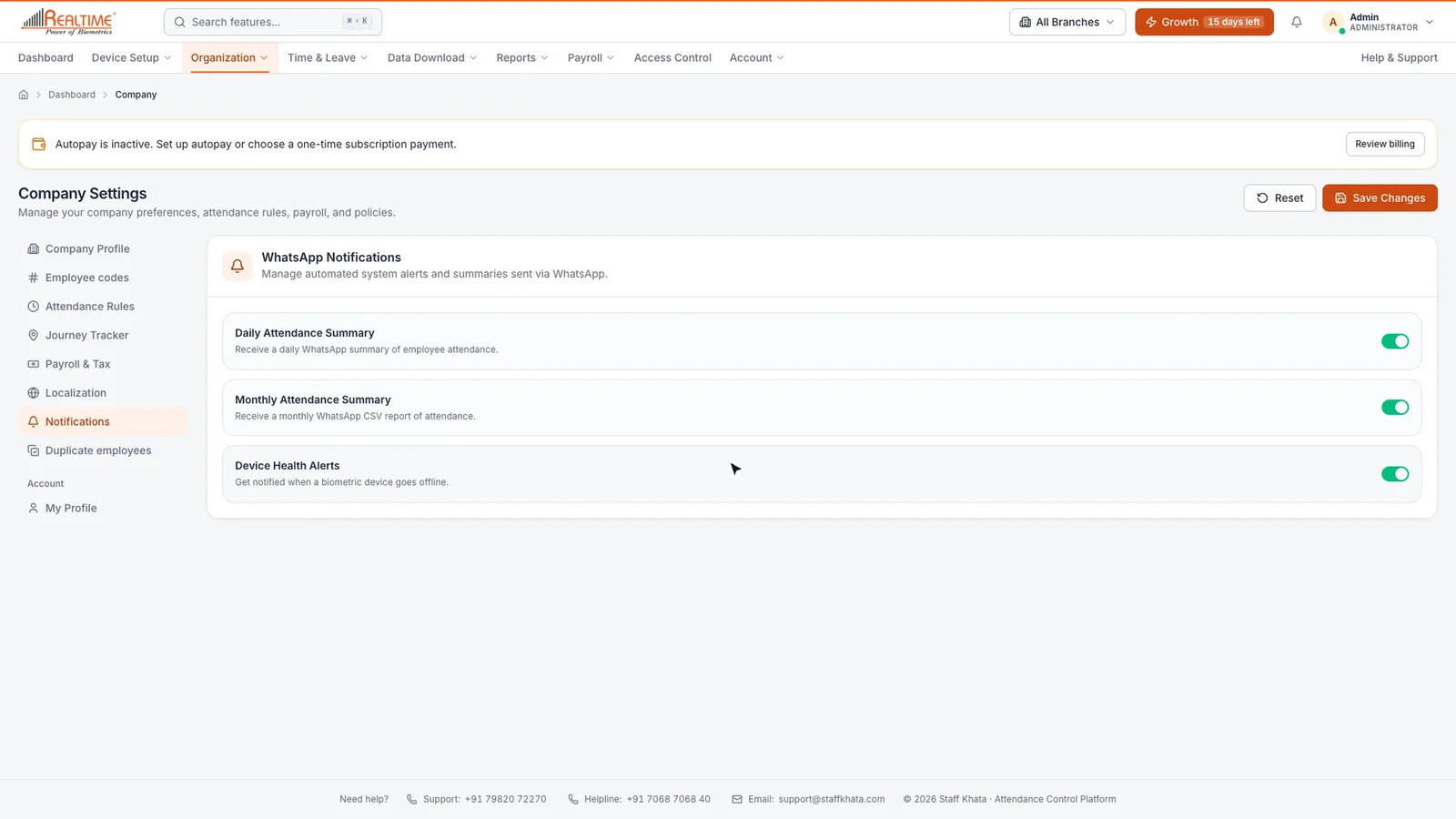
- Click Organization → Company, then open the Notifications tab.
- Under WhatsApp Notifications, switch on the messages you want:
| Setting | What you get |
|---|---|
| Daily Attendance Summary | A WhatsApp summary of the day's attendance every night. |
| Monthly Attendance Summary | A monthly attendance report as a CSV file. |
| Device Health Alerts | A message when a biometric device goes offline. |
- Click Save Changes.
Open the Integrations hub
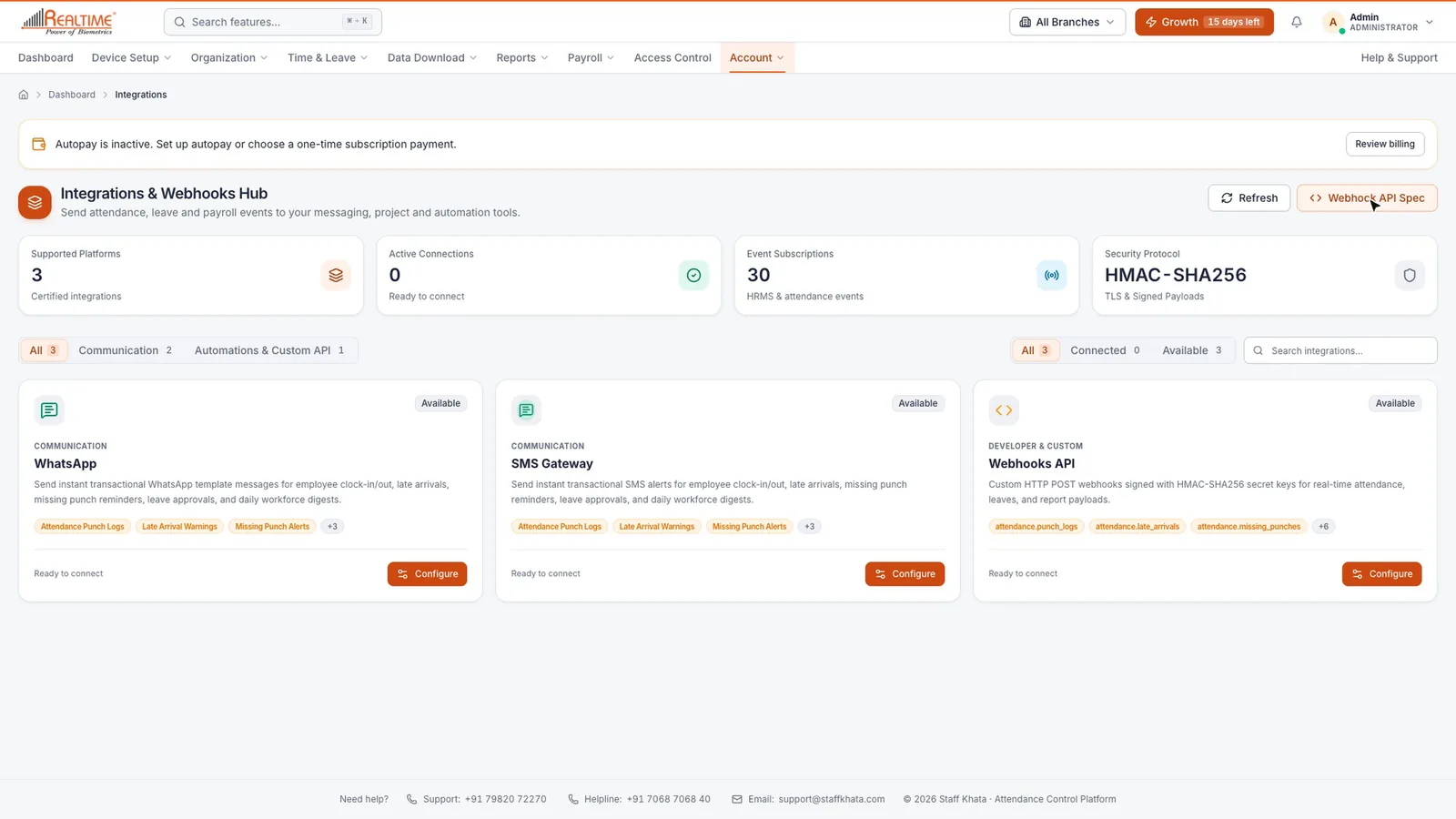
To send alerts from your own accounts, click Account → Integrations. The Integrations & Webhooks Hub shows three ready-made connections: WhatsApp, SMS Gateway and Webhooks API. Click Configure on the one you want.
Use your own WhatsApp Business number
You need a WhatsApp Business account on Meta's Cloud API, with message templates already approved by Meta.
Connect
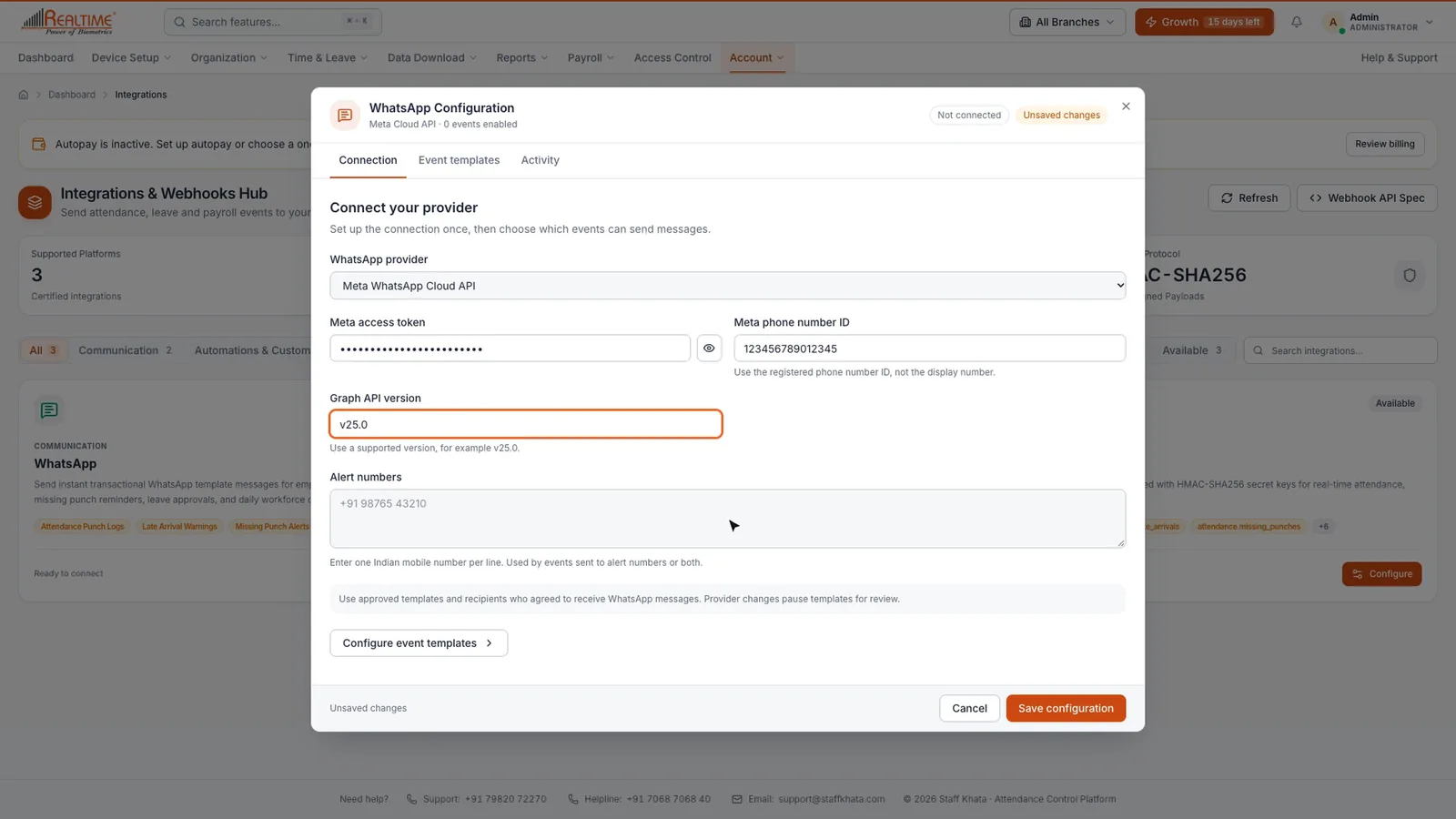
- On the WhatsApp card, click Configure. The Connection tab opens.
- Enter your Meta access token and Meta phone number ID. Use the phone number ID from Meta, not the phone number itself.
- Under Alert numbers, enter the mobile numbers that should receive owner alerts (up to 20).
Set up event templates
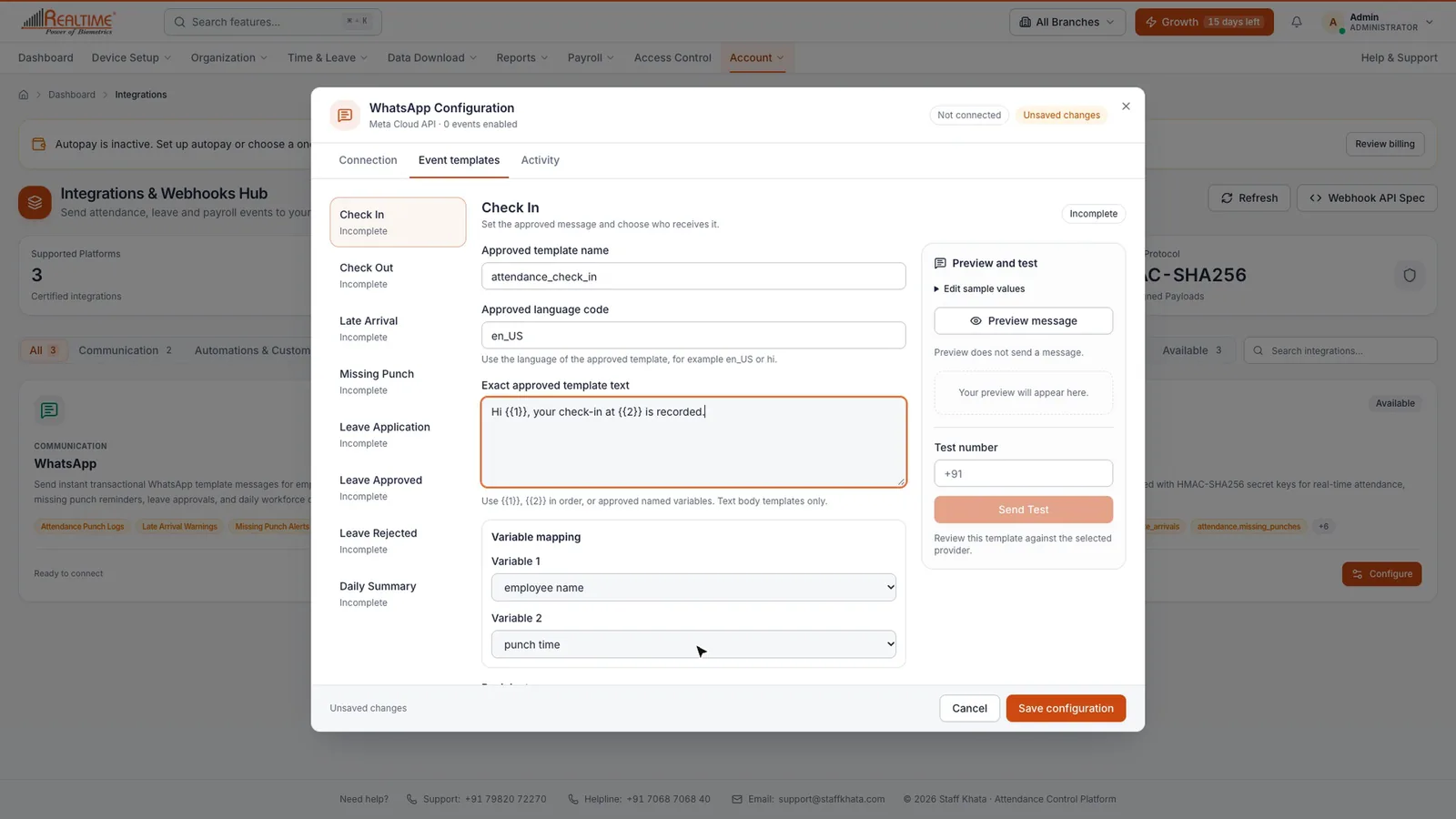
- Open the Event templates tab. Events are listed on the left: Check In, Check Out, Late Arrival, Missing Punch, Leave Application, Leave Approved, Leave Rejected and Daily Summary.
- Pick an event, for example Check In.
- Enter the Approved template name, the Approved language code (such as en_US or hi) and the Exact approved template text, copied exactly as Meta approved it.
- Under Variable mapping, choose what fills each variable, for example employee name for Variable 1 and punch time for Variable 2.
- Choose the Recipients and tick the box to confirm you checked the template against Meta.
- Click Preview message to see exactly what will be sent. To try it, enter a Test number and click Send Test.
- Switch on Enable event, then click Save configuration.
Note: The Missing Punch message is sent once, 30 minutes after the shift ends, when only an in or out punch exists. The Daily Summary runs at 10 PM India time and goes to alert numbers only.
The Activity tab lists recent test and event messages and whether your provider accepted them.
Tip: "Accepted" means Meta accepted the message. It does not confirm delivery. Check your Meta dashboard before resending.
Send alerts by SMS
The SMS Gateway works the same way: click Configure, connect a provider, then set up event templates. You can choose MSG91, Fast2SMS or Custom URL for other providers. Indian SMS needs your DLT-approved sender ID, entity ID and template text, so keep them ready from your provider.
Send events to other software (webhooks)
Use webhooks if your own software or an automation tool should know when someone punches in, applies for leave, and so on.
- On the Webhooks API card, click Configure.
- Enter your Webhook Target URL.
- Under Event Subscriptions, tick the events to send.
- Click Test Ping to check the connection, then Save Configuration.
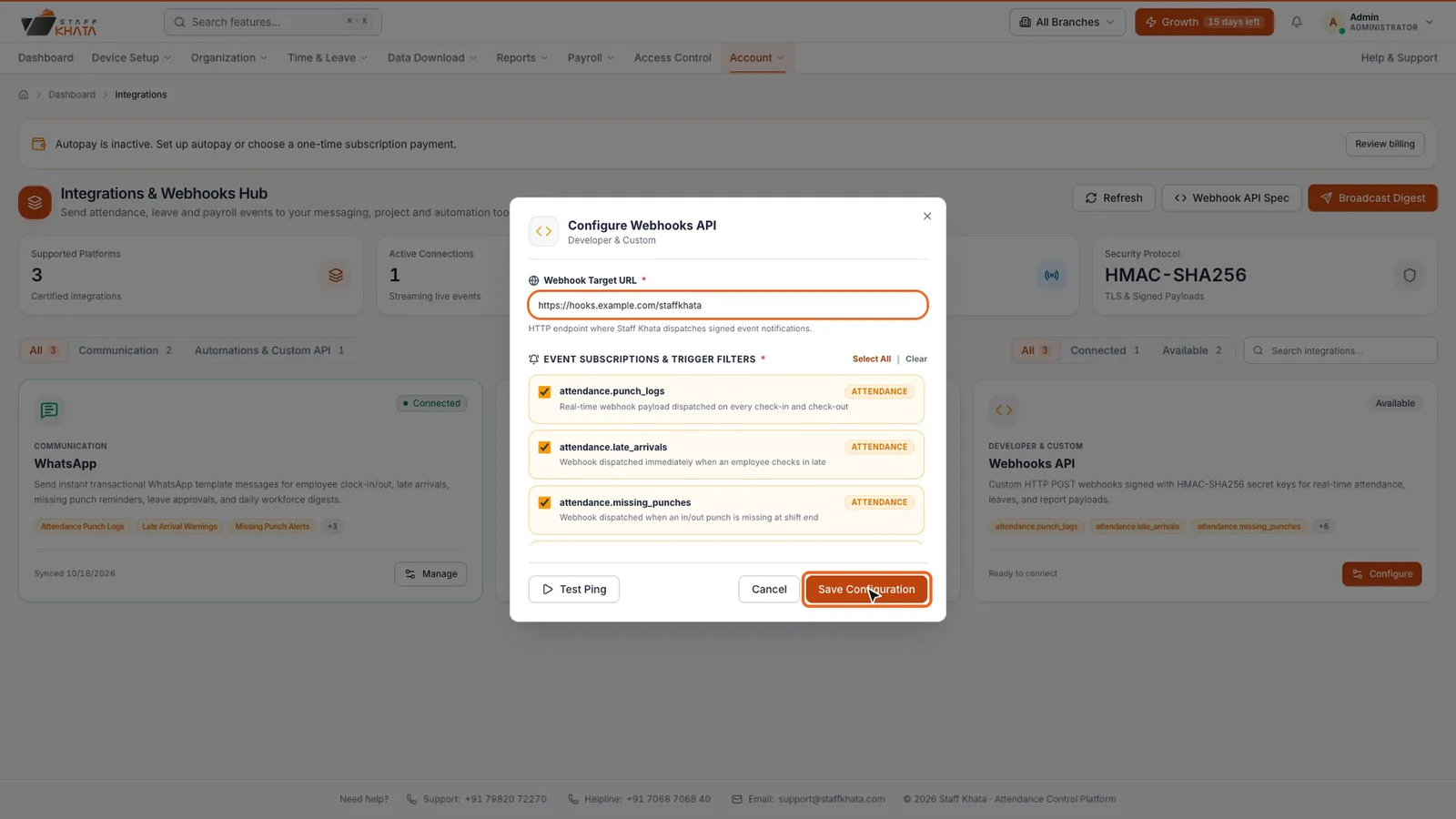
Every event is signed, so your system can check it really came from Staff Khata. Your developer can find the details under Webhook API Spec.
To stop a connection, open it and click Disconnect.
Still stuck? Raise a ticket from Help & Support inside the app, or contact us at staffkhata.com/contact.