
Attendance rules and office time policy
Plan: All plans
Attendance rules decide how Staff Khata treats every punch: what counts as overtime, what an absence costs, and where staff are allowed to punch in. The office time policy decides when someone is late, on a half day or absent.
Set your attendance rules
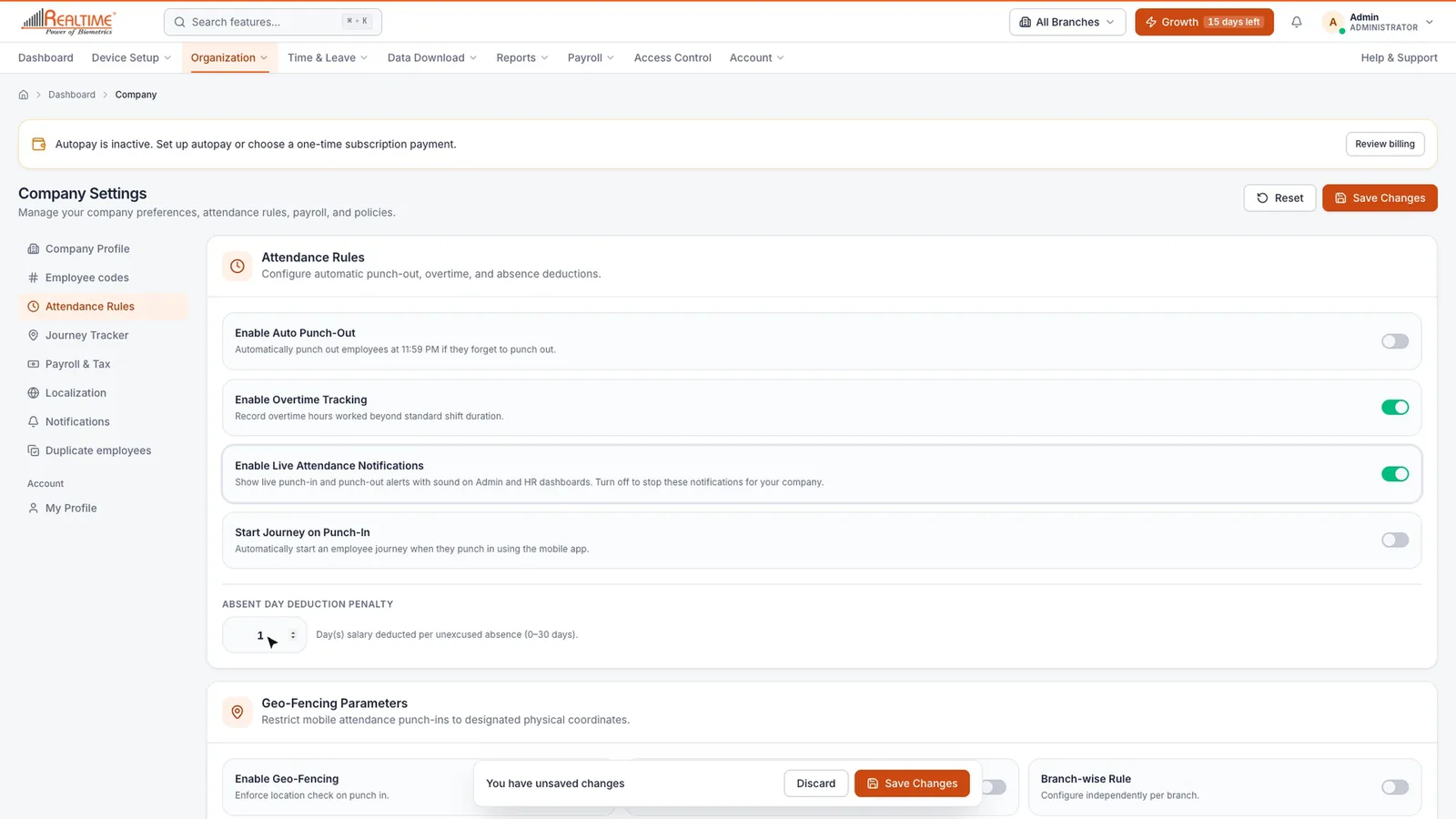
- Click Organization → Company, then open the Attendance Rules tab.
- Switch on the rules you want (see the table below).
- In Absent Day Deduction Penalty, enter how many days of salary are cut for each unexcused absence. 1 is the usual choice.
- Click Save Changes.
| Setting | What it does |
|---|---|
| Enable Auto Punch-Out | Punches employees out at 11:59 PM if they forget to punch out. |
| Enable Overtime Tracking | Records hours worked beyond the shift, so payroll can pay them. Set how overtime is paid in Shifts, roster and overtime. |
| Enable Live Attendance Notifications | Shows each punch-in and punch-out as a pop-up with a sound on the Admin and HR dashboards. |
| Start Journey on Punch-In | Only for the Journey Tracker add-on. See Journey Tracker. |
| Absent Day Deduction Penalty | Days of salary deducted per unexcused absence, from 0 to 30. |
Turn on geo-fencing
Geo-fencing stops staff from punching in on the mobile app unless they are at work.
- On the same tab, scroll to Geo-Fencing Parameters.
- Switch on Enable Geo-Fencing.
- Choose how it applies:
- Branch-wise Rule: each branch uses its own location and radius. Pick the branches in Apply to Branches. This is the best choice if you have more than one location.
- Apply All Employees: one location for everyone. Enter the Geo Fence Radius (Metres) and click Set Map Location Coordinates to choose the spot.
- Click Save Changes.
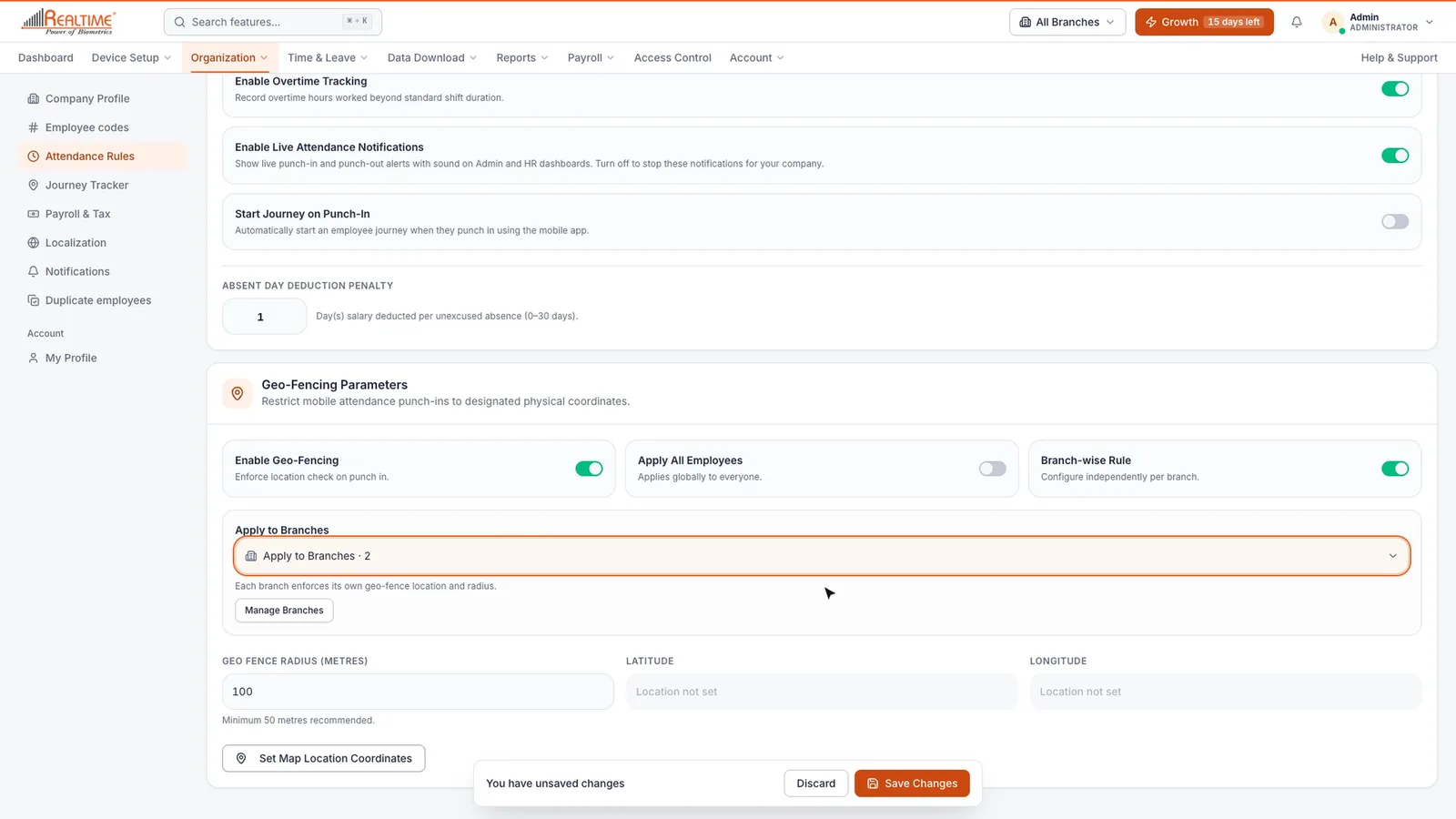
Note: For Branch-wise Rule, set each branch's pin and radius first under Organization → Branch. See Set up your company.
You can also switch geo-fencing off for one employee in their profile, on the Attendance & devices step.
Choose your WhatsApp summaries
The Notifications tab lets you turn on a Daily Attendance Summary, a Monthly Attendance Summary and Device Health Alerts on WhatsApp. See WhatsApp and integrations.
Create an office time policy
The office time policy sets your grace periods and when a short day becomes a half day or an absence. Your first policy becomes the default for everyone.
- Click Organization → Office Time Policy.
- Click Create First Policy (or Add New Policy if you already have one).
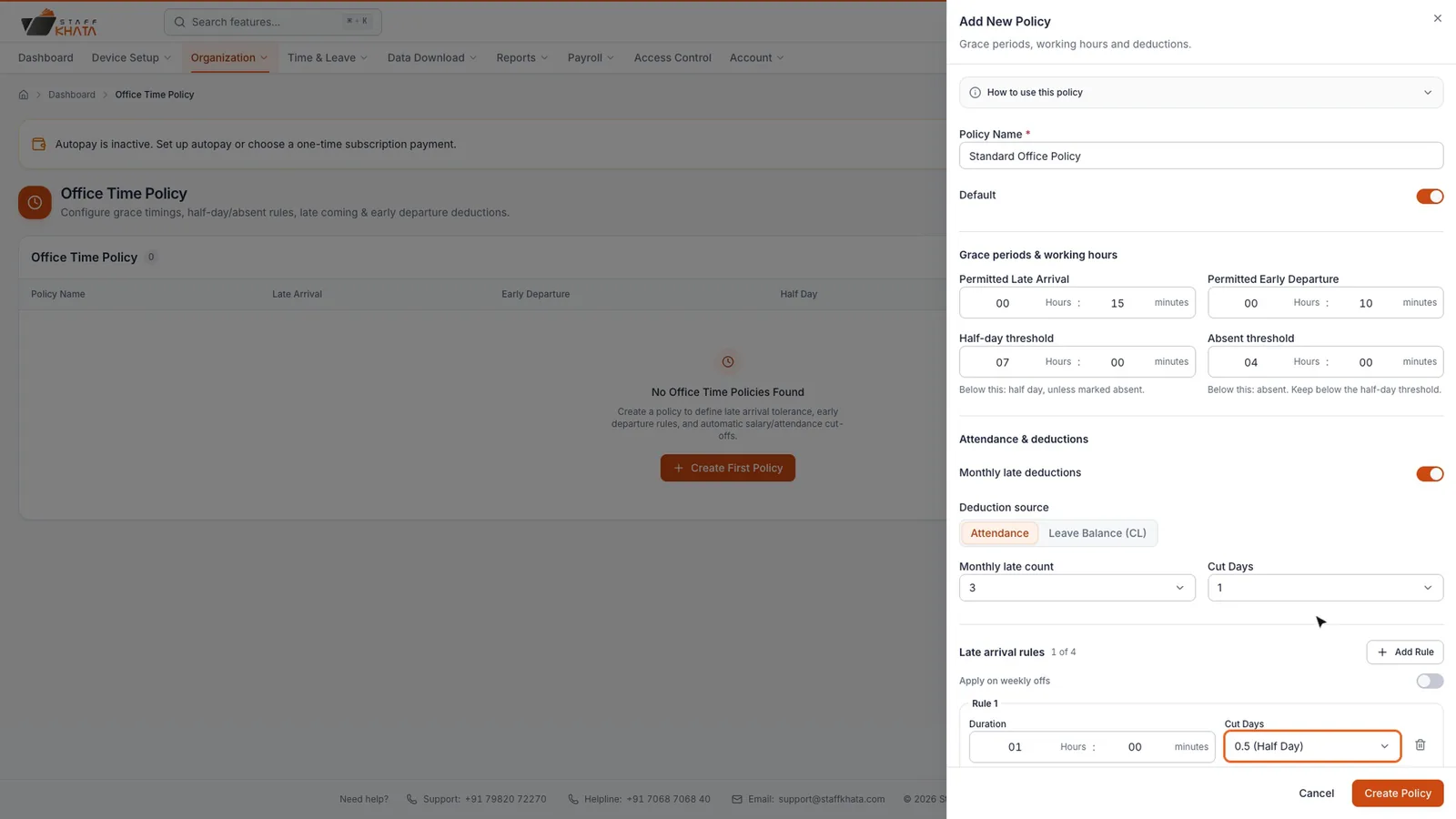
- Enter a Policy Name, such as "Standard Office Policy". Leave Default on if this policy should apply to everyone without their own.
- Under Grace periods & working hours, set the times in hours and minutes:
| Setting | What it does |
|---|---|
| Permitted Late Arrival | How late staff can arrive without being marked late, for example 15 minutes. |
| Permitted Early Departure | How early staff can leave without being marked early, for example 10 minutes. |
| Half-day threshold | Below these working hours, the day is a half day (for example 7 hours). |
| Absent threshold | Below these working hours, the day is marked absent (for example 4 hours). Keep it lower than the half-day threshold. |
Monthly late deductions
Use this to turn repeated lateness into a cut.
- Switch on Monthly late deductions.
- Choose the Deduction source: Attendance (cuts attendance days) or Leave Balance (CL) (cuts casual leave).
- Set Monthly late count and Cut Days. For example, 3 and 1 means every 3 late arrivals in a month cost one day.
Very late and early departure rules
Under Late arrival rules, click Add rule, enter a Duration and choose the Cut Days. For example, more than 1 hour late cuts 0.5 (Half Day). You can add up to 4 rules. Early departure rules work the same way for staff who leave early. Switch on Apply on weekly offs if the rules should also count on weekly off days.
- Click Create Policy.
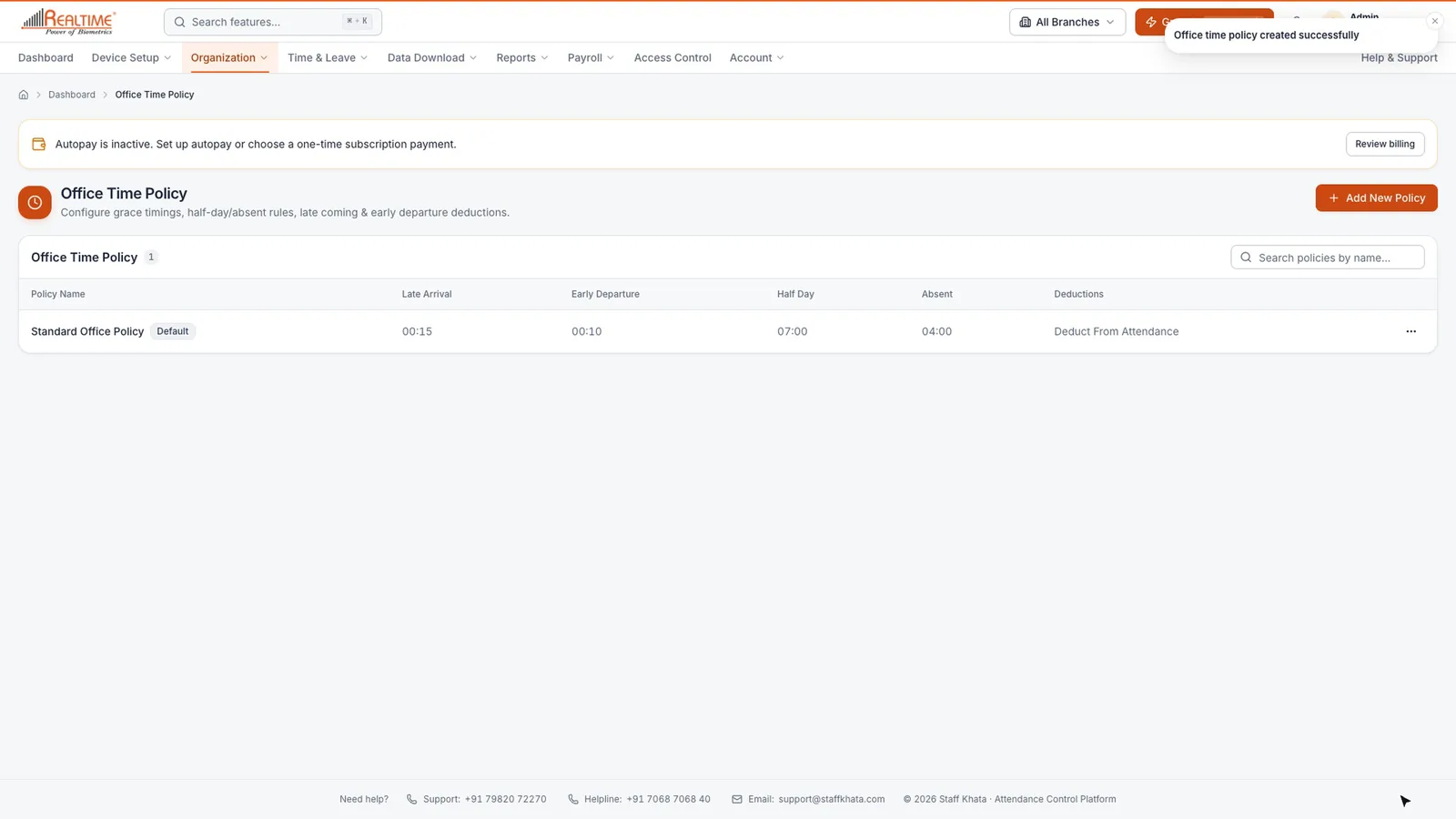
The policy appears in the list with its late, early, half-day and absent times. To change which policy is the default, open a policy's row menu (⋯) and click Make Default.
Tip: Need different timings for some staff, such as a factory floor? Create a second policy and choose it in the Office Time Policy field when you add or edit those employees.
Next, add your employees.
Still stuck? Raise a ticket from Help & Support inside the app, or contact us at staffkhata.com/contact.