
Payroll, payslips and advances
Plan: Payroll plans
Staff Khata works out each salary from attendance, leave, holidays and late marks, so you don't need a spreadsheet. Set it up once, then run payroll every month in a few clicks.
Plan needed: Payroll needs a paid plan that includes payroll. If the Payroll menu is locked, see Billing & Plan for current plans.
Set the salary cycle and statutory deductions
These settings apply to every payroll run.
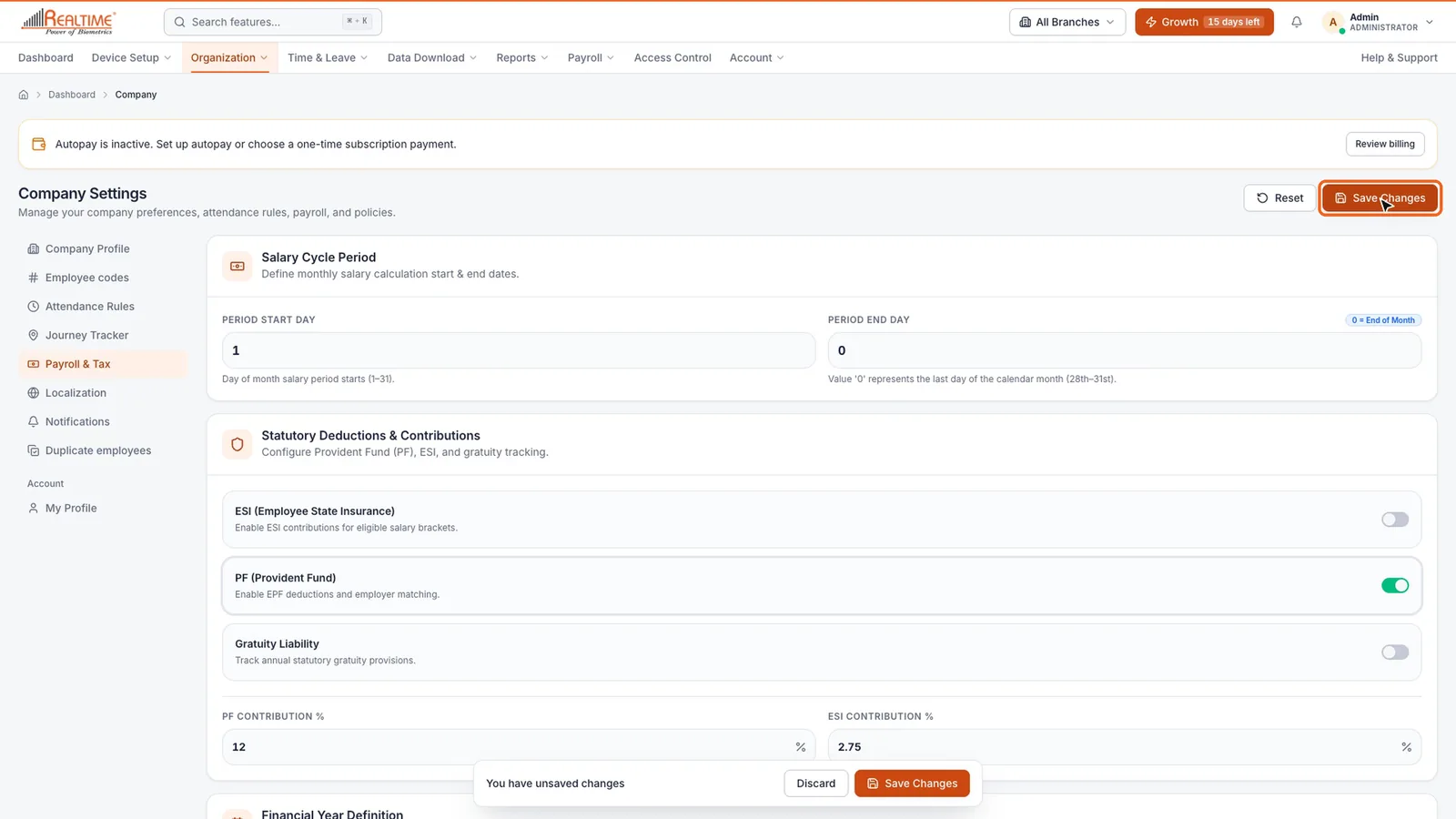
- Click Organization → Company, then open the Payroll & Tax tab.
- Under Salary Cycle Period, set Period Start Day and Period End Day. Enter 0 as the end day for "last day of the month".
- Under Statutory Deductions & Contributions, switch on what applies to you.
- Click Save Changes.
| Setting | What it does |
|---|---|
| ESI (Employee State Insurance) | Adds ESI contributions for eligible salaries. Set the rate in ESI Contribution %. |
| PF (Provident Fund) | Adds EPF deductions and employer matching. Set the rate in PF Contribution %, usually 12. |
| Gratuity Liability | Tracks yearly gratuity provisions. |
| Financial Year Start / End | The year used for financial reporting. |
Assign a salary structure
Every employee needs a salary structure before payroll can run.
- Click Payroll → Salary Management. Every employee is listed with their cycle, earnings, deductions, net salary and annual CTC.
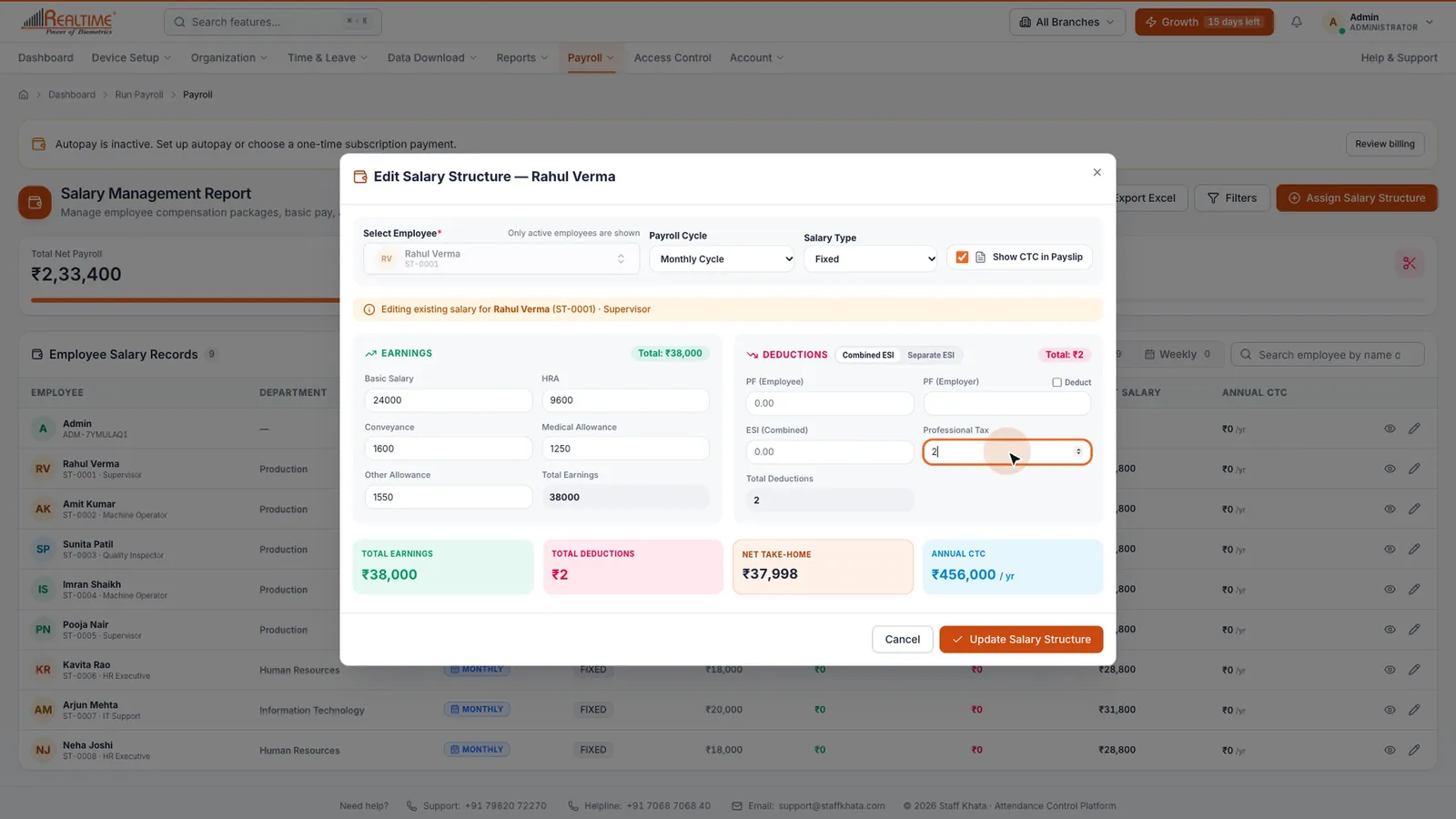
- Click the edit icon on an employee's row, or click Assign Salary Structure for someone new.
- Choose the Payroll Cycle (Monthly Cycle or Weekly Cycle) and the Salary Type (Fixed, Variable or Commission Based).
- Fill in Earnings: Basic Salary, HRA, Conveyance, Medical Allowance and Other Allowance.
- Fill in Deductions, such as PF, ESI and Professional Tax. ESI can be shown combined or separate.
- Tick Show CTC in Payslip if the employee should see their yearly cost to company.
- Click Save Salary Structure (or Update Salary Structure).
As you type, the totals at the bottom show Total Earnings, Total Deductions, Net Take-Home and Annual CTC.
Tip: You can also open this form from Organization → Employee List: open an employee's row menu and click Assign / View Salary.
Run monthly payroll
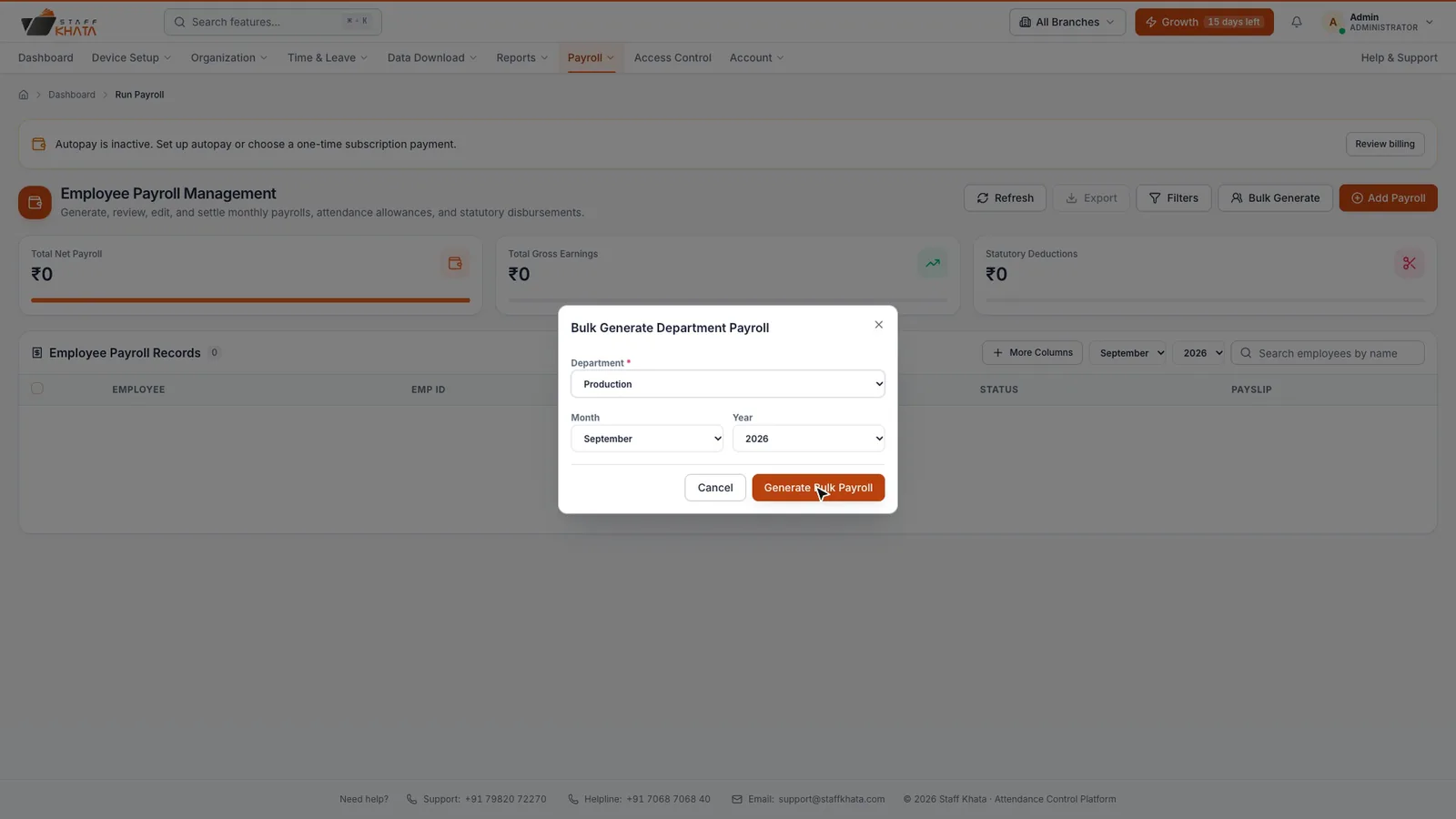
- Click Payroll → Run Payroll.
- Pick the month and year at the top of the table.
- Click Bulk Generate, choose a Department, check the month and year, and click Generate Bulk Payroll. Repeat for each department.
To pay one person only, click Add Payroll and pick the employee.
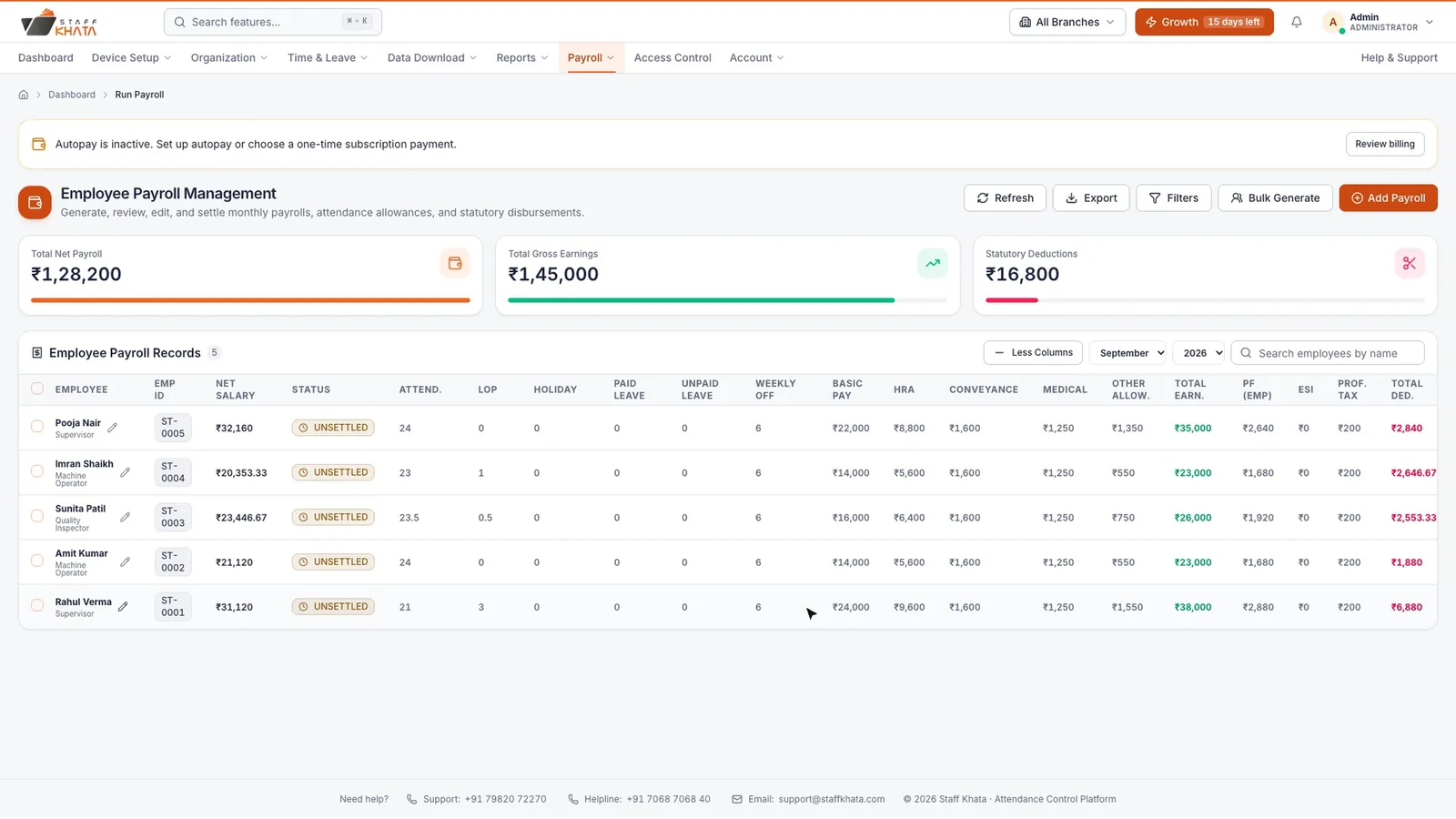
Click More Columns to see the working days, loss of pay (LOP) days, weekly offs, holidays and paid leave behind each salary.
Correct and settle
- To change a figure, edit the employee's payroll row. In Edit Monthly Payroll, click Save Draft to keep it open, or Settle & Save once it is paid.
- To mark many salaries as paid, tick the rows and click Settle Selected.
- Use Export to download the month as Excel or PDF.
View and download payslips
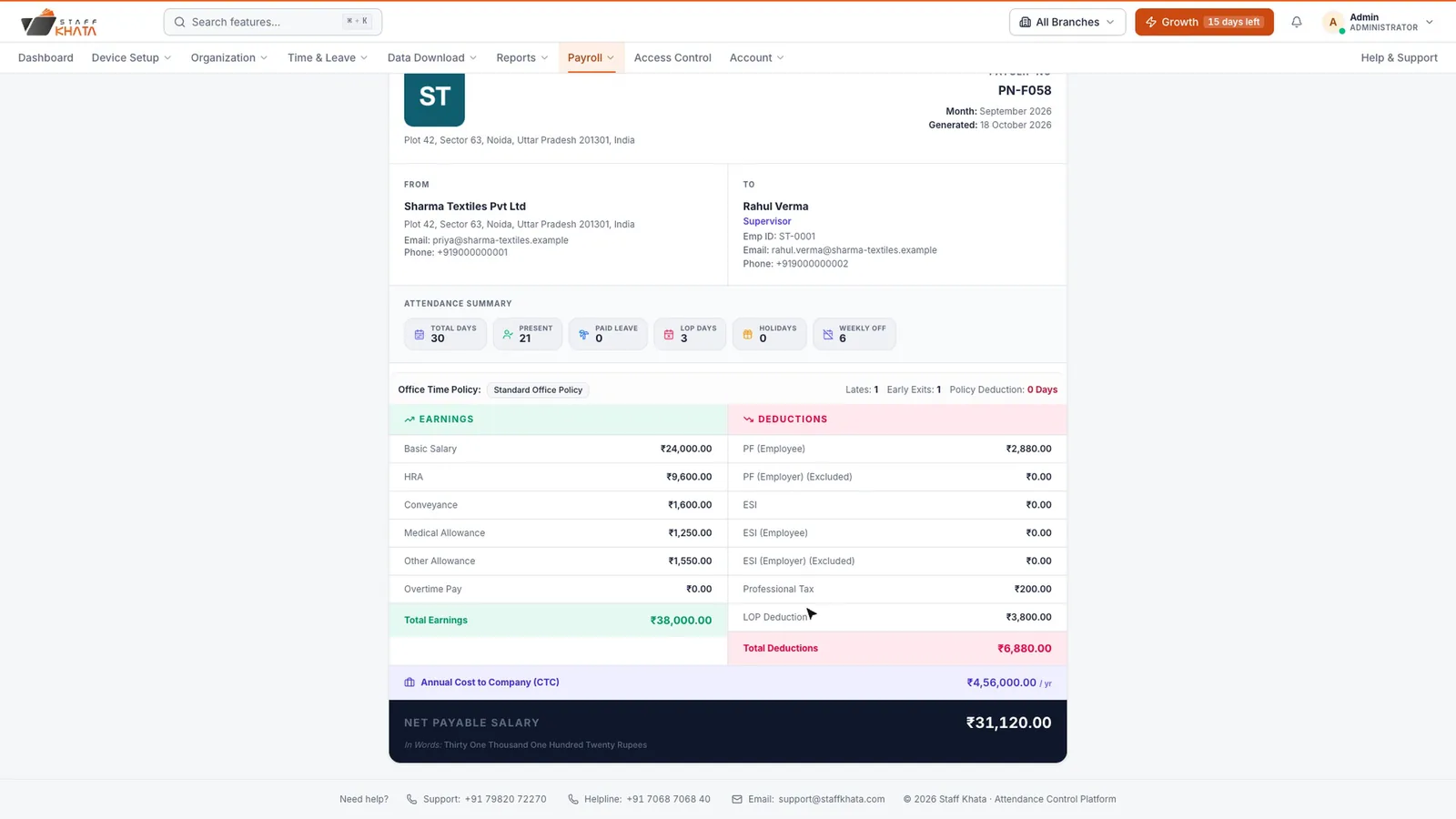
Click Payslip on an employee's row. The payslip shows your logo, the attendance summary, earnings, deductions, any reimbursements, and net pay in words. It also shows how the office time policy was applied: late marks, early exits and any policy deduction.
Click Download PDF to save it, or Print. Use Show Annual CTC / Hide Annual CTC to choose whether CTC appears.
Employees with a login see their own payslips under My Payslips. See Employee self-service.
Advances and reimbursements
Record a salary advance
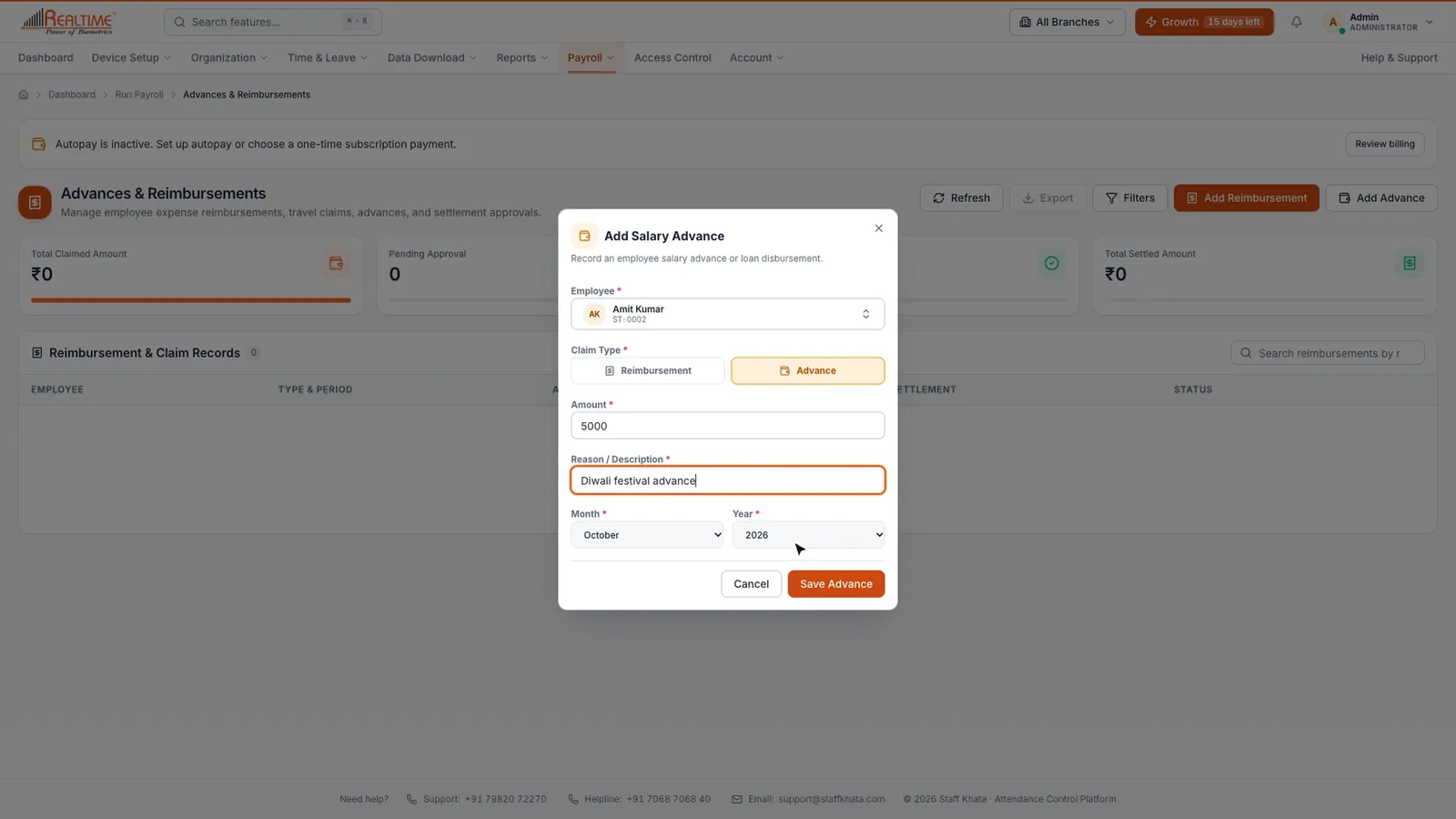
- Click Payroll → Add Advance.
- Pick the Employee, enter the Amount and Reason / Description, and choose the Month and Year.
- Click Save Advance.
Record a reimbursement
- Click Payroll → Add Reimbursement.
- Pick the employee, enter the amount, reason, month and year.
- Attach the bill under Supporting Document / Bill (PDF, JPG, PNG or DOC, up to 2 MB). A bill is required.
- Click Submit Claim.
Approve, settle and print a slip
Open Payroll → Advances & Reimbursements to see every advance and claim, including those employees send from the mobile app. Open a record to Approve or Reject it, then Settle Request once paid. Click Generate Slip for a reimbursement slip you can download as a PDF.
Weekly Pay Process
For staff paid weekly, set their Payroll Cycle to Weekly Cycle in the salary structure. Only these employees appear here.
- Click Payroll → Weekly Pay Process.
- Pick the week.
- Click Generate Weekly for one employee, or Bulk Department → Run Bulk Process for a whole department.
- Open a Weekly Payslip to download a PDF, Print it or Send Email to the employee.
- Tick paid rows and click Settle Selected.
Still stuck? Raise a ticket from Help & Support inside the app, or contact us at staffkhata.com/contact.