
Employee self-service on web and mobile
Plan: Plans with employee login
With employee login, each employee gets their own Staff Khata account on the web and in the Staff Khata app for Android and iOS. They can check their attendance, fix wrong punches, apply for leave and see their payslips, so fewer questions come to you.
Plan needed: Employee login can be locked on lower plans. See Billing & Plan for current plans.
Give employees a login
- Click Organization → Employee List.
- Open the arrow next to Add Employee and click Invite Employee, or add the employee with their email and mobile number. See Add and manage employees.
- To set or reset someone's password, open the row menu and click Update Password.
- To let someone punch in from the Staff Khata app with a selfie, open the row menu and click Enable Mobile Punch.
Employees sign in at https://attendance.staffkhata.com or in the Staff Khata app with the same email and password.
My Dashboard
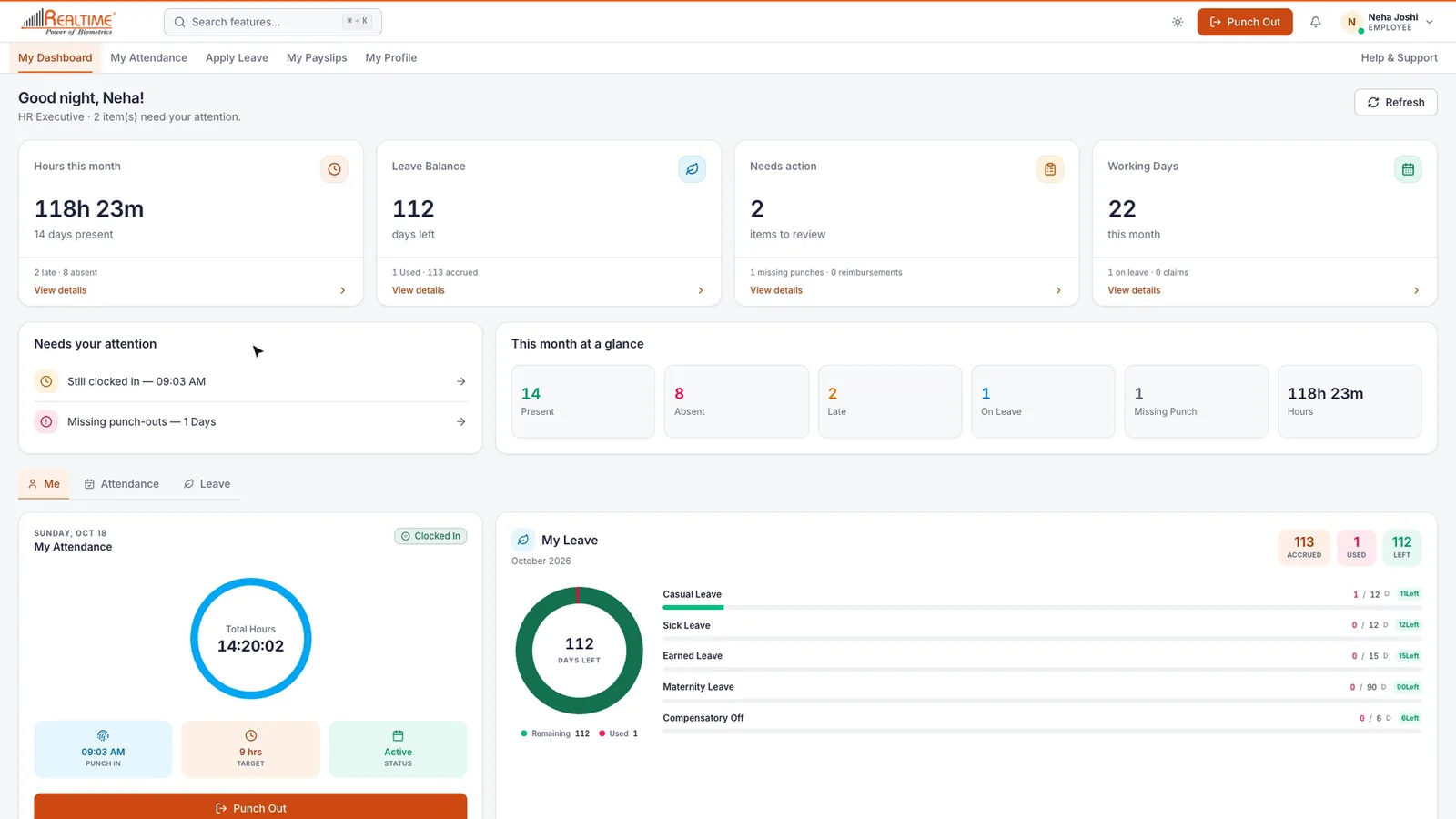
When an employee signs in, they land on My Dashboard. It shows their hours this month, leave balance, anything that needs their attention (such as a missed punch-out), and the working days so far. The tabs below break down their attendance and leave for the month.
My Attendance
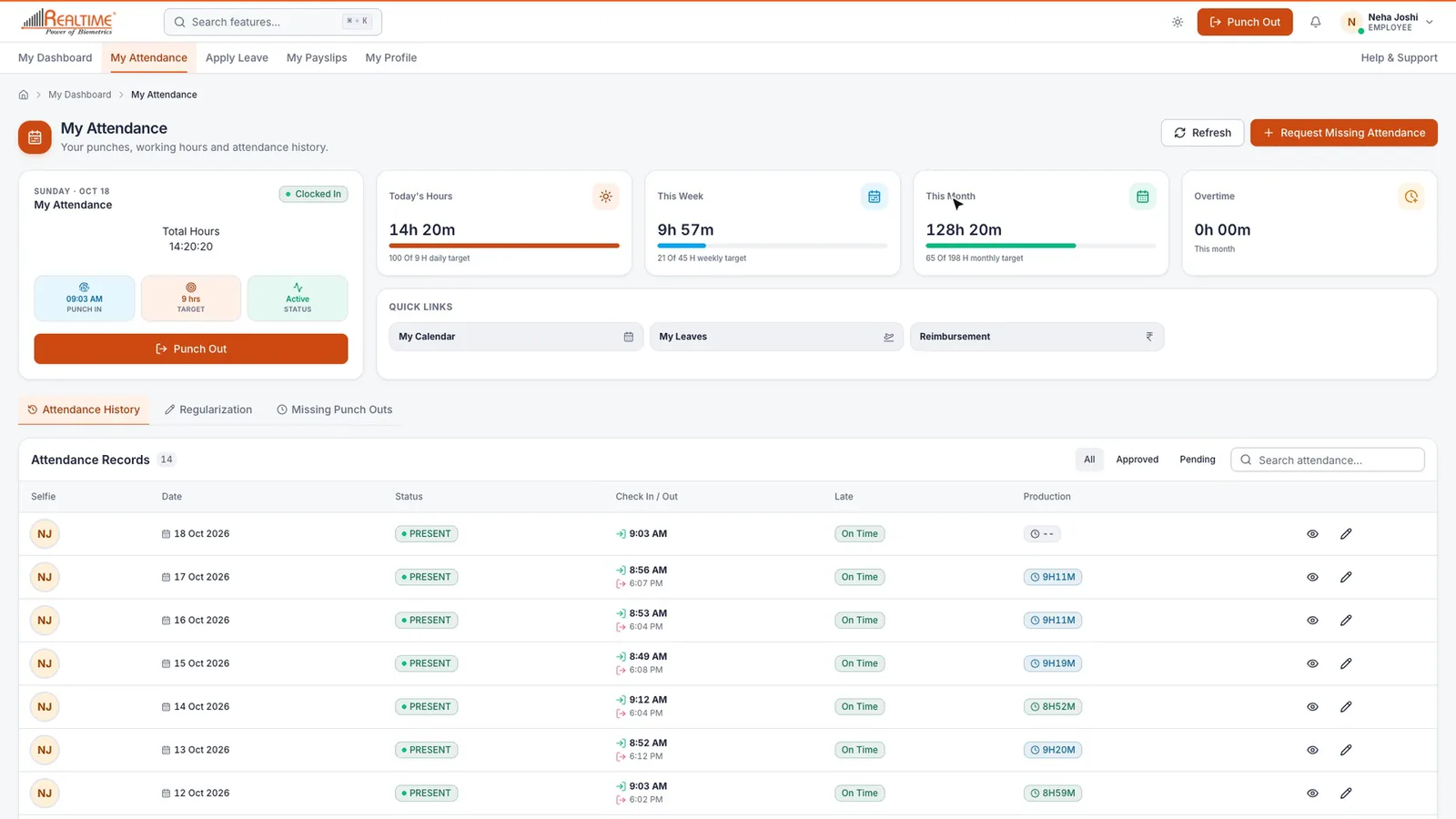
My Attendance shows today's hours, this week, this month and any overtime.
Punch in from the browser
- Click Punch In (top right or on the page).
- Allow the camera and location when the browser asks.
- Take a selfie and confirm.
The punch is saved with the selfie and location. Click Punch Out at the end of the day.
See history
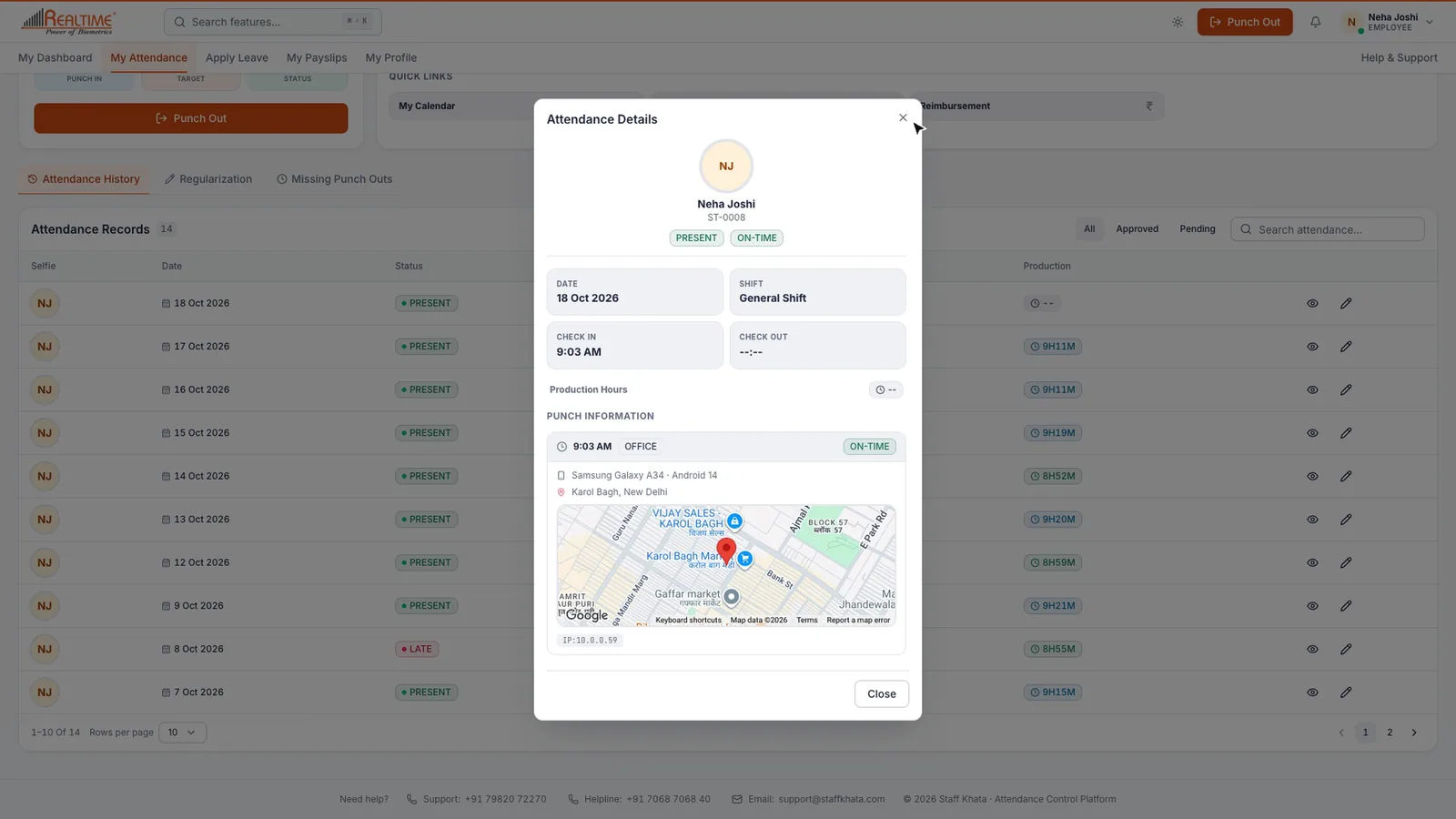
The Attendance History tab lists every day. Click the eye icon on a day to see the punch times, the device used, and the location on a map.
Correct a wrong punch
- Click the edit icon on the day.
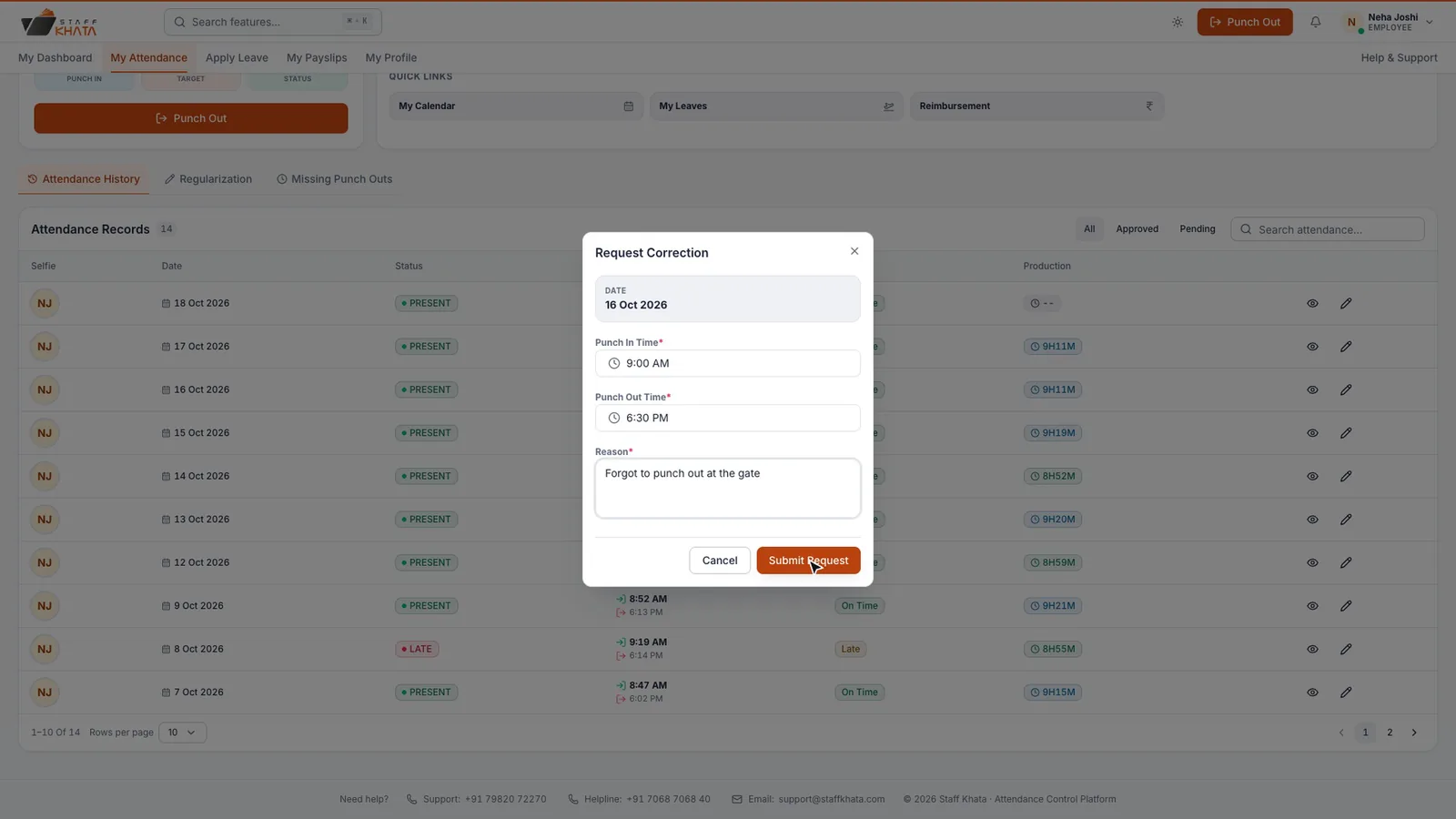
- In Request Correction, set the Punch In Time and Punch Out Time.
- Enter a Reason and click Submit Request.
The request goes to you for approval. Employees track it on the Regularization tab. Days with no punch-out are listed under Missing Punch Outs, and Request Missing Attendance covers days with no punch at all.
Apply Leave
Under Apply Leave, employees see their leave balances and the status of every request. They click Apply Leave, choose the Leave Type, the dates (or Half Day), add a reason and submit. You approve or reject it as usual.
My Payslips
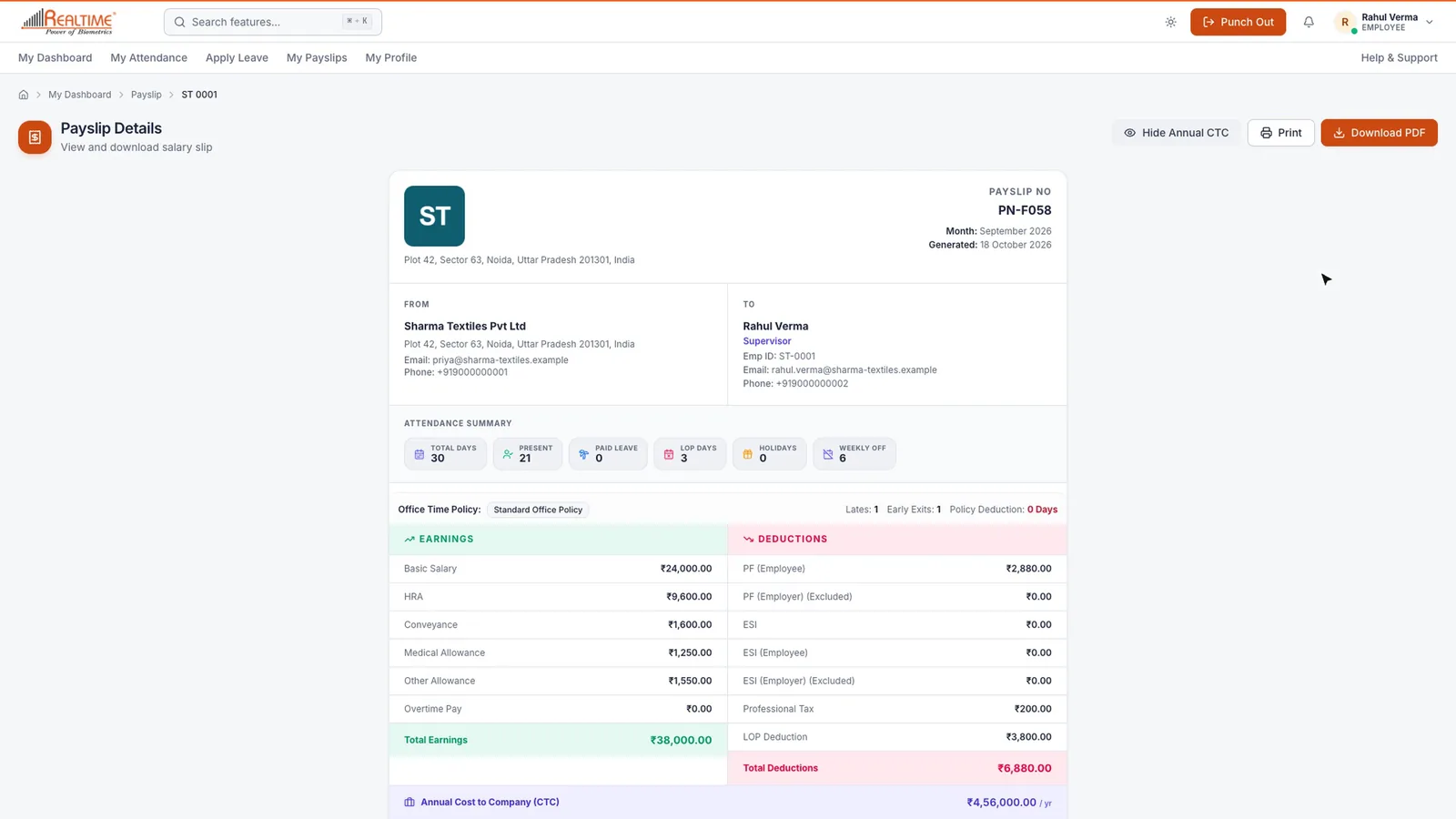
Under My Payslips, the employee picks the month and year to see every salary paid, with earnings, deductions and days worked. Click View to open the full payslip with attendance, earnings, deductions and net pay in words, and download it as a PDF.
My Profile
My Profile shows personal details, career history and bank information in one place.
On the Staff Khata app
The mobile app gives employees the same features in their pocket:
- Mark Attendance: punch in and out with a selfie and location. If mobile punching is switched off for them, they use their assigned Realtime biometric device instead.
- Attendance: a calendar of the month. Tap a day to see the punch timeline and check-in location, and tap Request Regularisation to fix it.
- Leave: apply for a full day, half day or date range, and see request status.
- Payslip: view any month and tap Download PDF.
- Claims & Reimbursement: send an advance or expense claim with a photo or PDF of the bill. It arrives in Advances & Reimbursements for you to approve.
- Profile: personal and job details.
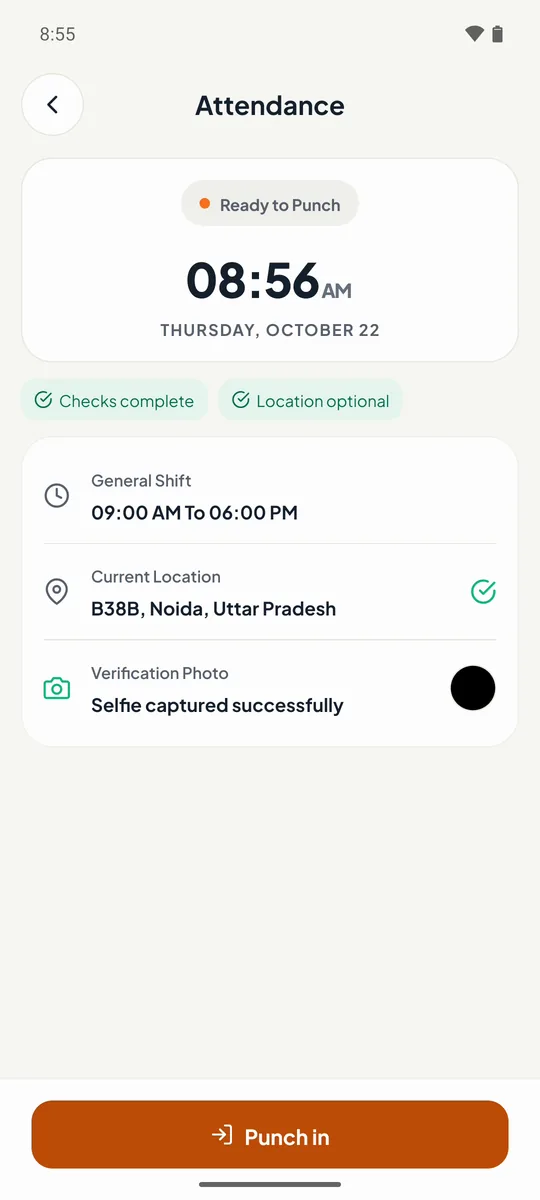
Tip: If geo-fencing is on, employees can only punch from the app when they are inside the allowed area. See Attendance rules and office time policy.
Still stuck? Raise a ticket from Help & Support inside the app, or contact us at staffkhata.com/contact.