
Manage daily attendance
Plan: All plans
All punches, from biometric machines and the mobile app, land on one page. From there you check the day, approve punches and correct mistakes before payroll.
See today at a glance
Your Dashboard shows who is present, absent and late today. Recent Punches lists every check-in as it happens, and late arrivals are flagged. The map shows where mobile punches came from.
For the full list, click Time & Leave → Attendance Process.
Filter the Attendance page
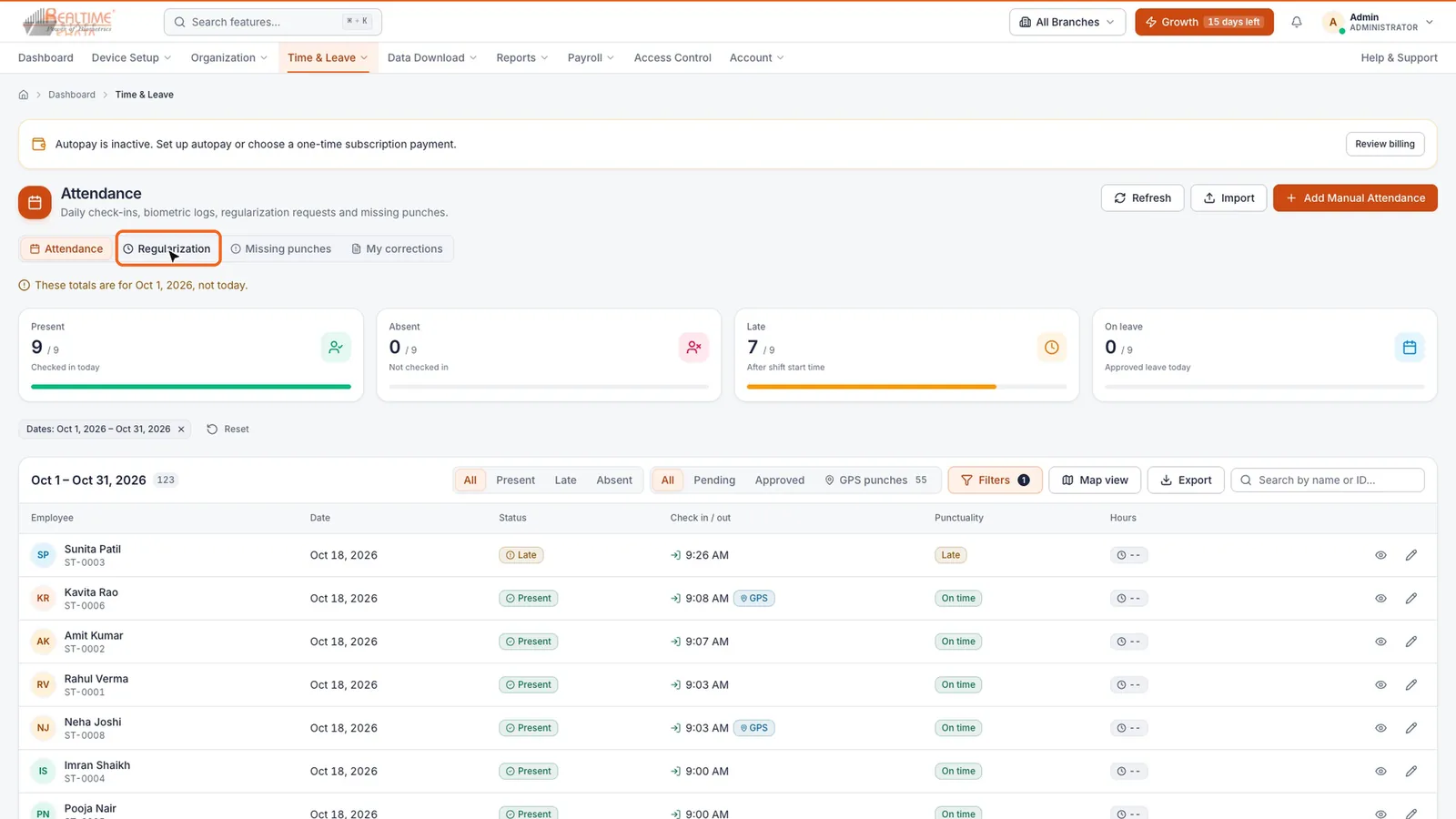
The Attendance page opens on today. The cards at the top (Present, Absent, Late, On leave) show the totals. Click a card to show only those people.
Above the table you have two sets of filters:
| Filter | What it shows |
|---|---|
| All / Present / Late / Absent | Employees by attendance status |
| Pending | Punches waiting for your approval |
| Approved | Punches you have already approved |
| GPS punches | Only punches made from the mobile app, with a location |
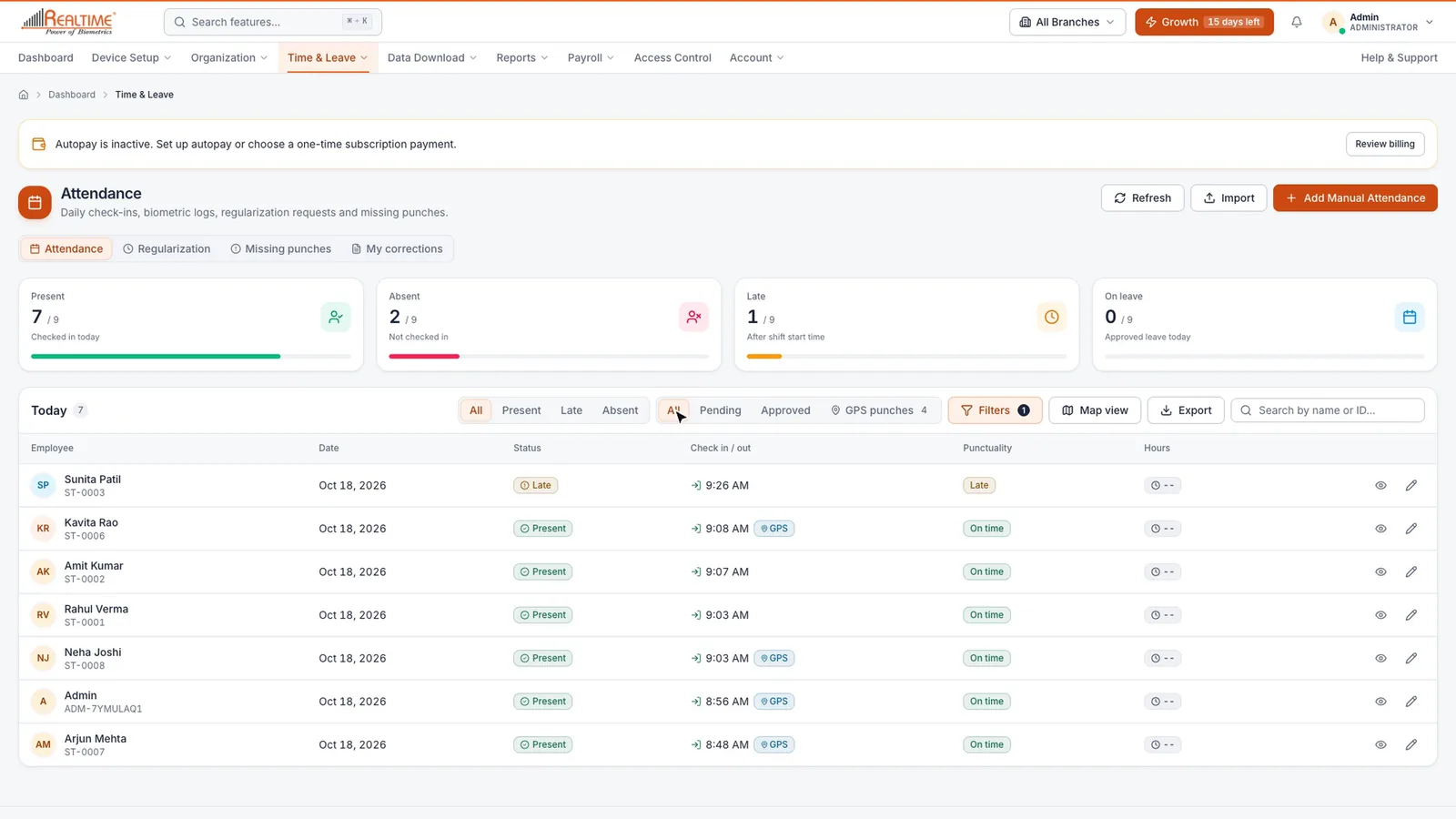
Click Filters to choose an employee or a different period, then click Apply. Use All Branches in the top bar to see one branch. Use Search by name or ID… to find one person, and Export to download the list.
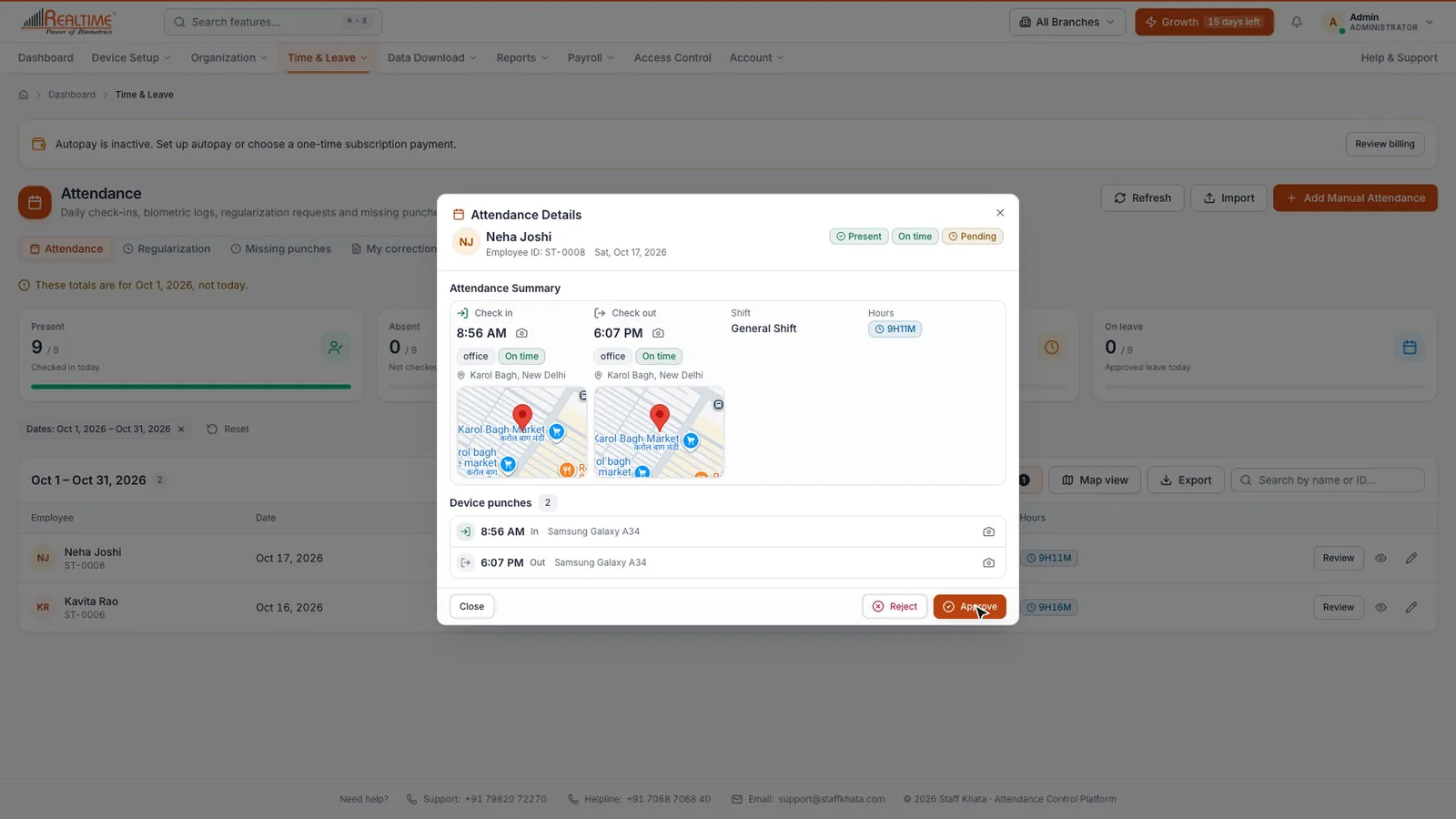
Click the eye icon on any row to open Attendance Details: check-in and check-out times, the device or location used, the shift and hours, and the punch photo for mobile punches.
Plan needed: On lower plans, the period filter is limited to a single day. Viewing a whole month, year or custom range needs a plan with advanced reports.
Approve punches
- Click Filters, choose This Month under Quick Select, and click Apply.
- Click Pending.
- Click Review on a row. Check the times, the location and the photo.
- Click Approve, then confirm. To refuse a punch, click Reject and give a short reason.
Fix a missing punch-out
When someone forgets to punch out, their hours cannot be worked out. Add the time yourself.
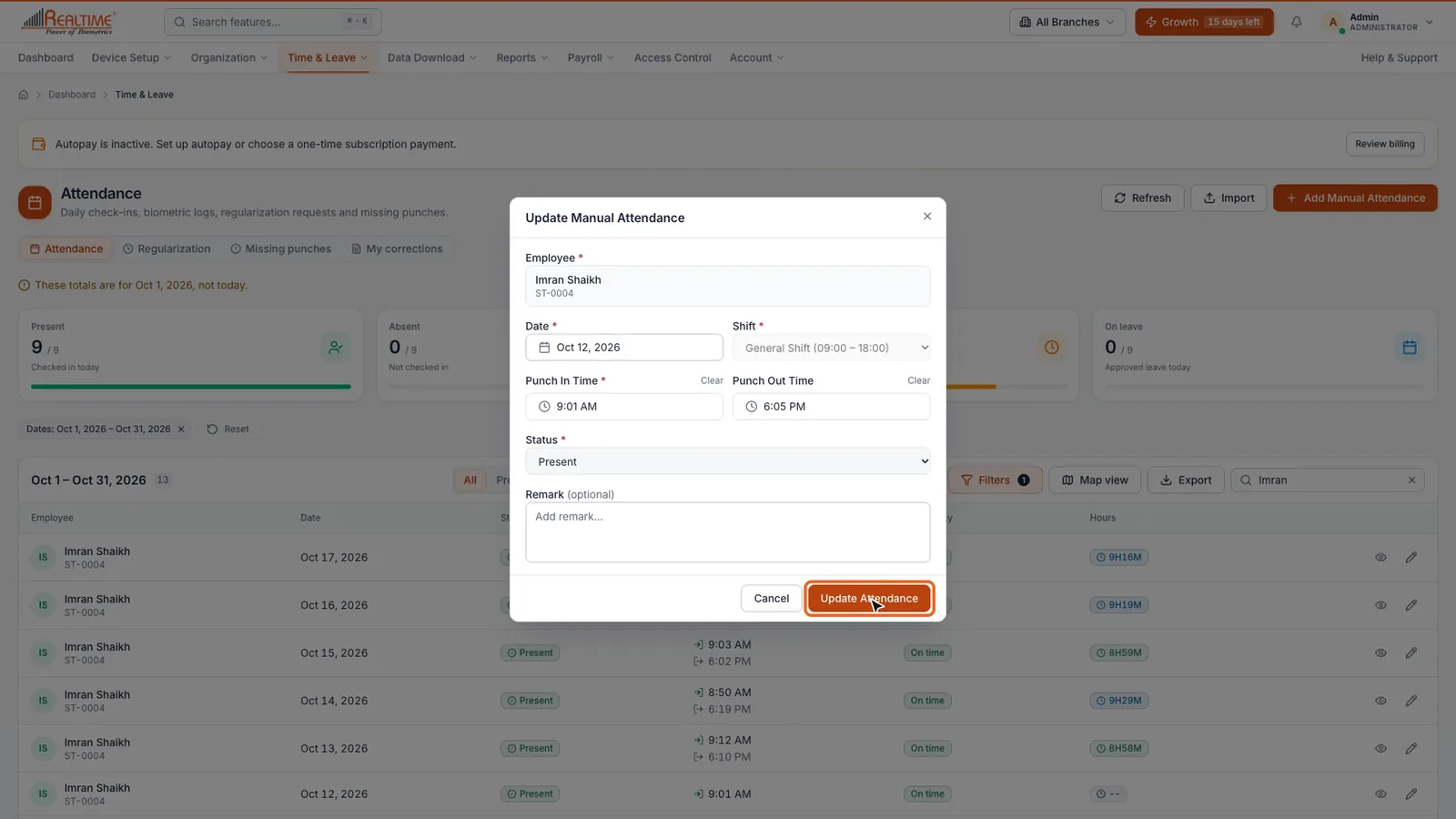
- Find the day. Search for the employee's name and set the period with Filters if it is not today.
- Click the pencil icon (Edit) on that row. Update Manual Attendance opens.
- Set the Punch Out Time. Tick Next day if they worked past midnight.
- Click Update Attendance. The hours are now calculated.
Tip: The Missing punches tab lists everyone with a check-in but no check-out (or the other way round). Click Add missing check-out, enter the time, and click Save attendance.
Add attendance by hand (Manual Punch)
Use this when someone could not punch at all, for example on a site visit.
- Click Add Manual Attendance (or Time & Leave → Manual Punch). Keep Single Punch selected.
- Choose the Employee, the Date and the Shift.
- Enter the Punch In Time and, if known, the Punch Out Time.
- Choose the Status: Present, Absent, Half Day or Leave. Times are not needed for Absent or Leave.
- Add a Remark if you like, and click Submit Attendance.
Mark several people at once (Bulk Manual Punch)
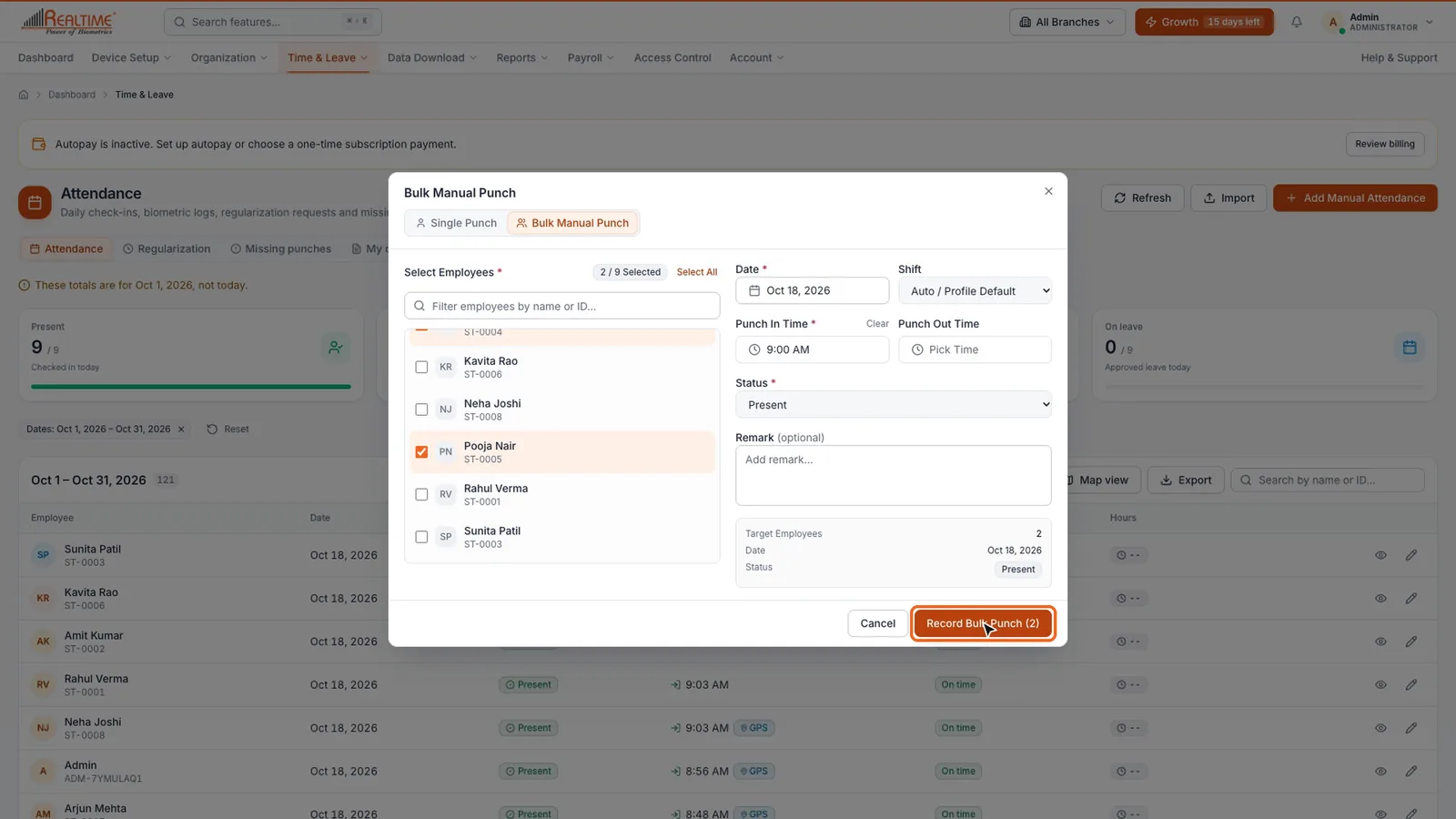
- Click Time & Leave → Bulk Manual Punch, or switch to Bulk Manual Punch inside the manual attendance form.
- Under Select Employees, tick each person, or click Select All.
- Set the Date, the Punch In Time and the Status. Leave Shift on Auto / Profile Default to use each person's own shift.
- Check the summary, then click Record Bulk Punch.
Approve regularization requests
Employees can ask to correct their own punches from the app or the web, with the times they actually worked and a reason.
- Click Time & Leave → Regularization, or open the Regularization tab on the Attendance page. The tab shows a count when requests are waiting.
- Check the requested times and the reason.
- Click Approve or Reject. To handle many at once, tick them and use the same action for all.
When you approve, the employee's attendance is updated to the times they asked for.
Still stuck? Raise a ticket from Help & Support inside the app, or contact us at staffkhata.com/contact.