
Mobile app: punching in
Plan: Plans with employee login
With the Staff Khata app, employees mark attendance from their own phone. Each punch saves the time, the phone's location and a selfie, and your branch geo-fence decides where punching is allowed.
Plan needed: Employee login on web and mobile can be locked on lower plans. If your staff cannot sign in, see Billing & Plan for current prices and plans.
For employees: install the app and sign in
Your admin creates your login. You need the email (or phone number) and password they set for you.
- Install Staff Khata from the Google Play Store (Android) or the App Store (iPhone).
- Open the app. On Sign in to your account, enter your Email or Phone Number and Password.
- Tap Sign In. The Today screen opens.
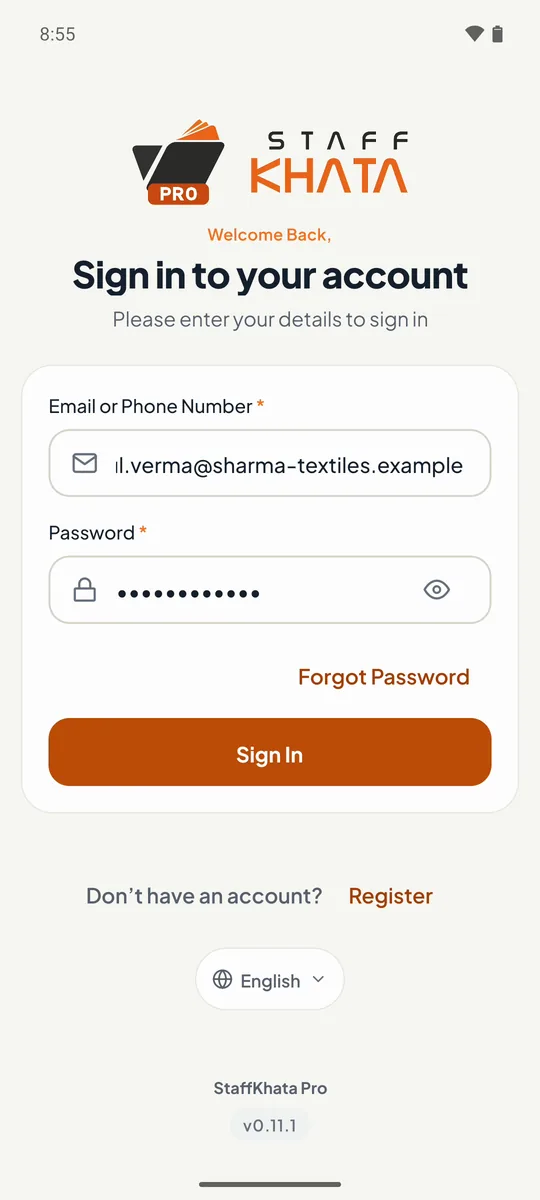
You only ever see your own attendance. The tabs at the bottom are Today, Attendance, Leave and Company.
Tip: Forgot your password? Tap Forgot Password? on the sign-in screen, or ask your admin to reset it.
Allow camera and location
The app needs your location to check you are at work, and the camera for the punch selfie.
- The first time you punch, your phone asks for location access. Tap Allow (choose "While using the app").
- When the camera opens, allow camera access too.
If you said no by mistake, the app shows Location required or Camera access required. Tap Enable Camera, or open your phone's Settings → Apps → Staff Khata → Permissions and turn them on.
Mark attendance with a selfie and GPS
- On Today, tap Punch in. (You can also open the Attendance tab and tap Mark Attendance.)
- The Attendance screen shows your Assigned Shift and your Current Location. If the address looks wrong, tap Tap to refresh location.
- Tap Tap to take a selfie and take a clear photo of your face. It appears under Verification Photo.
- Tap Punch in.
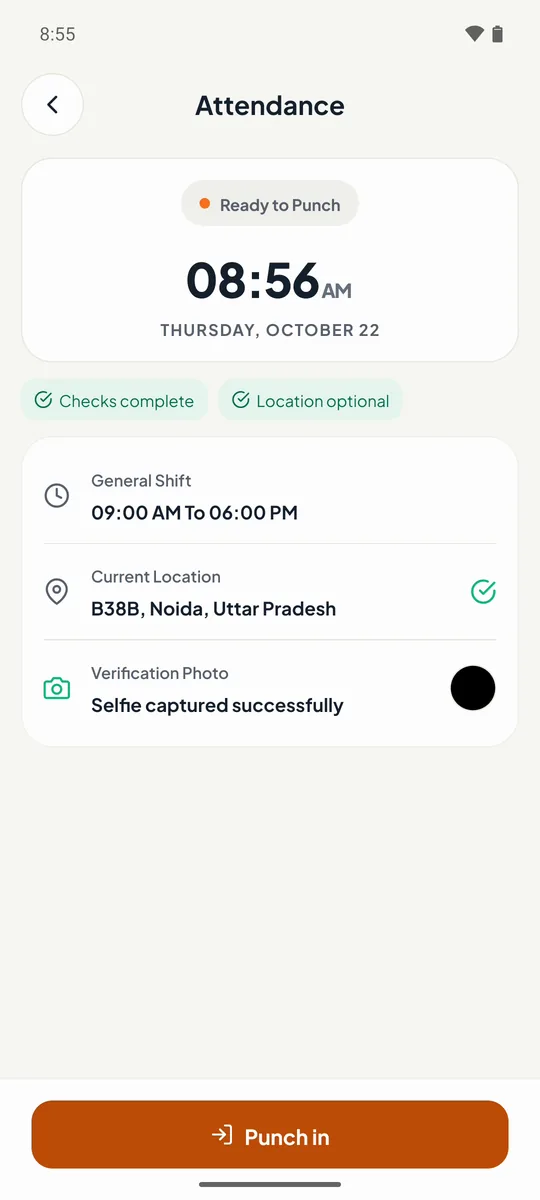
You see Punched In Successfully! with the time. Your admin sees the punch on their dashboard within seconds.
What happens outside the geo-fence
If your branch has geo-fencing on, you can only punch within its radius, for example 200 metres around the office. Outside it, the punch is blocked with Outside Allowed Radius: "You are outside the allowed punch-in radius. Please move closer and try again."
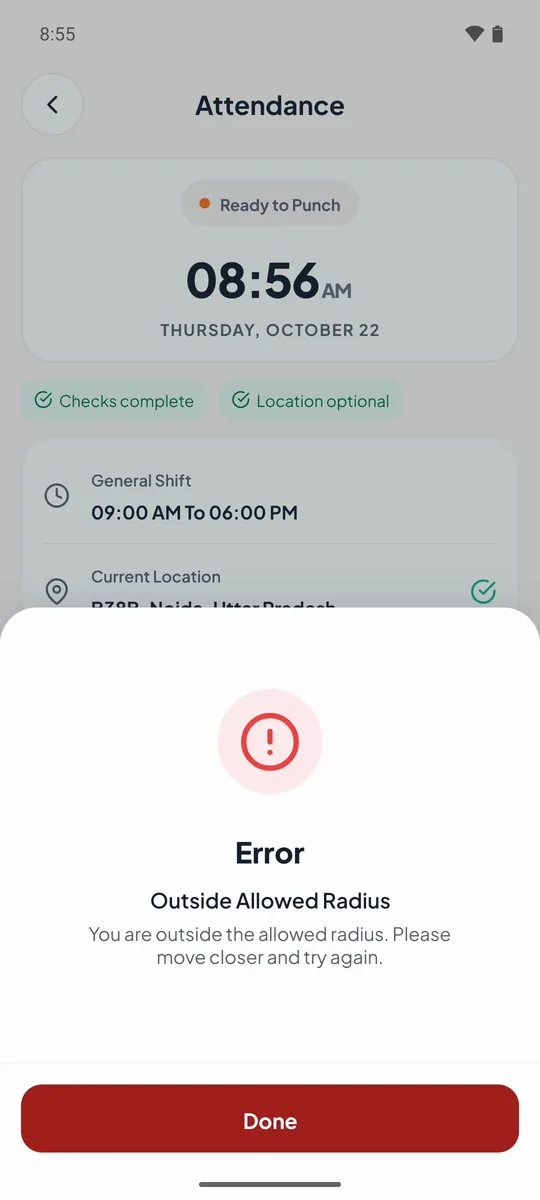
Walk into the office, tap Tap to refresh location, and punch again. Admins set the radius per branch. See Set up your company, branches and departments.
Punch out
- At the end of the day, tap Punch out on Today.
- Take another selfie and tap Punch out.
You see Punched Out Successfully!. Staff Khata works out your hours against your shift, so late marks, early exits and overtime are calculated for you.
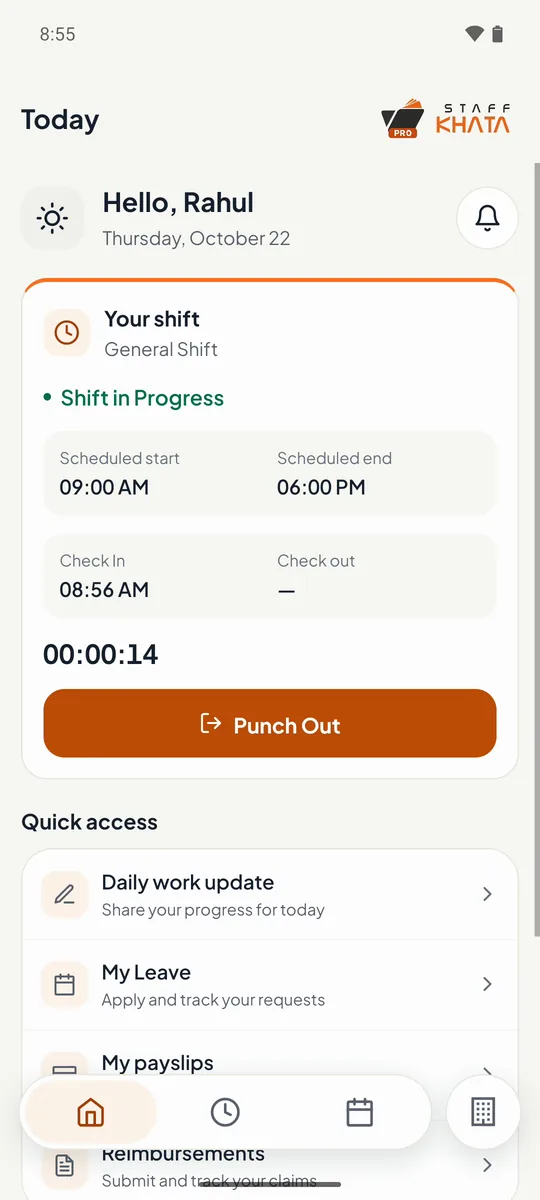
View your attendance history
- Open the Attendance tab. Switch between Day and Month, and use the arrows to move between periods.
- Tap a day to see its Punched In At and Punched Out At times, the location and the photos.
- Punch wrong or missing? On that day, tap Request Regularisation, enter the correct times and a reason, then tap Submit Request. Your admin approves it on the web.
For admins: turn mobile punch on or off per employee
Mobile punch is on for new employees by default. Turn it off for staff who should only punch at a biometric machine.
- Click Organization → Employee List.
- Click the ⋯ menu on the employee's row.
- Click Disable Mobile Punch (or Enable Mobile Punch to switch it back on).
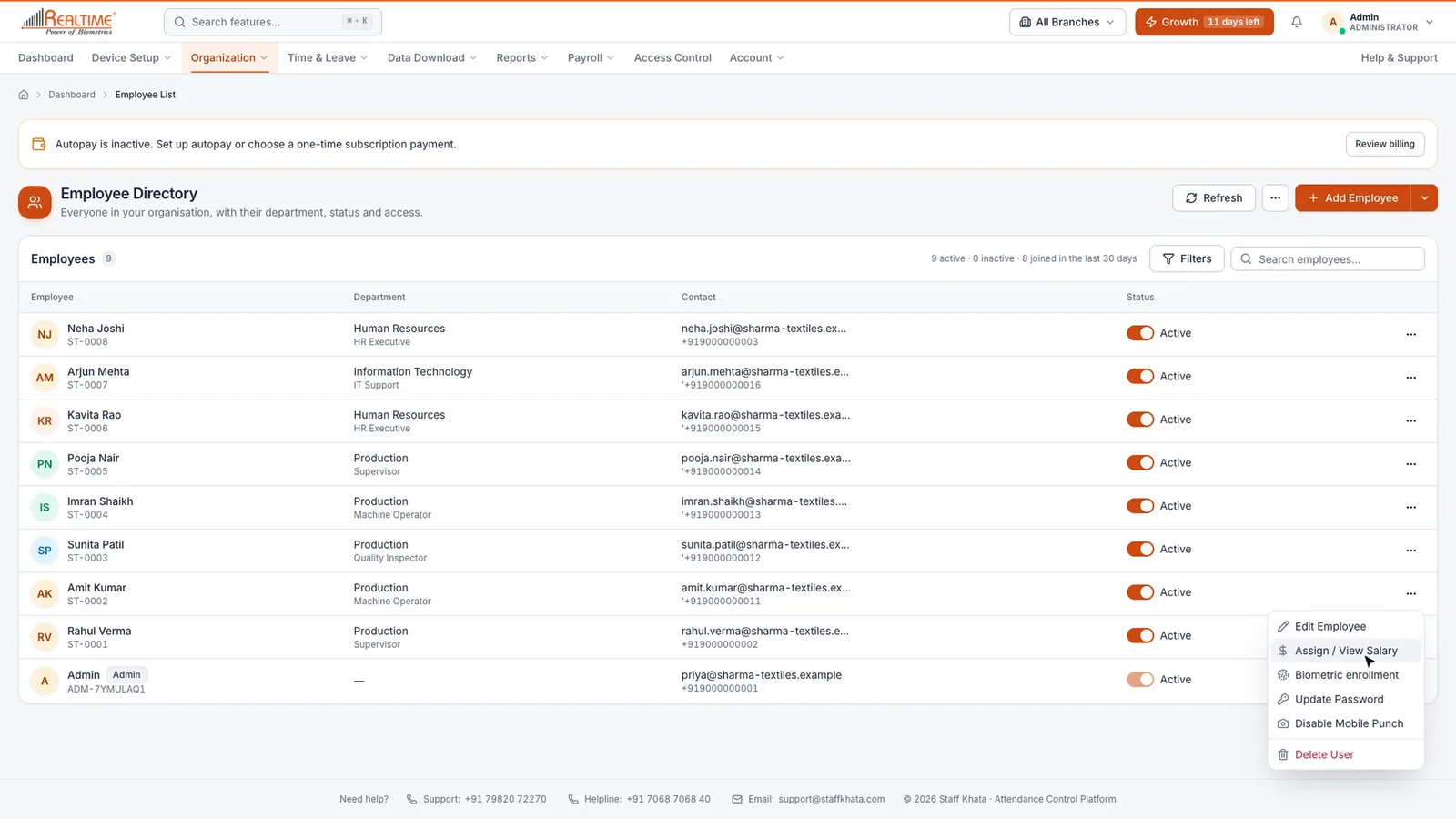
When it is off, the app tells the employee "Mobile punching disabled" and to use their assigned machine. To set or reset an employee's password, use Update Password in the same menu.
For admins: see where punches came from
Every mobile punch appears in Recent Punches and on the map on your dashboard. For the full list:
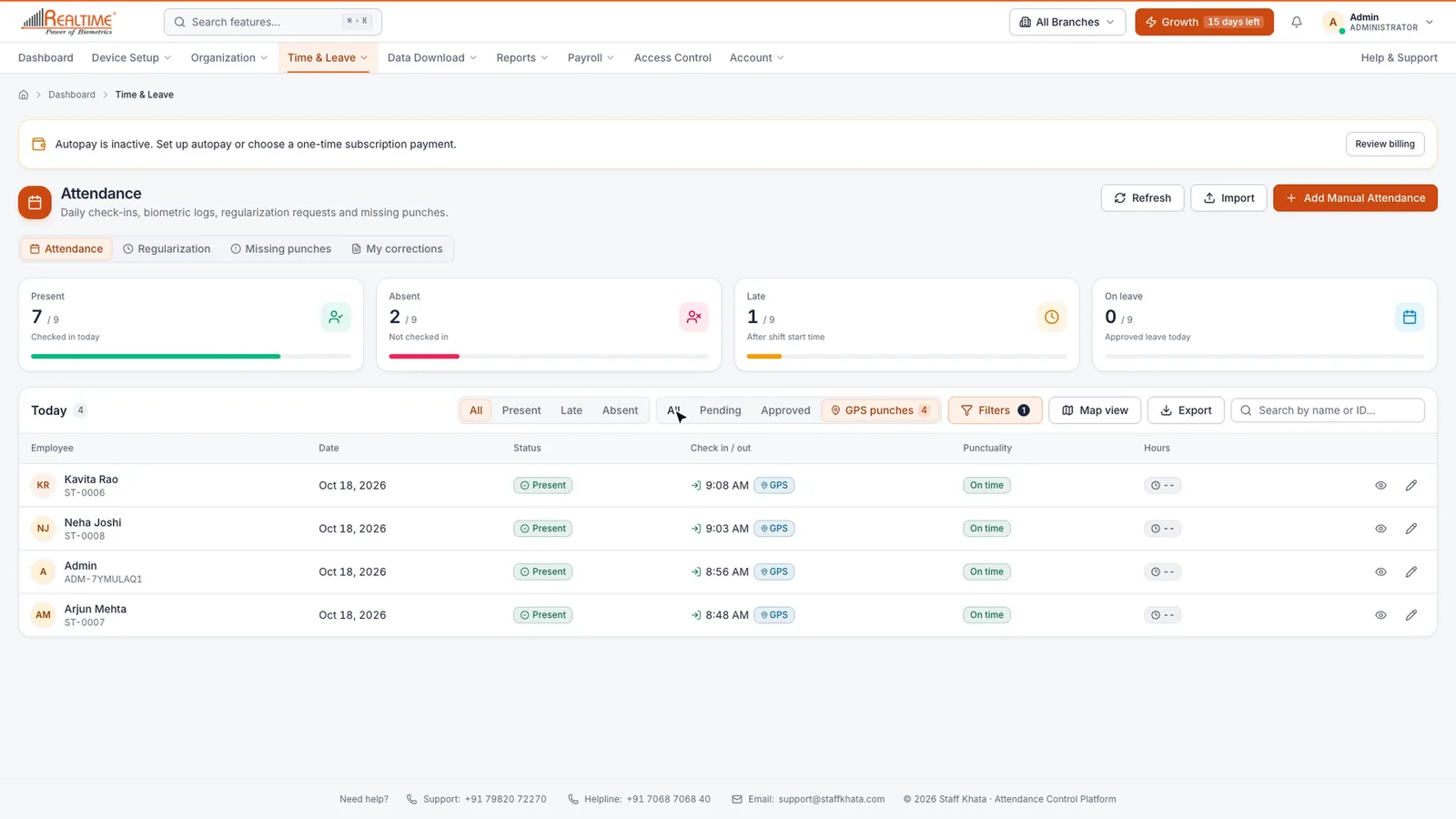
- Click Time & Leave → Attendance Process.
- Click GPS punches. Only punches made from the app are shown, each marked GPS.
- Click the eye icon on a row to see the check-in and check-out location on a map and the punch photo. Click Map view to see all of today's mobile punches on one map.
Still stuck? Raise a ticket from Help & Support inside the app, or contact us at staffkhata.com/contact.