
Before you start
Plan: All plans
This chapter explains what Staff Khata is, what you need before you sign up, and who sees what. Read it once, then follow the chapters in order to set up your company.
What Staff Khata does
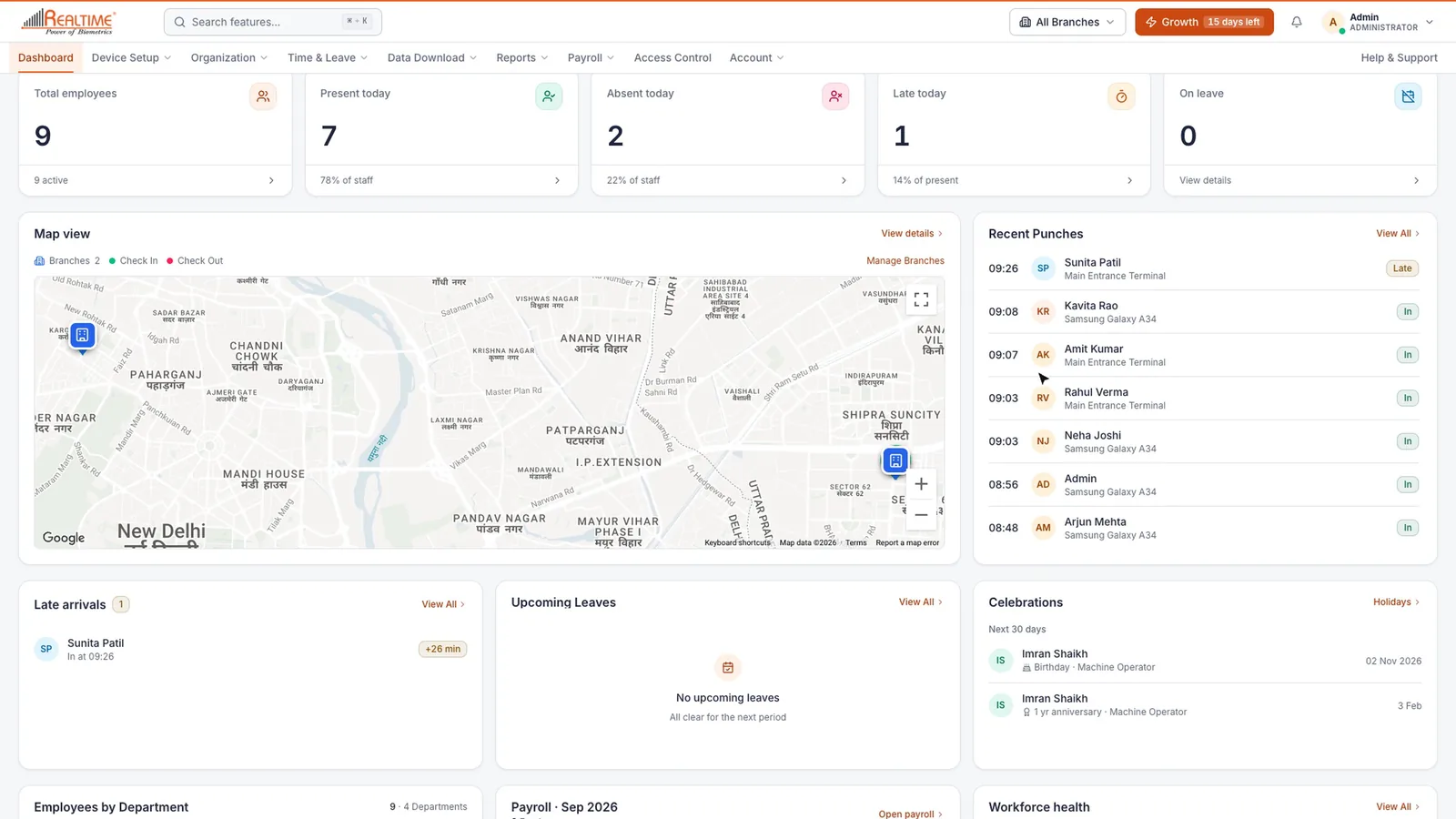
Staff Khata keeps attendance, leave, payroll and HR for your whole team in one place. Employees punch in from their phone with a selfie and their location, or at a Realtime biometric machine at the door. Staff Khata then applies your office rules, such as grace time, half-days and late marks, so you see who is in, who is late and who is absent in real time. From that attendance it builds leave balances, salaries and payslips, and over thirty reports, including government registers. You can also get a daily summary on WhatsApp without opening the app.
What you need
- A computer with a current web browser. Use the latest Chrome, Edge or Safari. The web app is at https://attendance.staffkhata.com. You set up your company and run payroll and reports here.
- An internet connection on the computer, and on any phone or machine that sends punches.
- The Staff Khata mobile app on Android or iOS, for employees who punch in from their phone. They need location turned on and a working camera for the selfie.
- Realtime biometric devices, if you want staff to punch on a fingerprint or card machine. Staff Khata works only with Realtime biometric devices.
- A work email and a mobile number that can receive codes. You use both to verify your account when you sign up.
The four roles
Every person in Staff Khata has a role. The role decides which screens they see after they sign in.
| Role | Who it is for | What they see |
|---|---|---|
| Admin | The owner or office head | Everything: company setup, employees, devices, attendance, leave, payroll, reports, billing and integrations. |
| HR | Your HR or accounts person | The same admin screens as the Admin, for day-to-day work on employees, attendance, leave and payroll. Only the Admin sees the plan badge and upgrades. |
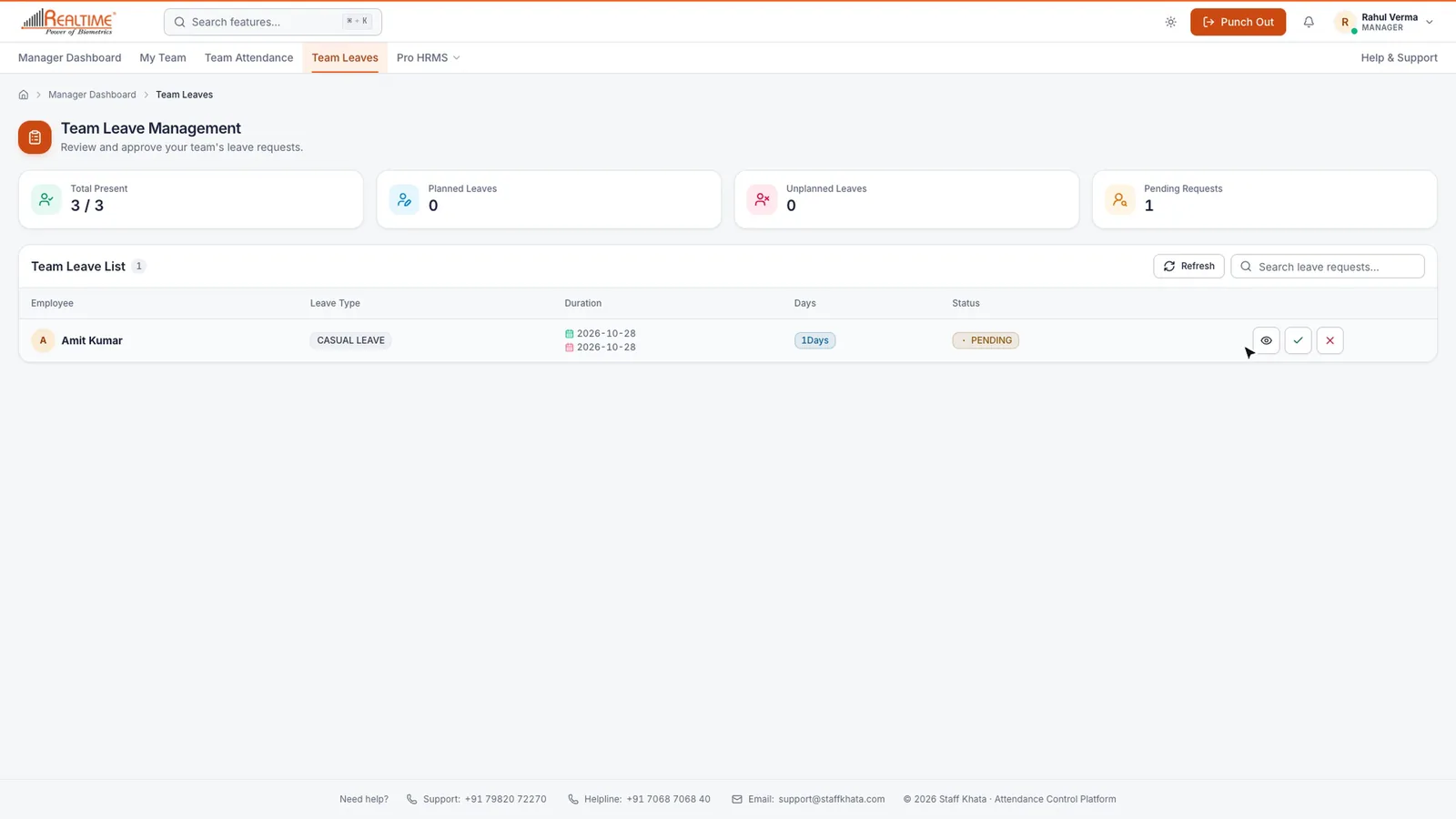
| Manager | A team lead | My Team, Team Attendance and Team Leaves, to approve their own team's requests. Needs the Pro HRMS add-on. |
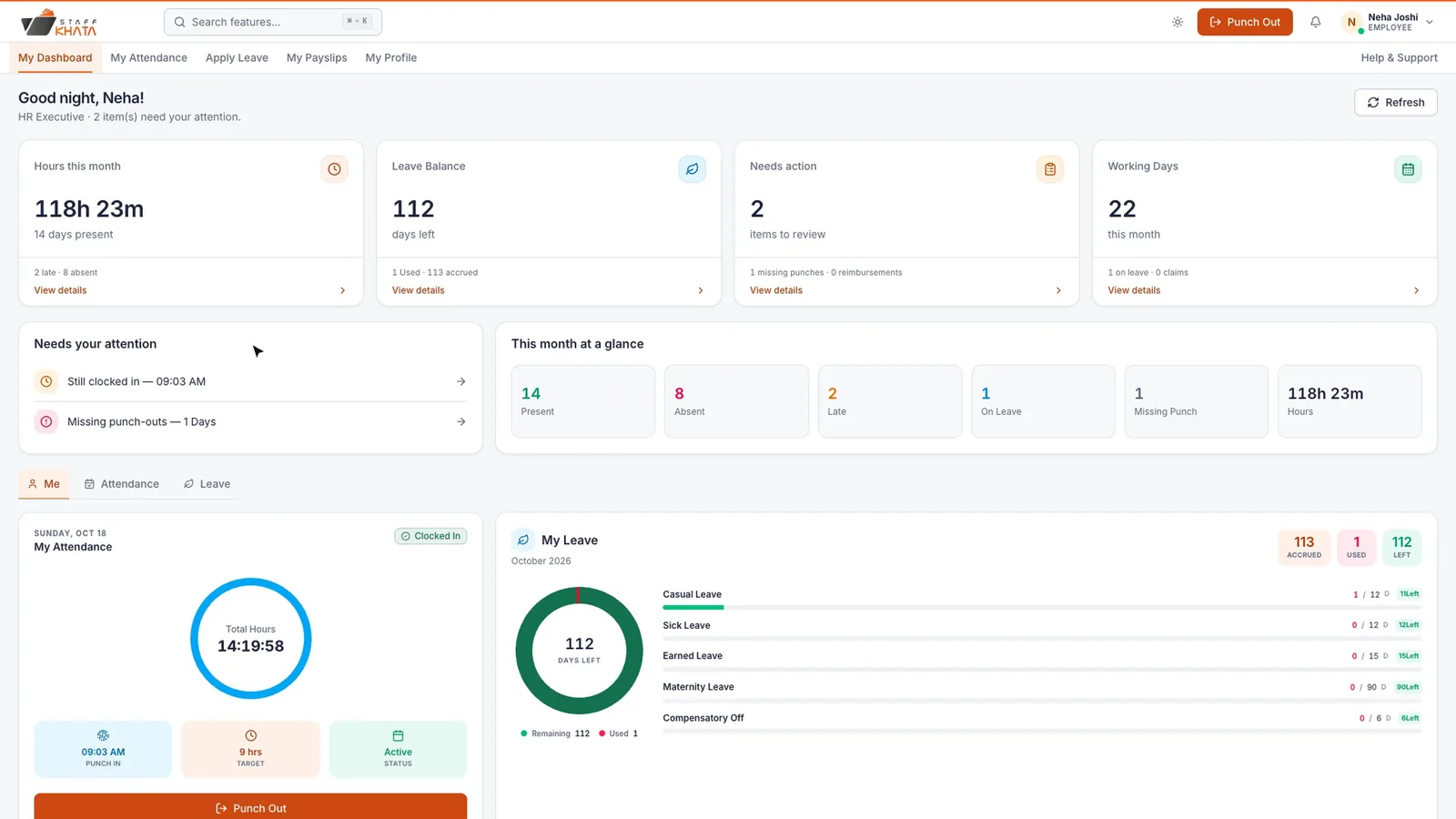
| Employee | Every staff member | Their own dashboard, attendance, leave, payslips and profile, on the web and in the mobile app. |
You pick the role when you add someone in Add Employee. There is also a Branch Admin role. A Branch Admin works in the admin screens but cannot manage branches, and can only add people with the Employee role.
Plans, the trial and add-ons
Every new company starts with a 15-day trial with every feature unlocked. When the trial ends, your account moves to the entry plan automatically. You can upgrade at any time.
- Plans differ in how many users and biometric devices you can have, and in which features are included. Leave, holidays, overtime, payroll, employee login, advanced reports and multiple shifts can be locked on lower plans.
- Add-ons are extra modules you buy on top of a plan: Pro HRMS (manager approvals, company feed, org tree, assets and more) and Journey Tracker (live tracking for field staff). Their menus appear only once the add-on is active.
A locked feature shows a lock icon in the menu. See Billing & Plan for current prices and what each plan includes.
Plan needed: If a feature in this manual shows a lock on your account, it needs a higher plan or an add-on. See Plans, billing and support.
How this manual is organised
The chapters follow the order you set things up in. Start at the top and work down.
- Sign up and first login
- Company setup
- Attendance rules
- Employees
- Shifts and overtime
- Mobile punch
- Biometric devices
- Daily attendance
- Leave and holidays
- Payroll
- Reports
- WhatsApp and integrations
- Employee self-service
- Journey Tracker
- Pro HRMS
- Plans, billing and support
- FAQ and troubleshooting
Tip: Screenshots in this manual show a fictional example company, Sharma Textiles Pvt Ltd. Your screens show your own company's names and numbers.
Still stuck? Raise a ticket from Help & Support inside the app, or contact us at staffkhata.com/contact.