
Sign up and first login
Plan: All plans
Signing up takes a few minutes. You verify your email and phone, enter your company details and set an admin password, and your workspace is ready.
Register your business
Registration has three steps. You can change the language of the page at any time with the language button in the top corner.
- Open https://attendance.staffkhata.com and click Register Your Business.
- On Verify Your Account, enter your Work Email Address and Phone Number. Use ones you can check now, because a code is sent to each.
- Click Send Verification Code.
- You get a 6-digit code by email and another by SMS. Type the email code in the first row of boxes and the phone code in the second row.
- Click Verify Code.
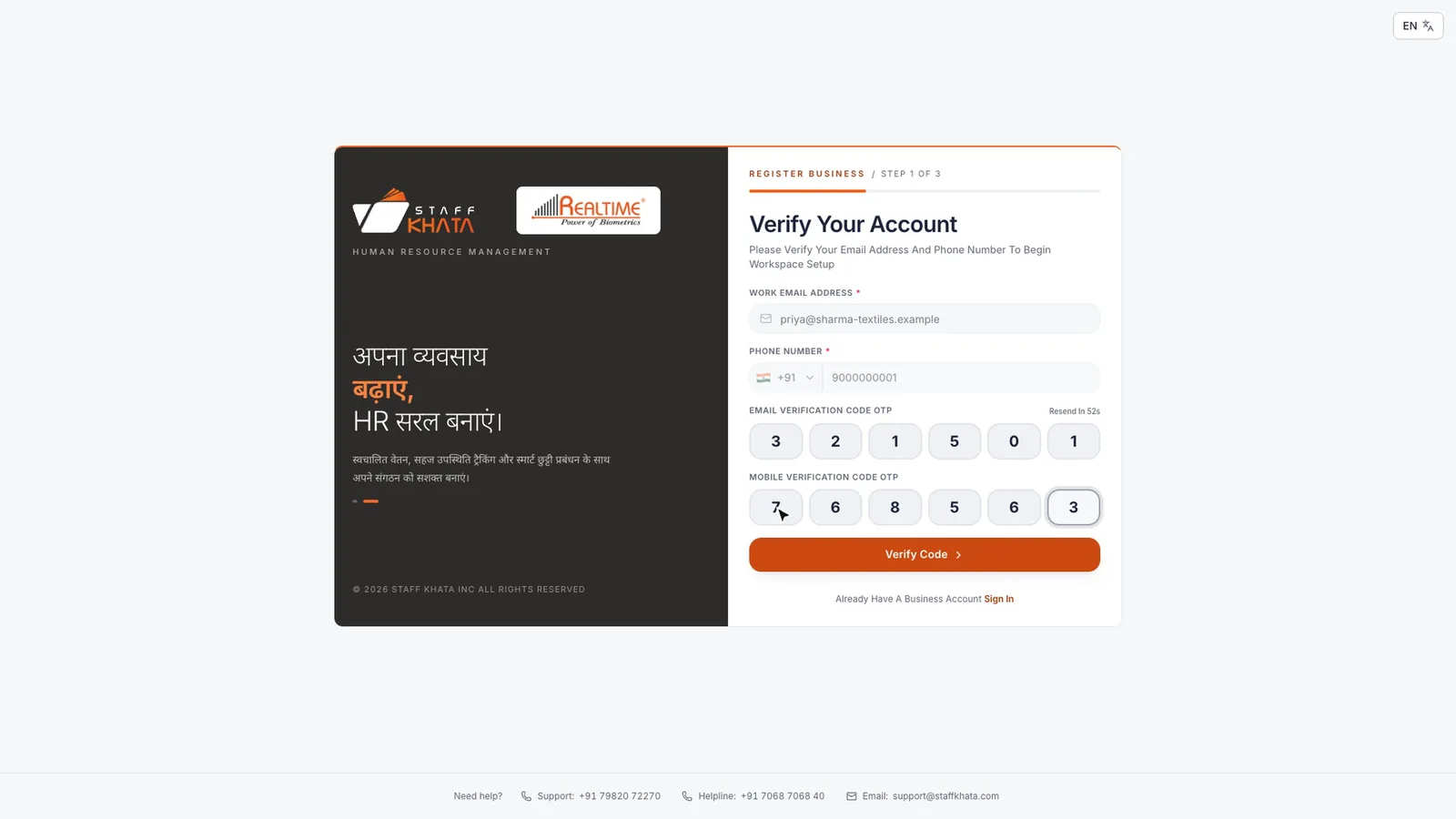
Tip: No code? Wait for the timer to finish, then click Resend Code. Codes are valid for 10 minutes.
Enter your company details
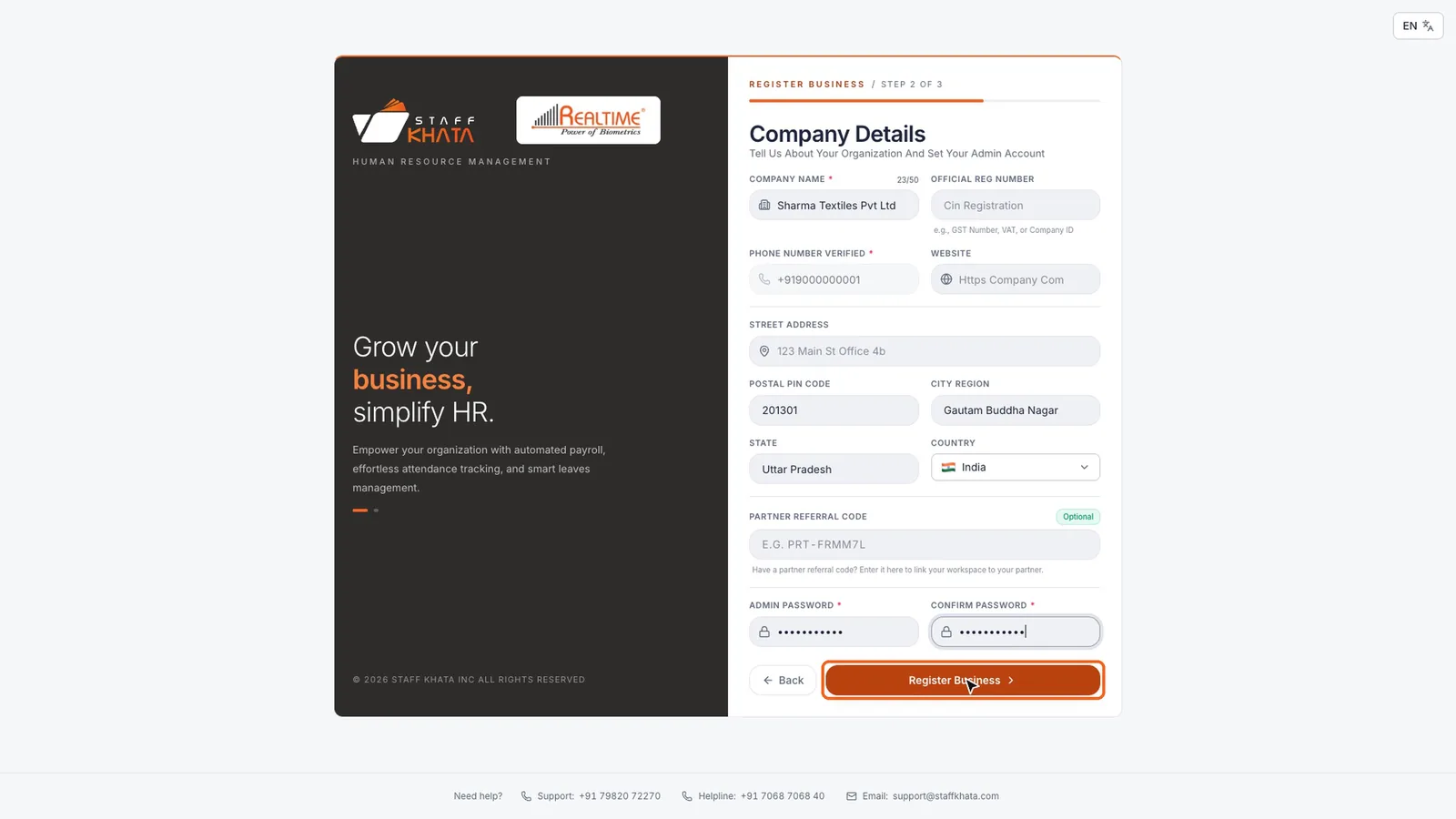
- On Company Details, type your Company Name (3 to 50 characters). This is the only required company field.
- Official Reg Number (such as your GST or CIN), Website and Street Address are optional. You can add them later in Company setup.
- Type your 6-digit Postal Pin Code. City Region, State and Country fill in for you.
- If a Staff Khata partner helped you, enter their Partner Referral Code. Otherwise leave it empty.
- Set your Admin Password (at least 8 characters) and type it again in Confirm Password.
- Click Register Business.
Your workspace is ready
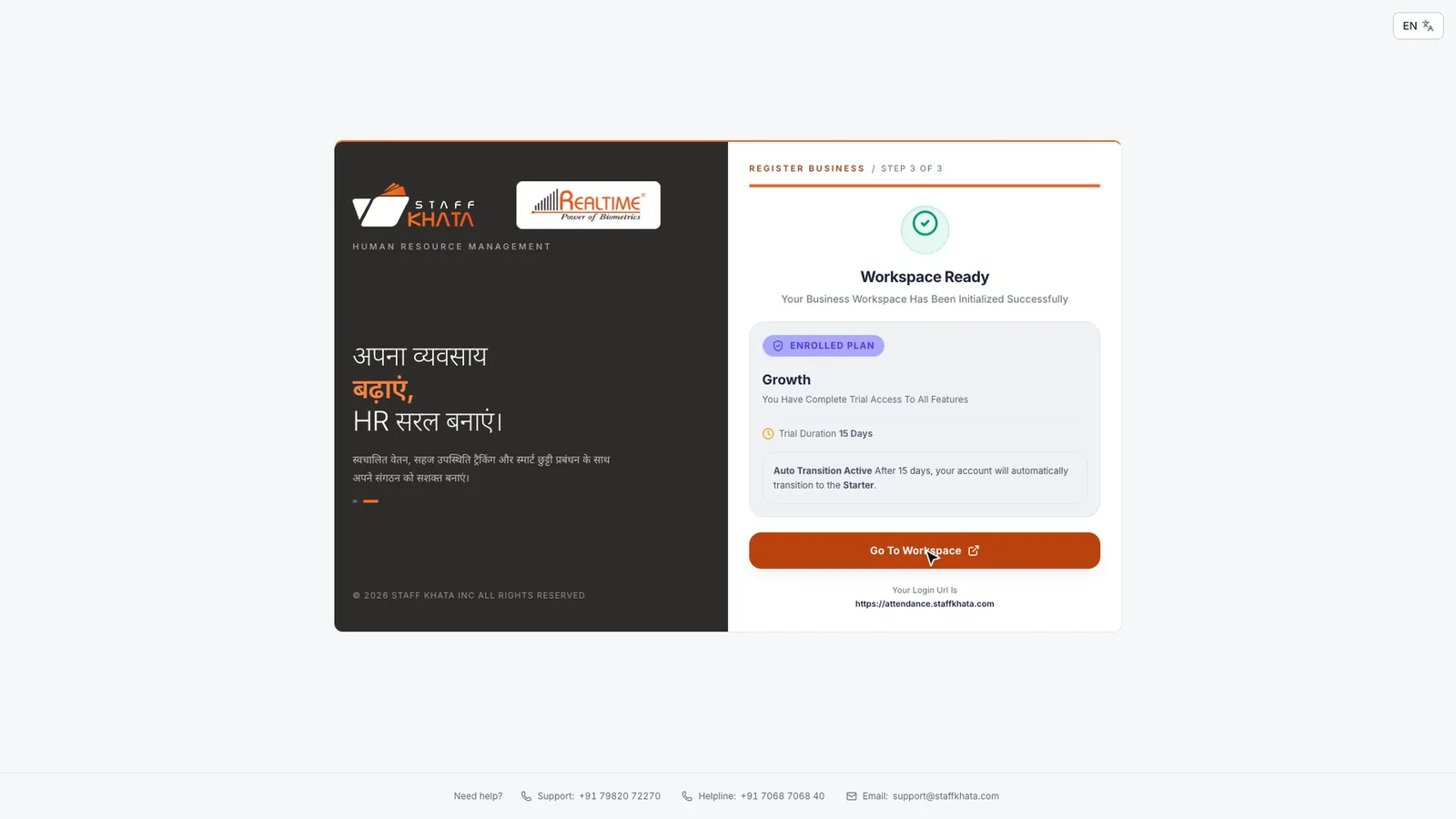
The Workspace Ready screen shows your Enrolled Plan, the 15-day trial, and the plan your account moves to when the trial ends. During the trial every feature is unlocked. Click Go To Workspace to sign in.
Sign in
- Go to https://attendance.staffkhata.com.
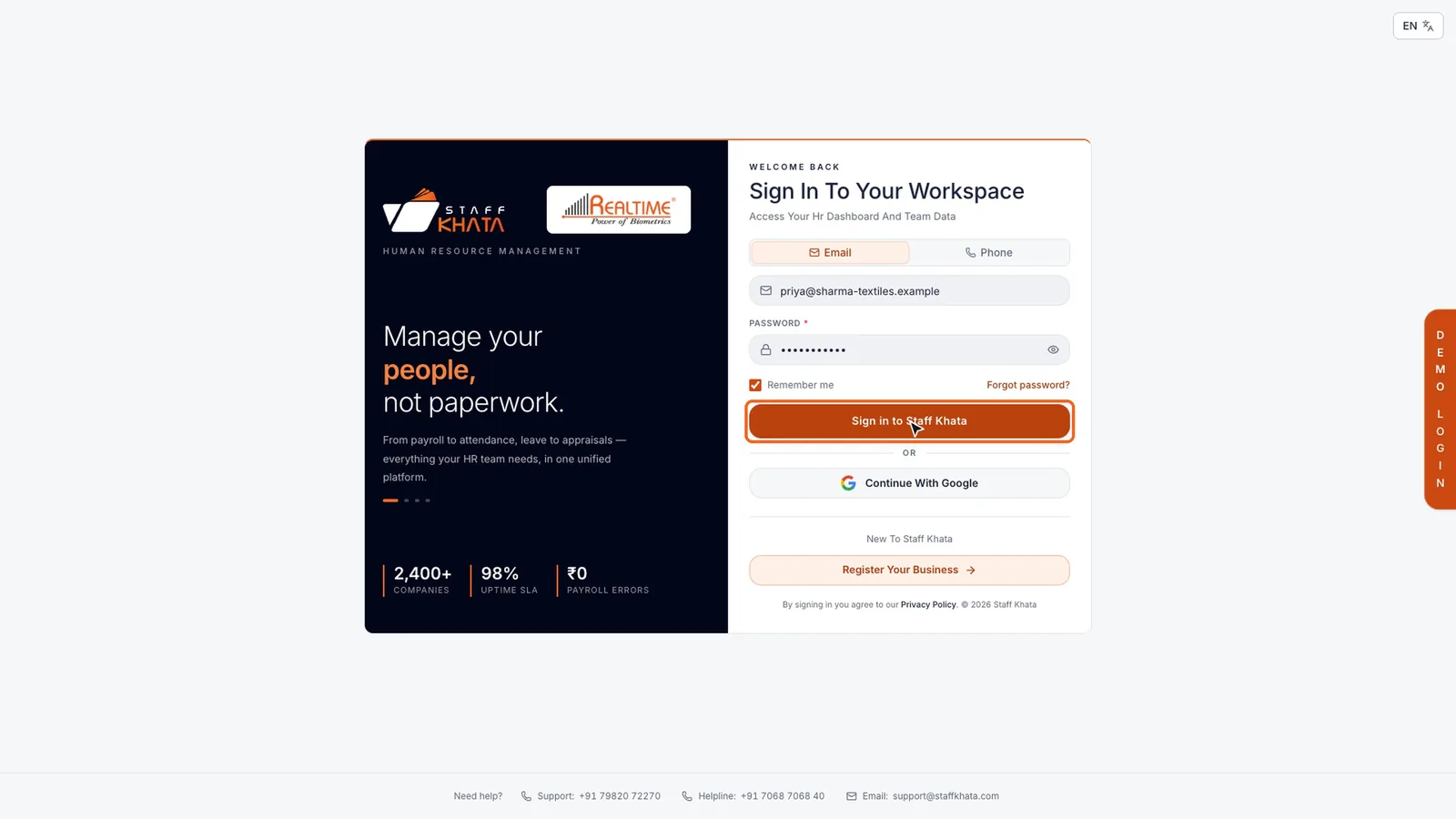
- Choose Email or Phone, then enter your work email or mobile number.
- Enter your password.
- Tick Remember me only on your own computer.
- Click Sign in to Staff Khata.
Your dashboard is empty at first. As you add employees and they punch in, it shows attendance, late arrivals, leave and payroll at a glance. You may also see a banner that says autopay is inactive. That is about billing; see Plans, billing and support.
Find your way around
The bar at the top of every page holds these controls:
| Control | What it does |
|---|---|
| Menus | Dashboard, Device Setup, Organization, Time & Leave, Reports, Payroll and more. Point to a menu to see its pages. |
| Search features... | Press ⌘K on a Mac or Ctrl+K on Windows, type what you want (for example "company") and press Enter. |
| Branch switcher | Shows All Branches. Once you have more than one office, pick one branch or view all together. |
| Plan badge | Your plan name and the trial days left. Click it to manage your plan. |
| Bell | Notifications: approvals, leave requests and device alerts. |
| Help & Support | Opens the support page with contact numbers and tickets. |
Set your language, layout and accessibility
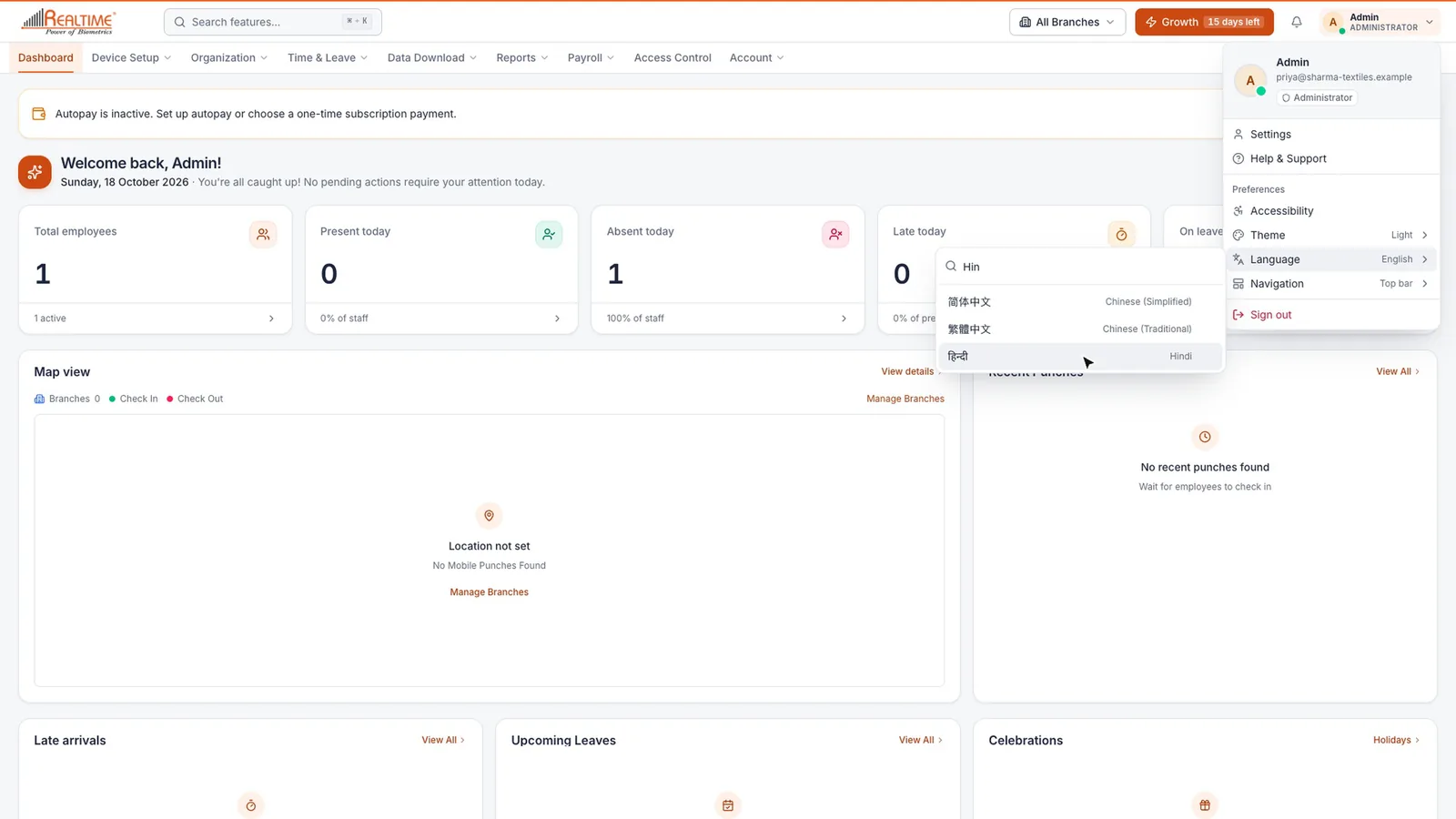
Click your name or profile picture at the top right. The menu has Settings, Help & Support and a Preferences section.
- Language: Staff Khata works in 55 languages, including Hindi, Marathi, Tamil and Bengali. Click Language, type a few letters to search, and pick yours.
- Navigation: Choose Top bar (menus across the top) or Sidebar (menus down the left).
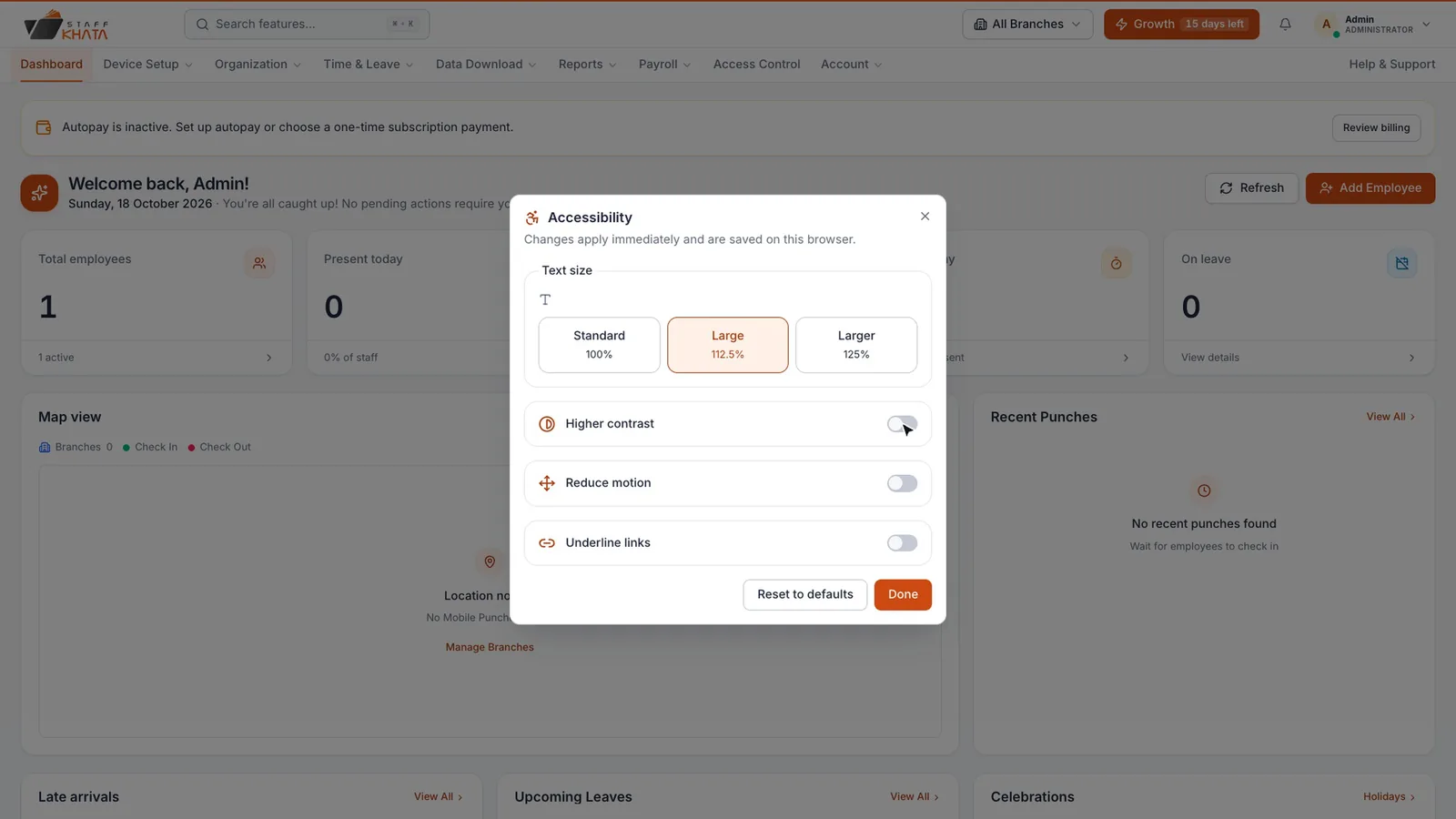
- Accessibility: Opens a window where you set Text size (Standard, Large or Larger) and turn on Higher contrast, Reduce motion or Underline links. Click Reset to defaults to undo, or Done to close.
Note: These preferences apply straight away and are saved on this browser only. On another computer, set them again.
Reset a forgotten password
- On the sign-in page, click Forgot password?.
- Enter your Work Email Address and click Send Reset OTP.
- Enter the 6-digit code from the email and click Verify OTP. If it does not arrive, click Resend OTP.
- Type a New Password, type it again in Confirm Password, and click Reset Password.
- On Password reset!, click Sign in now.
Next, set up your company in Company setup.
Still stuck? Raise a ticket from Help & Support inside the app, or contact us at staffkhata.com/contact.