
Shifts, roster and overtime
Plan: All plans
A shift sets your staff's working hours, grace time and weekly offs. The roster says who works which shift on which day, and overtime rules decide how extra hours are paid.
Set up a shift
Your workspace starts with a General Shift and a Night Shift. Edit them to match your hours, or click Add shift to create a new one.
- Click Organization → Shift Details.
- Open a shift's row menu (⋯) and click Edit.
- Check the Shift name, and add a short Code (for example
GS). - Set Starts and Ends. A night shift that ends after midnight is marked "ends the next day".
- Set Late punch-in allowed and Early punch-out allowed in minutes. For example, 15 minutes each.
Add weekly offs
- Under Weekly off, click Add off day.
- Choose the Day, the Type (Full day or Half day) and Which weeks: Every week, or the 1st, 2nd, 3rd, 4th or last week of the month.
- Repeat for each off day. For example, Sunday every week plus Saturday in the 2nd and 4th weeks gives staff two Saturdays off a month.
- Click Save Changes.
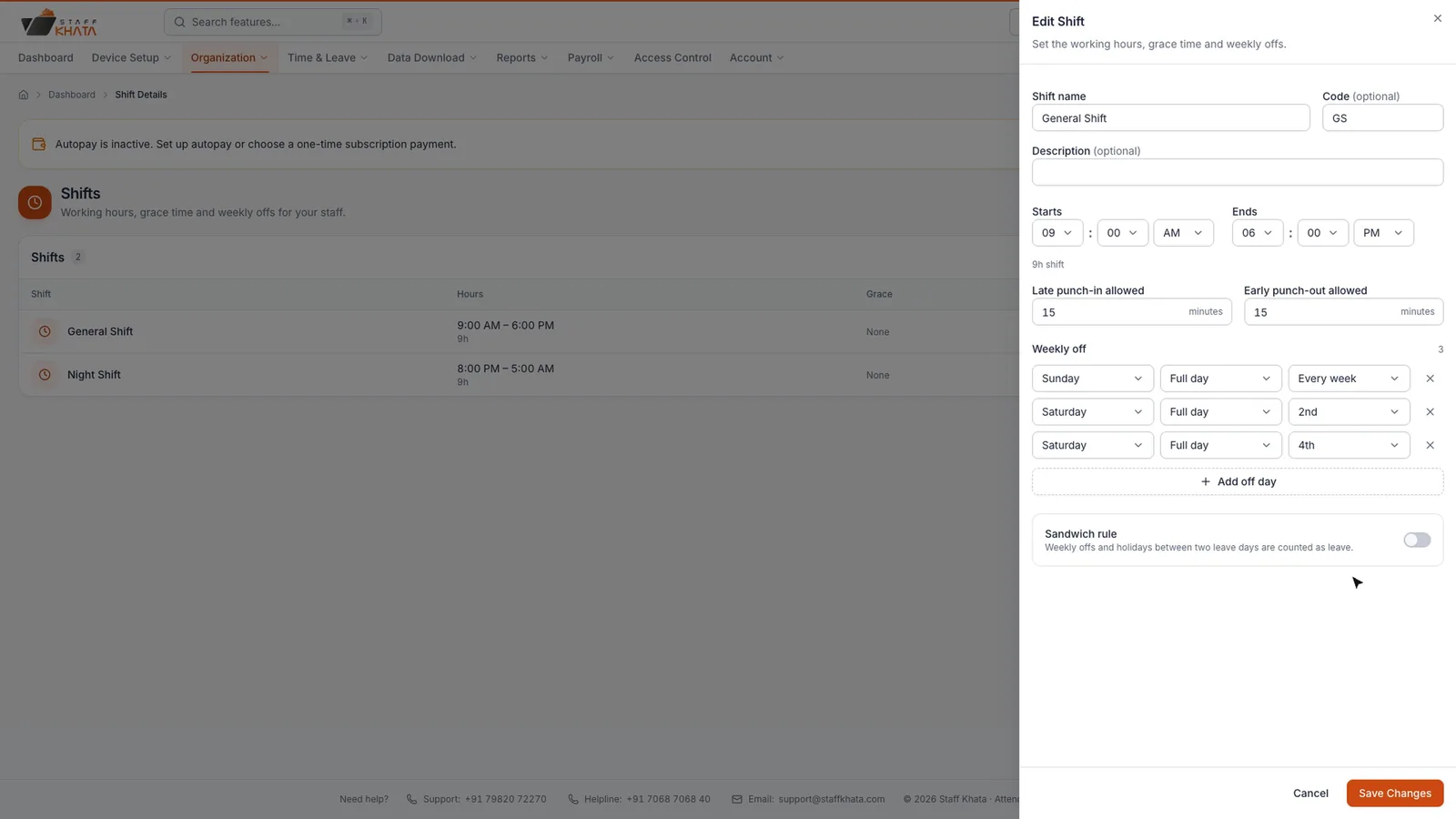
| Setting | What it does |
|---|---|
| Late punch-in allowed | Minutes staff can arrive late on this shift without a late mark. |
| Early punch-out allowed | Minutes staff can leave early without an early mark. |
| Weekly off | Days off for this shift. Half days still count as working days. |
| Sandwich rule | Weekly offs and holidays between two leave days are counted as leave. |
Make it the default shift
Open the shift's row menu and click Make default. Every new employee then starts on this shift. The list shows the default shift with a Default badge, its hours, grace and weekly offs.
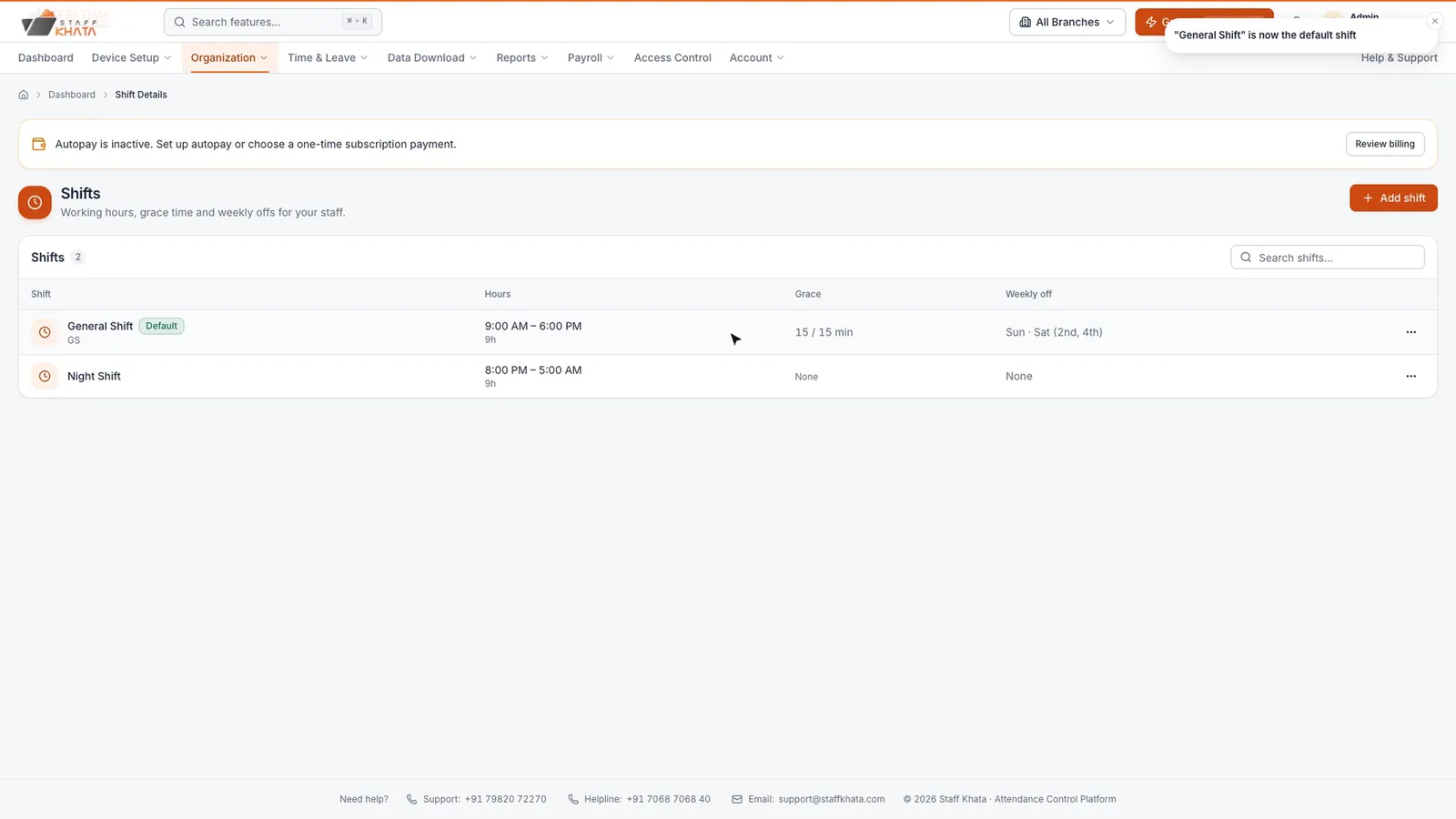
Plan needed: Lower plans allow one shift. You can still edit and assign it. To create more shifts, you may need a higher plan; see Billing & Plan.
Assign shifts with the roster
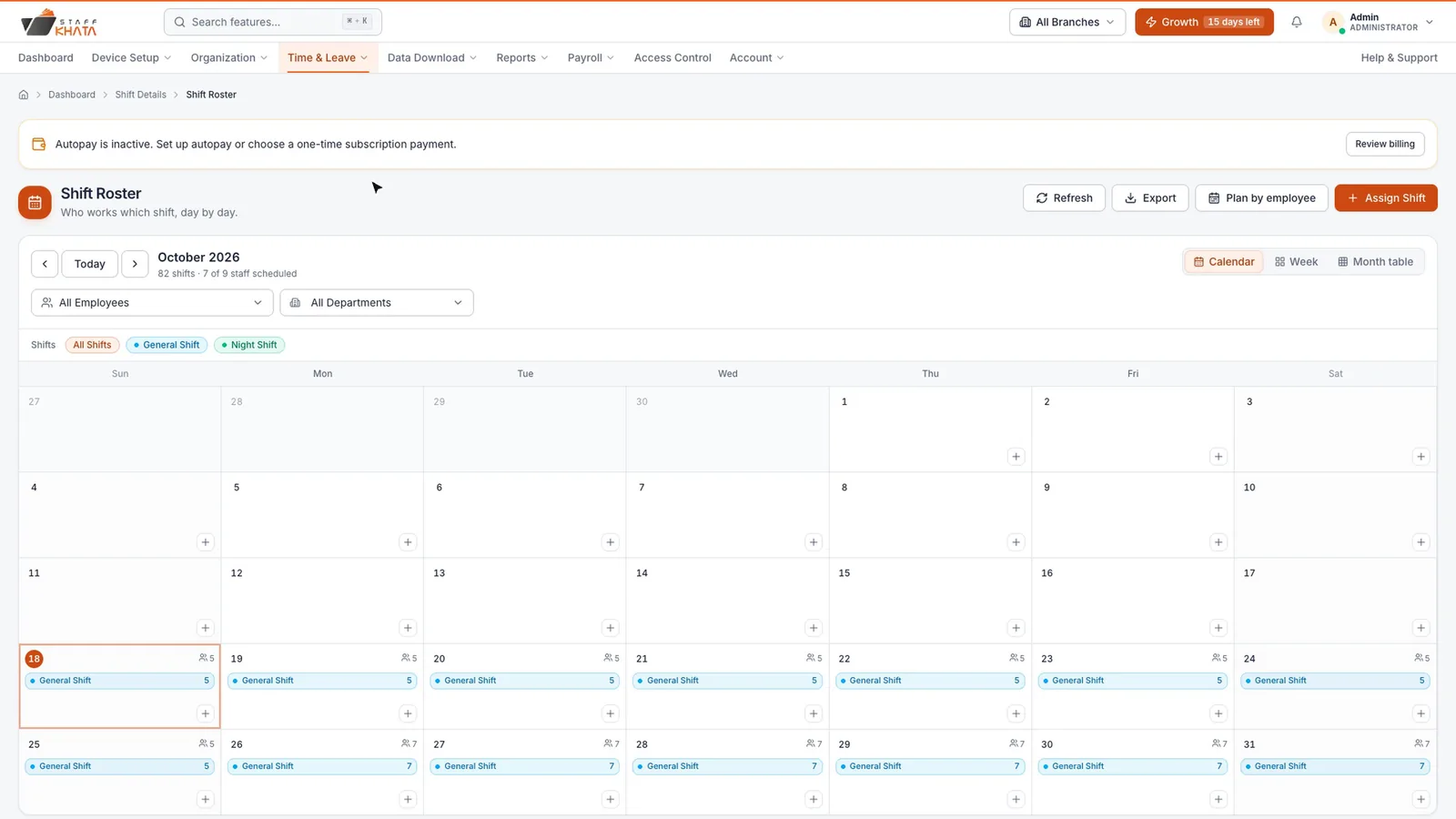
The Shift Roster is a calendar of who works which shift, day by day.
- Click Time & Leave → Shift Roster. Switch between Calendar, Week and Month table views, and filter by employee, department or shift.
- Click Assign Shift.
- Under Who, pick Employees one by one, or Departments to take a whole team.
- Choose the Shift.
- Under When, choose One day, Date range or Pick dates, and set the date.
- Click Assign Shifts.
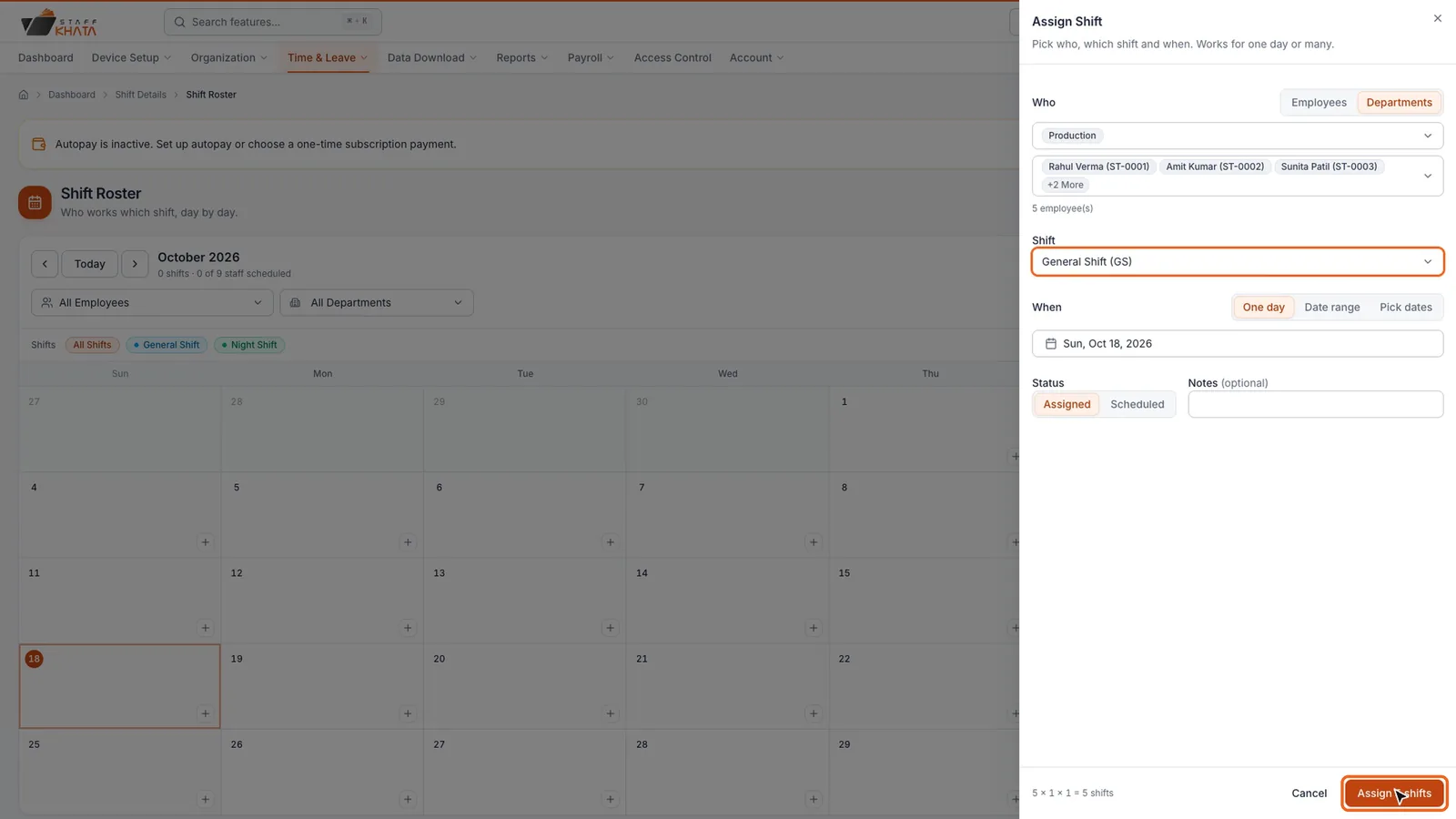
A shift you assign applies from that date onwards, until you assign a different one. Time & Leave → Shift Assignment opens the same panel directly.
Plan ahead with the shift planner
The planner is quicker for filling a week or a month for many people at once.
- Click Time & Leave → Shift Planner.
- Pick Departments or Employees, then a From and To date, or click This week, Next week, This month or Next month.
- Click a shift under Pick a shift, then click days.
- Click individual days, or click Fill range (skip weekly offs) to fill every working day at once. Fill every day includes weekly offs.
- Click Save in the bar at the bottom.
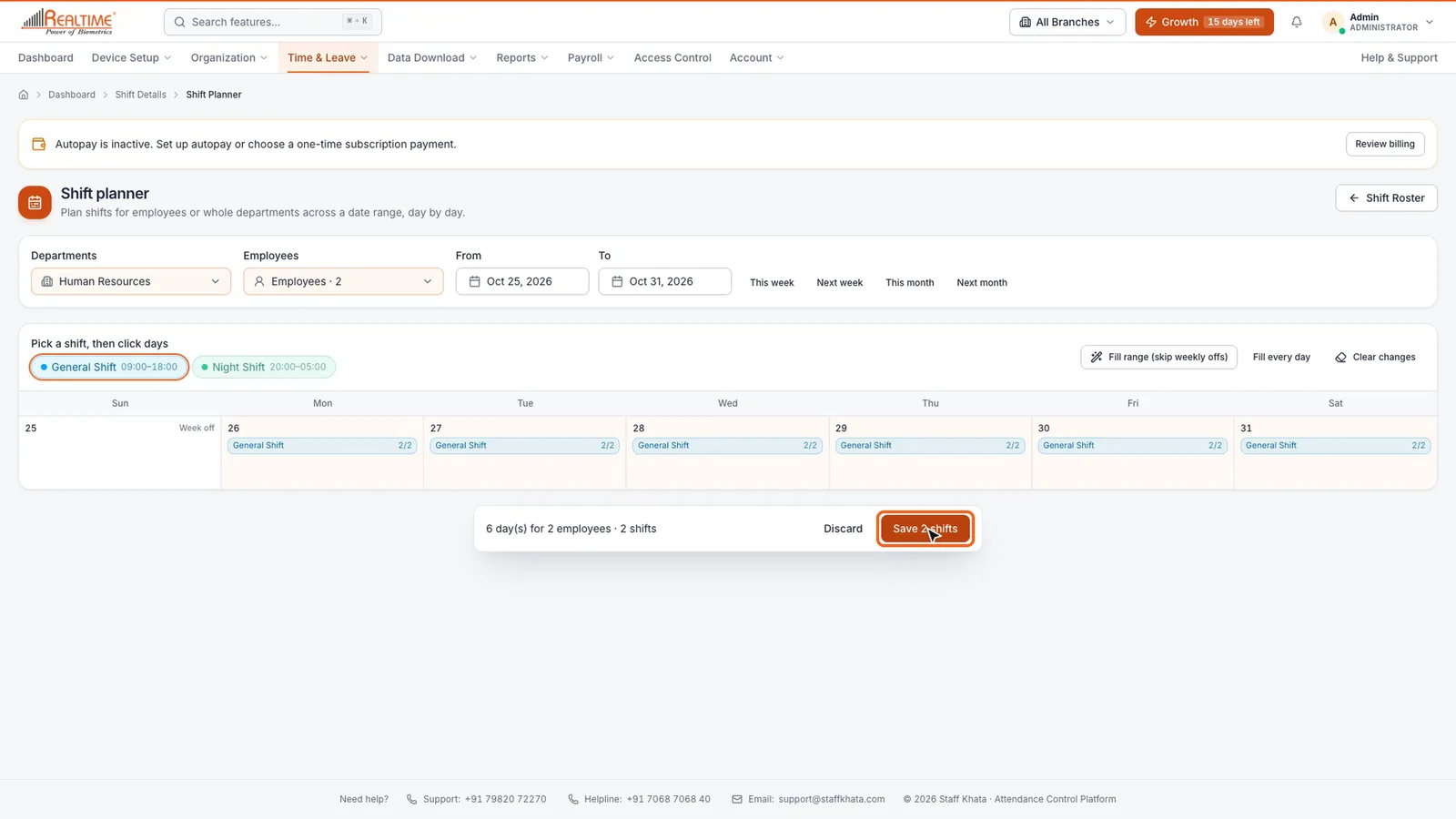
Back on the roster, every planned day now shows its shift.
Set overtime rules
Overtime rules decide how extra hours are paid in payroll. Turn on Enable Overtime Tracking first; see Attendance rules.
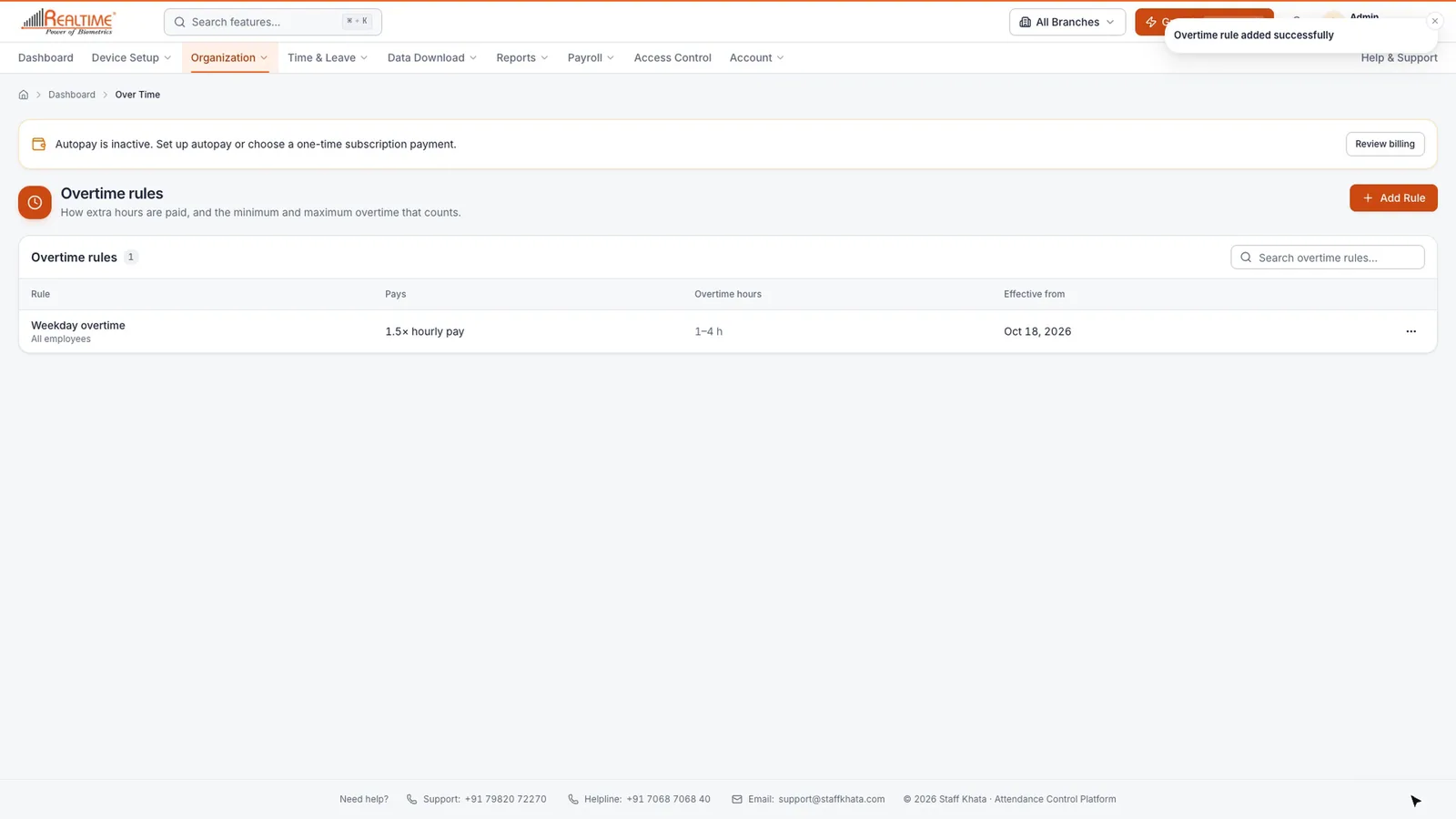
- Click Organization → Over Time, then click Add Rule.
- Enter a Rule name, such as "Weekday overtime".
- Under Applies to, choose All employees or Some departments.
- Under Pay as, choose how each overtime hour is paid and enter the rate:
- Multiple of pay: for example 1.5 × hourly pay.
- Percent of pay: for example 150% of hourly pay.
- Fixed amount: the same amount per hour for everyone.
- Set Minimum overtime (h) and Maximum overtime (h). Only extra hours in this band count, for example 1 to 4 hours.
- Set Effective from, then click Add Rule.
Plan needed: Overtime may need a higher plan. See Billing & Plan.
Next, see how employees punch in on the mobile app.
Still stuck? Raise a ticket from Help & Support inside the app, or contact us at staffkhata.com/contact.